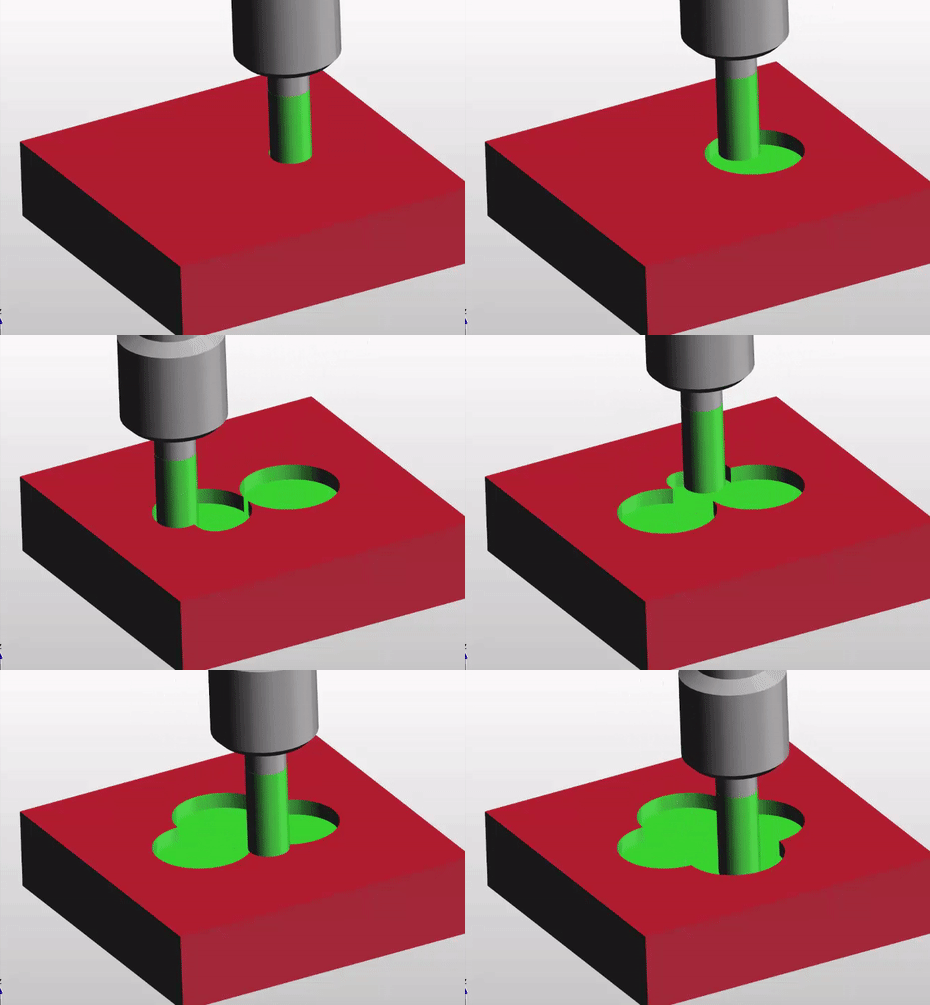
There are several ways of Loading Tools on a Doosan DNM. The first is the most simple. Don’t forget this is random tool changer so it’s no good looking in the tool drum. Read this article first if you don’t understand how a random tool changer works.
Just call out the tool you want for example T6 M6 and then load your tool. Your tool has now become T6.
M45 To The Rescue
The other way of Loading Tools on a Doosan DNM is to use M45
Loading Tools on a Doosan DNM Access Tool Table
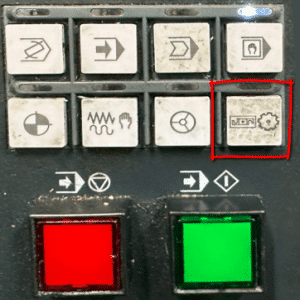
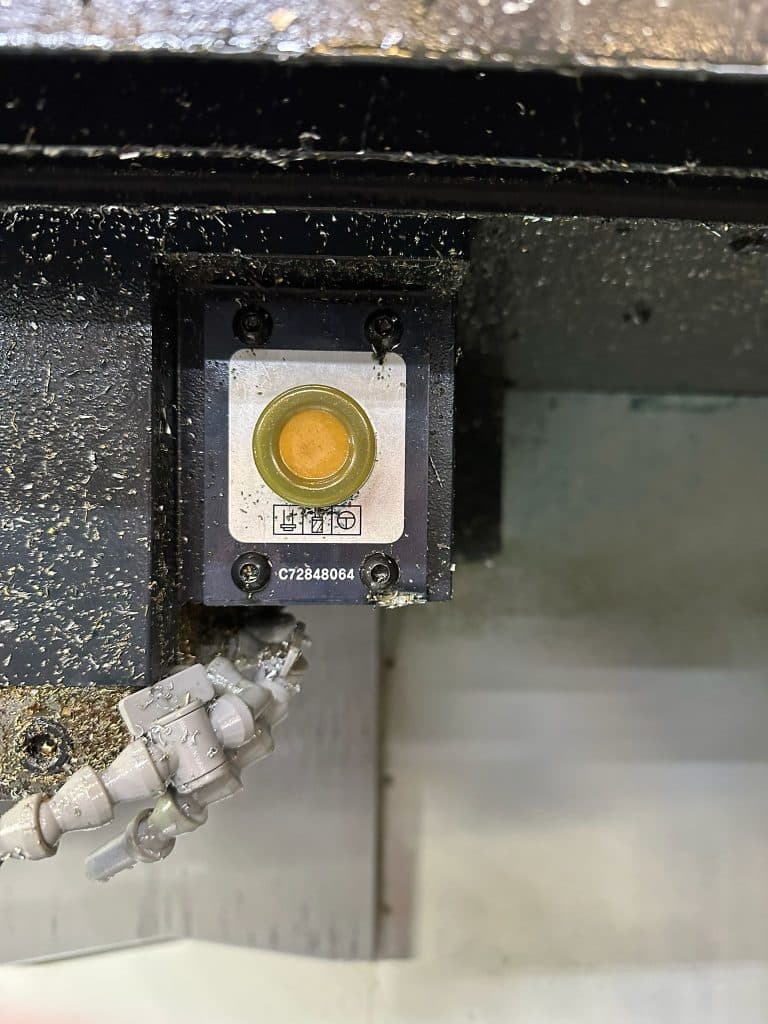
So to acces the tool table on a Doosan DNM press this button.
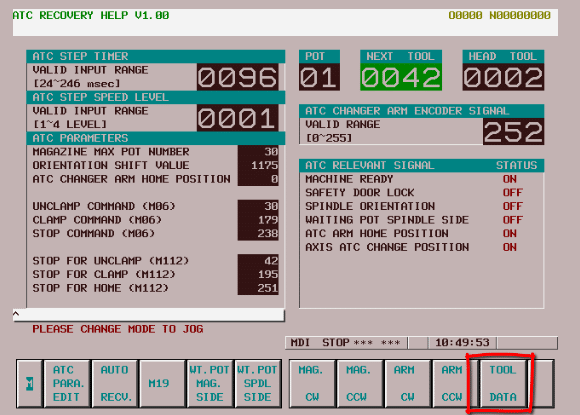
This screen is displayed.
Press TOOL DATA button
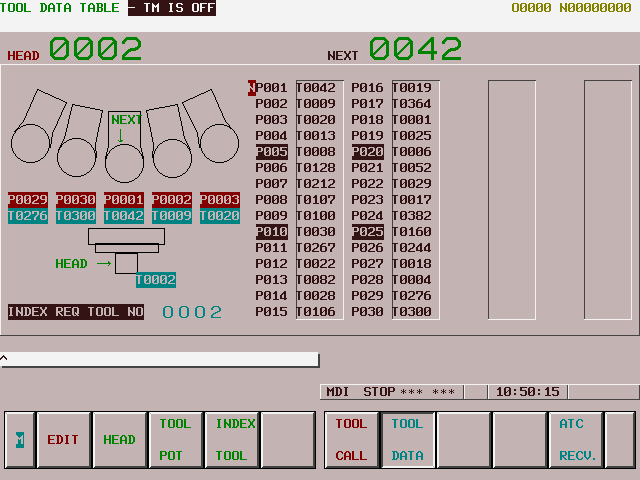
This is your tool table that tells you where everything is in the Doosan Tool Drum.
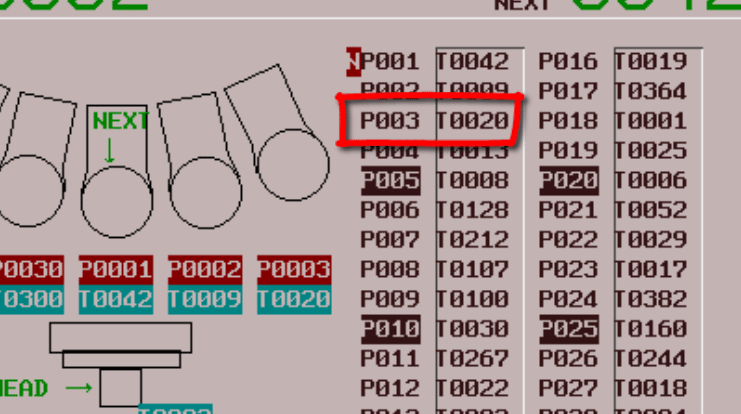
This tells me that T20 (Too20) is in pocket 3 (P003).
Love It Or Leave It
From this screen you can decide what tools you want to keep and what tools you want to replace.
It’s a good idea to keep an actual list of what tools are in your machine.
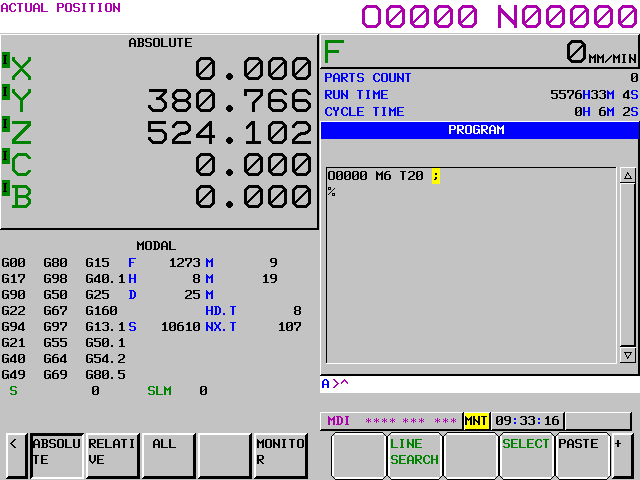
If I wanted to use pocket three then call it in MDI tool 20 (M6 T20).
Now you can load your tool, if the pocket is empty, or exchange it with this tool.
This button will release the tool if you are in a manual mode.
The tool can be heavy or stick in the spindle so be prepared for it to drop. It may be heavy so you could put a piece of wood under it to support i
From now on your tool will be tool 20 (T20).
Please don’t call it anything else because it will just ignore you.
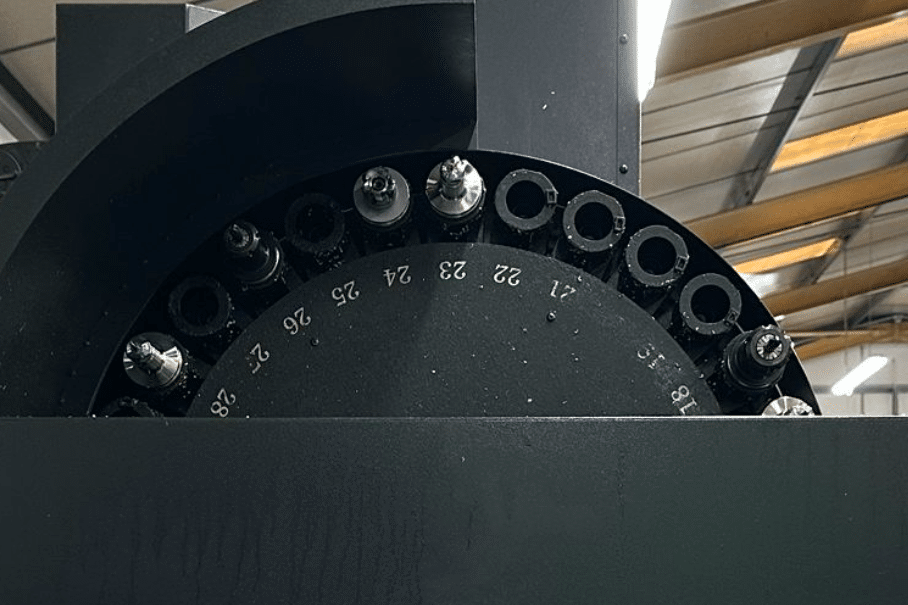
Doosan Access Tool Table. Now you probably already know that when you have a random tool changer it’s hard to know which tool is which. You look round the side at your tool drum and the numbers make no sense.
Random Tool Changer That Sounds Dodgy
No it’s not dodgy it just confuses the shit out of any one who is not used to this type of machine. I means that the tool number you are using bears no relation to the tool numbers in your tool drum.
Confused? Well you should be by now.
Doosan Access Tool Table
The machine picks up a tool and swaps it with the tool in the spindle. It then puts that tool back where it go the last one from.
Why you may be asking. Well it obviously makes the tool change faster because the drum does not need to rotate. You can preload your tools by just adding a T number anywhere before your tool change. That means you next tool is ready. All the machine needs to do is swap em. Job done.
Now for me I can’t even remember if the wife told me to get a pint of milk or a pizza on my way home from work. Therefore keeping track of these tools is absolutely impossible.
Good News Doosan Access Tool Table
You don’t need to. Our clever little machine remembers it all even when it’s turned off.
Seek And Ye Shall Find
All you need to do is ask for a tool and the machine will get you the correct one. Just don’t look at the drum, promise me.
Looking at the drum is like being on a 100ft cliff and looking down. Just scares the fuck out of you.
Well Set Out CNC Code is really important. It can save lots of time spent trawling through code trying to find the section you’re looking for. Simple things like leaving gaps after the tool change line can really help.
The program runs exactly the same but……
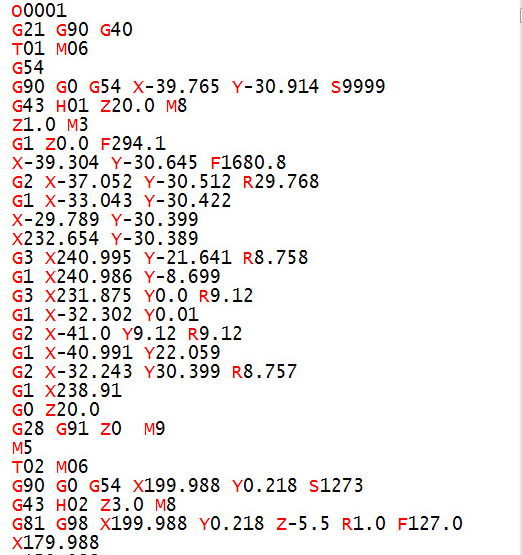
Look at the two examples of the same program
Well Set-Out
Uncluttered CNC Code
Not Well Set-Out
Cluttered CNC Code
Notice where the gaps are.
They give clarity to what’s happening in your program.
Try to create your own convention and always lay your program out in the same way.
Notice how your eyes are drawn to the tool change lines. These are usually the first things you are looking for.
Read On
It’s like reading a book without paragraphs, and page numbers. It also makes it easy to spot mistakes with well set out CNC code.
Dog reading a book
This is my dog, his name s “Get Back Here You Bastard”
See if you can find the simple error in the well set out code and let me know what it is. That way I will know you’re concentrating.
Clue: if you are the fortunate owner of a Haas machine it will spot this for you and alarm out.
Insert meaningful comments. Remember you might not see this code for two years and you won’t remember what you did or how you were thinking at the time.
When you eventually come back to this code you’ll be scratching your arse for hours trying to figure it out.
You’ll think:
“Why the fuck did I do that”
A little comment will explain everything
An Elephant and my wife never forget
Come on Get a Grip
Yes you will figure it out eventually but that’s the same with the human genome project.
It takes time to remember what you were doing
Why do I need Well Set Out CNC Code (Things To Do)
Leave gaps at strategic points in the program.
Loads and loads of comments, write them as you would say it, (don’t try to be posh).
Make the tool change lines stand out these are the key points.
Use N numbers at strategic points so that you can easily find things.
Don’t use too many N numbers or you will get confused they are like E numbers they can drive you crazy. They also take up loads of memory.
The machine setter and operator are your customers and you need to make their lives as easy as possible. Give em code that’s easy to read.
If your writing X50. Y50. Z50. don’t write Z50. Y50. X50. Yes it will run OK trouble is it’s bloody confusing.
Someone suggested adding M01 after each tool so I’m adding this in. (Thanks Michael)
An M1 or M01 is an optional stop which means you have the choice to stop at each tool. (Very useful if you want to stop at the next tool and you can’t stand around.)
Continuity
When you arrange the program in the same way every time it will be easy to spot mistakes. If you always put your spindle start and speed at the end of the first position line like this.
G90 G0 G54 X50. Y50. S1500 M03
Were you to miss out the speed you would have a very good chance of noticing it because the line will look wrong.
G90 G0 G54 X50. Y50. M03
Tidy neat code is the same as a neat tidy workshop. It’s much easier to find things.
On a Fanuc or Haas control G02 G03 are the two G codes we use to move around clockwise and counterclockwise circles. You don’t need the leading zeros so from now on I will call them G2 and G3.
And by the way never use the letter O it’s number zero
GO2 GO3 looks almost exactly the same as G02 G03. But your control will blow it’s mind and get real mad with you.
It will also do some really weird shit like trying to start a new program. Anyway just don’t do it.
Oh and please don’t call it interpolation as it annoys the shit out of me.
Linear interpolation is movement in a straight line.
Circular interpolation in moving in a circle.
Interpolation is movement.
30 five star ratings on Google (just saying)
Now that’s the telling off out of the way let’s move on. It’s ok I don’t hold a grudge.
Which one of you bastards said interpolation?
Let’ Talk About Milling A Shape
When you are milling a shape and you want to move in a circular motion you use G2 or G3
For a clockwise arc use G2 and for a counter clockwise arc use G3.
They both work the same way. On a modern control you programme the endpoint (an XY figure on a milling machine) and the radius you require.
Then your CNC controller magically creates your circle. You can programme any arc like this with one exception.
Do you know what it is?
Ok I will tell you later, it’s OK to not know. (Just means you are little thick).
Lets go back to school.
Remember construction? Of course you do.
We are going to mill the top section of this part
Let’s see what the control has to do to work out where the centre of the circle is.
It knows its current position and in your G3 line you tell it the end point and the radius you want.
Well it gets out its little compasses and draws two circles at the radius you told it.
It positions the compass first on the start point and draws an arc. Then on the end point and draws an arc.
Where these two arcs cross it places the point of the compass. Now it can strike an arc that touches your start point and your end point.
Get yourself a pair of compasses and try it. It’s great fun.
That’s how the maths works.
Tell me did you really believe that inside your CNC machine there is a little man with a pair of compasses?
Fuckin hell I give up.
Sorry I lied it’s all done with simple trigonometry. But at least I tricked you into understanding the principle.
So you should now begin to work out why you get an alarm when the radius is too small. Your two arcs just don’t cross. In other words you are trying to fit an arc between two point that simply miss one another.
G2 G3 No Pot of Gold
Your control will give you an alarm “End Point Not Found” which makes sense because it can’t find one. It’s like the pot of gold at the end of the rainbow.
Oh Before you Go More on G02 G03
What about the question. When can you not use endpoint and radius with G02 and G03 ?
Answer: When you want to machine a full circle using G02 and G03.
You can do it but you would have to break it into two halves. I’m not going to explain anymore because this method is for wimps and peole who can’t be arsed to read my articles.
You know who you are, ordering Chicken Korma in an Indian Restaurant.
Well…… what follows is a full, blow your bollocks off, shit your pants the next day, vindaloo.
And Now Ladies and Gentlemen the Infamous I and J
At the CNC Training Centre we don’t get too excited about I and J when it comes to programming circles. That’s because you don’t need to worry your pretty head about it anymore. You almost never need it.
Did he say almost?
Well yes almost. You could programme forever and never bother about using I and J with G02 G03. So just go off and watch some porn for awhile and I will explain to the real programmers when you can use it.
In the old days I and J was the only way to programme an arc. You would tell the control where the centre of the circle is and the endpoint. This is cumbersome and a bit tricky. That’s why I’m not telling you about it.
Anyway one really good simple way to use I and J is for a full circle. Oh and it’s bloody easy. That is once I’ve explained it to you.
When I was a boy hundreds of years ago I had a toy called a Spiro Graph.
Spirograph those were the days
It consisted of a series of plastic gears. You stuck your pen in a hole in the gear and rotated it around another gear. With a bit of practice you could make some really nice pictures. Kept us happy for hours. The crime rate dropped dramatically in my area when these things came out.
What’s this to do with CNC programming you ask? Well if you tried to use end point and radius for a full circle this is what you would get:
If your start point was X0 Y0 you would program G3 X0 Y0 R100. assuming radius was 100mm.
So in a full circle your endpoint is the same as your start point. There are millions of circles the computer could pick. It would be just like the shapes above. If you do the compass trick you will see what I mean. That’s why it’s impossible.
In Comes I and J
So some clever bloke thought fucks this I’ll invent I and J.
If we use I and J there are four options as above.
You would simply program as below for a full circle (20mm Radius)
G3 I-20.
G3 I20.
G3 J20.
G3 J-20.
And that’s it.
So these are the four options
So there you have a fantastic way to programme a full circle without having to break it down into two halves or be clever like a newsreader or some twat off mastermind.
Why do you only need the I and not X and Y Dave?
For fucks sake don’t call me Dave my name is David.
I had this really nice guy phone me from Africa the other day. He explained to me that he needed to get his inheritance of 10 million pounds out of England and if I helped him he would give me £20,000. All I had to do was give him all my bank and credit card details. Oh and a small one off payment of £1000.
Of course I agreed, what a bargain. Just as I was about to do this the cheeky bastard called me Dave.
I immediately told him to fuck off. I just hate being called Dave.
I gave him my 96 year old mothers phone number because I thought at least she can benefit from it all. Her name is Mary so he couldn’t shorten that. She only has £1200 in savings so it would be doing her a massive favour.
Explanation
You don’t need to re-state the X and Y because you are already at the endpoint
If you’re looking to enhance your CNC machining skills or start a career in precision engineering, these CNC courses are the perfect opportunity.
Based in Barwell, Leicestershire, THE CNC Training Centre offers hands-on learning with real CNC machines and simulators, ensuring you gain practical experience in CNC milling, turning, and advanced mill-turn operations.
Why Take a CNC Course?
CNC (Computer Numerical Control) machines are essential in modern manufacturing, used in industries such as aerospace, automotive, and medical engineering.
Learning how to program and operate CNC machines can open up excellent career opportunities and improve efficiency for businesses.
The CNC courses cater to:
•Beginners looking to enter the industry
•Experienced machinists wanting to upgrade their skills
•Companies seeking to train their staff in the latest CNC programming techniques
What The CNC Courses Cover
We provide two-day intensive training courses, offering a structured learning approach to CNC programming and operation. Our 2026 courses include:
•Introduction to CNC Programming – Learn the basics of G-code, tool paths, and setting up CNC machines.
•Advanced CNC Milling and Turning – Focus on complex multi-axis machining, tool compensation, and cycle optimisation.
•Mill-Turn Programming – Master advanced mill-turn techniques on real machines.
Why Choose Our CNC Training?
•Expert Instructor – Experienced CNC machinist who offer industry-relevant insights.
•Small Class Sizes – We ensure personalised instruction to maximise learning.
•CNC Training Centre is equipped with the latest CNC Simulators.
Enrol in a CNC Course Today
Whether you’re a beginner or an experienced machinist, these CNC courses will help you improve your skills and stay competitive in the industry.
Contact us today to book your place on our next CNC course and take the next step in your machining career.
Get in Touch
Start your journey in precision machining today with our expert-led CNC training!