CNC Milling M Codes List For Beginners

CNC Milling M Codes List For Beginners

CNC Training Call David: 07834 858 407

30 Five Star Reviews

CNC Training Centre Reviews

Contact CNC Training Centre


CNC Milling M Codes
List of M Codes for a CNC Milling Machine

Download CNC Milling M Code List

This is my list of CNC Milling M Codes and you will notice there aren’t many.

That’s because you don’t actually need many.

M Codes are used to turn things on and off on a CNC Milling Machine. Sometimes known as miscellaneous functions.

A typical M Code would be M03 which would start your spindle forwards.

M04 would be reverse and guess what?

M05 is stop the spindle.

There, you learned three already.

You don’t need the extra zero so I advise you leave it out, program M3 M4 M5.

It really doesn’t matter but….. You could be wasting memory space or wearing out the tips of your fingers.

Here’s what I think about leading zeros.

M codes are the Snow Leopards of CNC Machining

Snow Leopards are Solitary Animals

Snow Leopards only ever get together to mate, they don’t even have a Christmas party or get pissed on a stag night.

With M codes they hate being on the same line of code. If they are then they will fight to the death.

Tigers Playing

Please note no animals were hurt in the making of this post.

There are exceptions to this rule, M Codes that is, but please don’t overload yourself with this at the moment.

Just trust me.

The first one in the block usually wins but I can’t  guarantee it. So you could get some crazy shit happening.

G90 M8 G0 G54 X0 Y0 S1500 M3;

You wouldn’t even get an alarm on most controls and it may just obey the first M Code it sees and ignore the last one.

The other thing to note with M Codes is that it makes no difference where they are in a block of code.

So if you put your M Code at the front of a block of code.

M3 S1500 G0 X0 Y0;

Or the end.

G0 X0 Y0 S1500 M3 ;

The spindle will start according to the logic of the machine not where the M Code is in the block of code.

The Boring CNC Milling M Codes

That’s my list of M Codes the rest are really boring doing stuff like changing gear ranges and stuff.

Download CNC Milling M Code List

Sorry I’m being flippant again.

CNC Milling M Codes Where Are The Rest?

Sorry you can’t have them. The reason for this is that they are different depending on what machine they are on.

CNC Milling M Codes
Hand Em Over

For example this beast is a Mazak Megaturn

CNC Milling M Codes
Mazak Megaturn

It Has a Gearbox.

To change gear you program M41 M42 and M43 for the different gears

M40 is neutral. Now on machines with gearboxes they do normally use these same M Codes.

However they can be different.

M10….. mmmm well that’s normally a clamp.

I think you get the picture. It is up to the machine tool builder.

It is best to get a specific set of M Codes from your machine manual.

The manual by the way is that book that nobody ever reads, it’s usually at the bottom of a bent up old filing cabinet.

Please Don’t Read It

I’ll read it for you then charge you a shit load of money for training.

Click here for CNC Training

Joking aside please don’t be arsed to learn a load of M Codes you will probably never use.

Well Commented Programs

Try to put M Code descriptions in your program. That way you won’t need to keep looking them up. A part transfer on a CNC Lathe is a good example, there are an absolute shit load of em.

They are everywhere. If you put a meaning to each one in brackets it will make proving the program out really easy. Oh and if you have a CAM system then change your post processor to output them for you.

M11 (OPEN CHUCK)

M10 (OPEN CHUCK)

etc etc

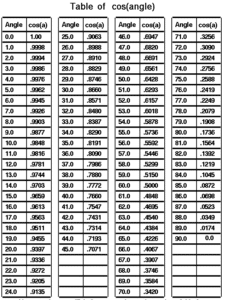
I had a boss once who actually learnt sines and cosines of angles.

Cosines of Angles

Holy shit I mean it’s impressive and I must add in 1975 it was actually worth doing because we didn’t even have calculators.

Hope you enjoyed reading my article on CNC Milling M Codes.

Please remember that it keeps me occupied and while I’m writing these articles I am not holding you up in the supermarkets queue trying to find a coupon for 10p off my incontinence briefs.

Download CNC Milling M Code List


Cutter Compensation

CNC Training Call David: 07834 858 407

30 Five Star Reviews

CNC Training Centre Reviews

Contact CNC Training Centre

Cutter compensation explained.

This is a video explaining cutter compensation in CNC programming.

You will come across various terms to describe this such as:

  •  Tool cutter comp.
  •  CNC cutter comp.
  •  G41 G42 cutter compensation.
  •  Cutter diameter compensation.
  •  Cutter radius compensation.
  •  Heidenhain RL RR.

Cutter compensation is referred to as cutter diameter compensation and cutter radius compensation

Haas cutter compensation, Fanuc cutter compensation and Mazak cutter compensation all work in the same way.

Although Heidenhain cutter compensation or Heidenhain cutter comp looks different. In the programme it functions in exactly the same way.

Cutter Compensation

In the parameters or settings of your control you can set up your system to use the radius or the diameter of your cutting tool.

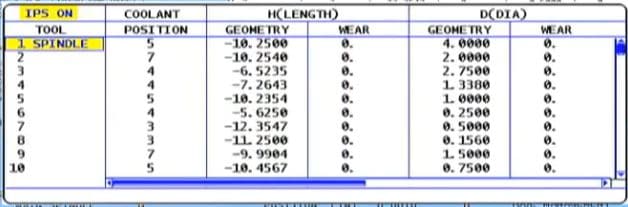
This means that when you input the data for your cutting tool in your offset table you can use the diameter or the radius of the tool.  This depends on your settings.

Cutter Compensation

When people talk about cutter compensation G code they may say “cutter comp G code” it’s often shortened.
(Cutter compensation G code)
The G codes used in this video are:

  •  G41 cutter compensation left
  •  G42 cutter compensation right
  •  G40 G code to cancel cutter compensation

This Video shows you :

  • How to program G41.
  • How to program G42.
  • CNC cutter compensation examples.
  • Cutter compensation Heidenhain style.
  • Heidenhain RL RR.

We always recommend that you climb mill so you will be using G41 most of the time.

Milling the outside of a square using G41.

Cutter Compensation

Milling the inside of a square using G41.

Cutter Compensation

Milling the inside of a square using G42 (should you want to conventional mill).

Cutter Compensation

Milling the outside of a square using G42 (should you want to conventional mill)

Cutter Compensation


The rules when using compensation on a CNC Milling machine.

Rules are the same as the tool nose radius compensation on a CNC Lathe.
If you programme a shape and you do not use cutter compensation you will have to work out the size of the shape with your tool radius added.

This is simple on a square sided figure or a simple radius. Anything more complex and it’s a nightmare.
I just heard some smart arse say “Ah well my CAD system takes care of that”.
So it should my friend but, and there is a but:

  • What will you do when your cutter wears?
  • What if you want to use a different size cutter?
  • The cutter may not run true.
  • What if the cutter is not exactly size?

In the old days of paper tape and Corned Beef we as programmers would write several programmes.

This was so that we could re-grind the milling cutters in fixed increments. A different programme could be used each time the tool was changed.

Sorry I can’t talk about this much longer as I still have the nightmares (mainly about corned beef sandwiches).

Cutter Compensation


Anyway enough of that. So when we machine our first profile we can add some on to the tool radius in the offset file. When we check the part we can adjust the offset and re-cut the profile to achieve an accurate result.

The Rules:

  • Shape must be continuous and consistent.
  • You can’t cut along a line and then go back along it.
  • It’s important to allow more than the tool radius when entering tool compensation. The same applies when you come out of tool compensation.
  • Internal corner radii and steps must be greater than the tool radius.

Always allow more than the radius because when you adjust it it may be larger than the actual tool you are using.

Don’t ask

For example if you have a 12mm endmill but you have .2mm in the wear compensation. The machine thinks that the tool is 12.4mm in diameter.

You can’t do this in cutter comp:

Cutter Compensation

You would have to apply one cut in G41 and cancel with G40 then do another cut in G42 and cancel with G40:

Cutter Compensation

Call 07834 858 407

Please contact me if you require:

  • Fanuc training.
  • CNC programming training.
  • Want to Learn CNC programming.
  • Fanuc programming   training.
  • Yasnac programming training.
  • Any type of CNC course.

Don’t forget to watch my Tutorial Videos

Services offered at CNC Training Centre

Edgecam training.

Classroom programmer training.

Onsite CNC Machine Training.

CNC Training on all controls and machines.

Mazak Training Fanuc Training

Don’t forget we offer training on all types of Mazak Machines and all Fanuc Controls 6m to 31i Oi old to young.


Polar Programming G16 Fanuc

CNC Training Call David: 07834 858 407


CNC Training Centre Reviews

30 five star ratings on Google (Just saying)

Polar Programming G16

Polar programming is cool.

No one loves polar bears more than me.

Polar means you are working around a pole. So your programmed position is determined by a radius and an angle.

No use??? Think about it. Polar Programming G16.

Holes on a pitch circle. Mill a hexagon. Piece of piss. Honestly.

Read on….

Polar bears, polar programming here we go. Don’t go too close to polar bears as they have a propensity to rip you head off.

Oh No Polar Programming G16 is an Option

Sorry yes it’s n option. Anyway hopefully you have it. Don’t blame me blame the tight arse who bought the machine.

Imagine you had some holes like this to machine.

Polar Programming G16First thing you need to do is program a G16 to say you want to use polar programming.

G16 on its own means your datum is the centre of the pole (X0 Y0)

G16 X50. Y50. would put your pole centre at X50. Y50.

Anyway we want it at zero which is the centre of this pattern of holes. So it’s just G16.

Once G16 is active then X becomes your radius and Y becomes your angle.

What’s The Time Mr Wolf?

The angle is always measured from 3.15 as below. (If you’re reading this mum sorry about busting your clock but I needed the picture)

And the angle is measured counterclockwise. This applies to all CAD CAM.

So this angle would be Y60. (60 degrees) and the X would be X25. (Radius)

Polar Programming G16

So you program looks like this

Polar Programming G16

Now see it running.

Lets look at the milling in more detail

Polar Programming G16

Note that the distance to the sharp corner is 46.188 The line N1 uses this.

Polar Programming G16

Polar Programming G16 It’s So Easy

Then we just program each position as an angle (no need for the radius because it does not change)

Polar Programming G16

Each point you are going to has a radius from centre and an angle.

Incremental What’s That All About?

Don’t forget this works in incremental as well so be careful (you’re not insured for this)

Incremental

It gets even better when you use the L command.

Polar Programming G16

Polar Programming G16 Action

Now when it comes to the milling it’s so simple don’t you just love this.

Polar Programming G16

Action


What do you think?

G16…..

Add it to your digital toolbox??

Thanks

If you have been affected by any of the issues in this post or need CNC Counselling then contact me.

If you want to learn to program CNC Milling Machines

Look no further Contact CNC Training Centre


G10 Using G10 on a Fanuc Type Control

G10

I am always amazed that so many companies still don’t use G10 in their CNC programs. If you know you know.

I must admit I fuckin hate a lot of the things that young people say like “can I get a Latte”. (Get behind this fuckin counter and make it yoursef if you want to “get it”).

Anyway I kind of like “If you know you know”

No G10… Is this you?

I am sure you have your reasons which I will accept. But if your reason is that you don’t understand it then that’s just not good enough.

So you make a part, it’s all setup and you need to break it down.

If you can fix the work holding in such a way that you can reload it in exactly the same place then you need G10.

Let me explain, watch this video to see how single point location works.

G10 No need to spend loads of money.

You could just bolt a sub plate to your machine table so that vices and chucks etc can have dowels to locate them.

But the main idea is that you can relocate your work holding in exactly the same place every time.

G10
Using G10 on a Fanuc Type Control

This is your work offset page on a Fanuc control.

G10

These figures are written in by hand or by automatic setting.

If you had written this line in your program.

G90 G10 L2 P1 X-440.500 Y-265.200 Z-443.00

They would have been written in automatically when you ran the program.

So the work offset page could have any values in G54 but as soon as you run your program this G10 command will replace them with its preset values.

Make Sure Your in Absolute

Try not to forget the G90 (Absolute) because you may accidentally be in G91 (Incremental). What would then happen is it would add these numbers to what is already in the work offset. Oh dear me.

In G90 it will always replace them.

You can write to G54 G55 G56 G57 G58 or G59 just by changing the P number.

G90 G10 L2 P1 X-140.600 Y-265.923 Z-400.00 (G54)

G90 G10 L2 P2 X-125.500 Y-236.865 Z-313.865 (G55)

G90 G10 L2 P3 X-800.500 Y-563.200 Z-125.00 (G56)

G90 G10 L2 P4 X-440.500 Y-265.200 Z-169.369 (G57)

G90 G10 L2 P5 X-440.500 Y-265.200 Z-123.568 (G58)

G90 G10 L2 P6 X-410.500 Y-235.200 Z-443.00 (G59)

The code above would setup all six work offsets.

“Read More”

Learn CNC Canned Cycles G81 G84 G73

Learn CNC Programming (Canned Cycles)

Call David: 07834 858 407

CNC Training Centre Reviews

A Canned Cycle What is It?

If you want to learn CNC programming  then you need to know what a canned cycle is.

I’m going to have to be honest here it is a funny choice of words “Canned Cycle”. But a wild guess would be that all the information to drill a hole would be kept together in a “Can” ready to use.

In a Can…….Learn CNC

So let’s learn CNC Programming….

Make sure you read the end of this article to see a really cool way to drill equally spaced holes.

First of all we state the cycle:

G81 Z-20. R1. F100. X50. Y50. F200.

The machine will move to X50. Y50. then rapid to 1mm above the part (this is the R1.). It will then feed down to Z-20. at a feedrate of 200 mm per minute F200.

Finally it will rapid out of the hole.

It then sits ready for the next move.

dog-163527

All you need to do now is just keep giving positions.

G81 Z-20. R1. F100. X50. Y50. F200.
X60.
X70.
X80.
X90. Y60.
G80
The G80 at the end will cancel the canned cycle. It just means “Look I am a bit pissed off with drilling holes so can you stop”

So that’s it Canned Cycles it really is that easy you put all the information in the “Can” then each time you give a position you get another hole.

Want to know More?

Thought you would. You want to learn CNC programming don’t you?

There are loads of these canned cycle but I am not going to talk about every one in detail. No sorry you will have to read the boring old manual for that.

Not to Worry They Are All The Same

Well sort of. You state the cycle then it repeats at each position given until you cancel it (and that applies to all the cycles).

Anyway Here are a few:

G84 taps holes, tell it the pitch depth usual stuff.


G73 peck drilling is the same as drilling (G81) but you give it the peck depth.It pecks the hole breaking up the swarf.


G83 same as G73 but with each peck the drill comes right out of the hole. For deep holes or swarf that clogs.


G76 bores a hole, stops at the bottom, moves over and rapids out to avoid marking the bore.

Ok let me tell you this, you are doing great so far. This is how we learn CNC programming. Nice small steps.

G98 G99

I already wrote a post on this click to see it all (it’s truly amazing). I purposely didn’t include it in the cycle above which is ok. The idea was to keep it simple.

 G43 Z50.H1 M8

G81 G98 Z-20. R1. F100. X50. Y50. F200.
X60.
X70. G99
X80.
X85. G98
X90. Y60.
G80

g98gif

All it is in a nutshell. G98 returns to the Z point you were at before you started the canned cycle.

G99 will return to the R point (R1.)

Why you ask?

Easy you can jump over shit.

Clamps, high sections on a part, tall buildings, anything.

spiderman-1579249

It Gets Better.

G81 Z-20. R1. F100. X50. Y50. F200.

The Z-20. the R1. the feed-rate etc are all known as parameters. These are the things that control your cycle.

These can be altered at anytime and stay in until you alter them again or cancel the cycle.

G81 Z-20. R1. F100. X50. Y50. F200.
X60.
X70. Z-30. (From here onwards the holes are drilled 30mm deep not 20)
X80.
X90. Y60.
G80

Now let’s alter the feed

G81 Z-20. R1. F100. X50. Y50. F200.
X60. F300. (Change feed)
X70.
X80.F200.(Change it back)
X90. Y60.
G80

Remember it stays in until you say otherwise.

I Think you Now Need to Learn About Modal Information

Read the above article. Modal means that the information stays in the control until you cancel it or change it.

Do’s And Don’ts

Do Not………

Put in a rapid command G0 X50. Y50. it will cancel your cycle and the machine will just sit laughing at you. (No hole drilled).

See this post G0 cancels canned cycle.

G81 Z-20. R1. F100. X50. Y50. F200.
X60.
G0 X70. (Rapid to X70. no hole drilled)
X80. (Rapid to X80. no hole drilled)
X90. Y60. (ETC)
G80 (You already cancelled the cycle with G0)

Do Not Repeat Axis Moves. 

G81 Z-20. R1. F100. X50. Y50. F200.
X60. Y50. (Don’t need Y50.)
X70.
X80.
X90. Y60.
G80

D0…….

  • Always use a canned cycle if possible it saves loads of time. It is also really easy if you need to edit anything.
  • Make your CAD/CAM system output canned cycles, not long hand code. I saves loads of time if you need to edit.
  • Love engineering and be nice to your cat.

 Really cool way to drill equally spaced holes

Imagine you need to drill and tap this part. Nine M10 holes.


Learn CNC


Learn CNC


Quite simple but 31.63 added up nine times? Mmmm I never learnt my 31.63 times table.

O0001(Drill and Tap M10)

T01 M06 (20mm Spot Drill)

G90 G0 G54 X0 Y0 S1500 M3

G43 Z3. H1 M8
G81 G98 Z-10. R1. F100 L0
G91 X-31.63 L9
G80
G0 G53 Z0
ETC
M30

Learn CNC Programming? How easy is that?

  • The programme moves to the datum X0 Y0 which is the middle of the part at the right hand end.
  • The G81 has an L0 at the end. L0 is not a Lionel Richie song it just means don’t do one. So it moves to X0 Y0 and does nothing.
  • The next line, G91 means incremental move so it moves incrementally nine times (L9) X-31.63 and drills a hole each time.

Brilliant I told you it was worth waiting for.


Learn CNC


Thanks For Reading

Don’t forget there’s loads more folks.

And a YouTube channel

Call David: 07834 858 407

Learn CNC Programming

Services offered at CNC Training Centre

Edgecam training.

Classroom programmer training.

Onsite CNC Machine Training.

CNC Training on all controls and machines.

Mazak Training Fanuc Training

Don’t forget we offer training on all types of Mazak Machines and all Fanuc Controls 6m to 31i Oi old to young.


Careers in CNC

View all current vacancies in CNC

Click here

Call David: 07834 858 407