Haas Spindle Warm Up Macro

Haas Spindle Warm Up Macro

Call David: 07834 858 407


CNC Training Centre Reviews

30 five star ratings on Google

Warm up Programme

Haas Spindle Warm Up MacroHaas Spindle Warm Up Macro

This Haas Spindle Warm Up Macro is something I created recently for the Macro training course that we offer at the CNC Training Centre. The course covers Macro Programming suitable for Mazak, Haas and Fanuc.

This course will be available online soon.

Please fill out the enquiry form on the right if you are interested.

I must admit I often think that where Macro programming is concerned, a little knowledge is a dangerous thing. I just think it’s more about a programmer’s ego than really getting good code.

This article gives a brief description of macro programming if you just want the Haas Spindle Warm Up Macro then jump to the end and copy it. I won’t be offended, honestly.

Be Careful What you Wish for.

Gratuitous use of macro programming , can be dangerous and very confusing to the operator using it.

If you don’t know what gratuitous means don’t worry neither do I, I just heard a bloke say it on the telly.

  • Using a macro can automate a regular task.
  • Families of parts can be grouped together in one programme.
  • All macros need to be “fool proofed” you must add alarms to protect from erroneous input.
  • Use parameters to lock and protect your macro programmes.
  • Macros can be aliased to G and M codes.
  • Don’t reinvent the wheel every day, just use a macro.
  • Don’t forget to check if you have the macro option on your machine it can be quite expensive to add on.

This macro (Haas Spindle Warm Up Macro) is for the warming up of the spindle on your Haas machine.

It does not take big leaps in speed so it’s smoother and more gradual.

Set the maximum rpm you want to warm up to and the time you want the warm up to run for. You also set the initial speed you want your spindle to start at from cold. Also give it the amount the speed increases per step.

It will calculate the difference between your start speed and your maximum speed. Then it divides this speed by the speed increment that you give it. From this it will know how many times to loop.

Once in the loop it uses the machine timer #3001. It zeros the timer then runs it for the calculated time each step.

Time needs to be set in milliseconds because that’s what the geeks use in these machine timers, so it multiplies by 60,000.

Ideally I suggest you alias it to an M code.

Alias what the fuck is an alias?

No it’s not like changing your name from Reginald Kenneth Dwight to Elton John no no it is a bit more sophisticated.

What does Alias mean.

It means you can access a programme using your own G code or M code.
Mazak Spindle Warm Up Macro

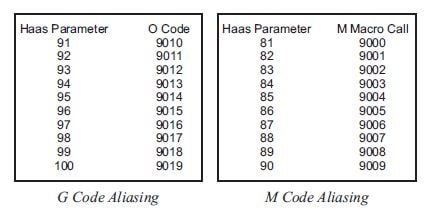
So for example see above. If you put 201 into parameter 91 when you programme a G201 it enters programme 9010. Like programming M98 P9010 or G65 P9010. With a G code you can pass arguments to the programme a bit like G81. In G81 you tell it the depth and rapid point these are the Z and the R values. These are called arguments. So now you can do the same with your very own G code.

G81 G98 Z-10. R1. F100.

Also for parameter 81 (see above) if you put 33 into parameter 81 when you programme M33 the control will jump into programme 9000. You cannot pass arguments when you use an M code. Best not to argue then, I say.

So for my Haas Spindle Warm Up Macro we will use M33 and alias it to programme 9000. So having done all this you can lock out programme 9000 so no one can even see it. (It can be our little secret). They will not be able to edit or delete it either.

All they need to know is that M33 will run the Haas Spindle Warm Up Macro.

M33 is aliased to O9000

A word about testing.

When you test your macro you don’t want your control to look ahead.

Why Does Your Programme Need to Look Ahead?

Let’s talk about cutter compensation:

Below is a tool path where the tool is compensated to the left. To machine the part without cutting into it the control would need to read in front.

Mazak Spindle Warm Up Macro

It moves up the left hand side so it needs to know where its going in advance, moving round the outside in single block it would stop here.
Mazak Spindle Warm Up Macro

If it were about to cancel compensation it would end here.

Mazak Spindle Warm Up Macro

If it were about to go left on the inside it would stop here.

Haas Spindle Warm Up Macro

They would all be the same Y position but in single block it would stop in three different places.

So this explains why the control needs to look ahead. Each move relies on the next one for it’s positioning.

When we write macro programmes and are testing them this look ahead can be a real pain in the arse. You see the system often will know the answer before you think it has seen the question.

Complicated? Read on, I meant to confuse you so it makes me look intelligent.

Please Explain

Right , what we do is to use a G code that will stop the system from looking ahead. We can then single block through our macro and check the calculations as we go.

When we are happy with the code we can let the system look ahead again by turning look ahead back on.

Although what you are doing may be very simple in terms of calculations a very simple mistake can really bugger things up.

Be very systematic in your approach and test each section of your macro as you go. As you are happy that each line works move on to the next.

Try my Haas Spindle Warm Up Macro below. Turn off the block look ahead and the single block restriction and check each variable as it changes. It will help you to understand how the Haas Spindle Warm Up Macro works.

One other thing, plan your macro before you start don’t get too excited and rush on. Keep a record of what variables you have used so you don’t accidentally use a variable twice. Things can get very messed up if you do.

Comment, comment, and more comments to say what the comments mean. You can’t have too many comments in a macro. The best approach is to imagine you were abducted by aliens. Will anyone understand your code if they don’t bring you back to Earth?

If you are like me and you have the memory of a goldfish then you will need them for yourself when you look back at this macro in years to come.

Check out this fantastic article on how to lay out your CNC code and comments.

“The code, give me the code?”  you ask.

OK OK.

So here is my Haas Spindle Warm Up Macro.

Hope it is useful to you.

PLEASE DO NOT USE THIS MACRO IF UNDER 18 OR OF A NERVOUS DISPOSITION

Mazak Spindle Warm Up Macro

Oh by the way if you get bored easily then don’t read all this shit. Just put the code in your machine and enjoy it with my compliments.

Haas Spindle Warm Up Macro

O09000 (Haas Spindle Warm Up Macro)

G103 P1 (NO BLOCK LOOK AHEAD)

#3004= 7 (OVERRIDE CONTROL NOT ALLOWED)
#100= 20. (TIME)
#101= #100 * 60000. (TIME MILLISECONDS)

#102= 500. (RPM FROM COLD)
#103= 7000. (MAX RPM)
#104= #103 – #102 (RPM INCREASE)

#105= 1. (RPM STEP)
#106= #104 / #105 (LOOP)
#107= #101 / #106 (DWELL)
M03 S#102 (Start spindle at initial speed)

WHILE [ #106 GT 0 ] DO1 (DO LOOP)
S#102 (START SPINDLE AT INCREASED RPM)
#3001= 0 (RESET INTERNAL TIMER TO ZERO)

WHILE [ #3001 LT #107 ] DO2
END2

#106= #106 – 1 (COUNTER DECREASES BY ONE)
#102= #102 + #105 (INCREASE SPEED BY STEP)
END1

#3004= 0 (OVERRIDE BACK ON)

G103 P0 (NO BLOCK LOOK AHEAD)

M30 

Very boring so what does it all mean? You ask.

Explanation of my Haas Spindle Warm Up Macro

O09000 (Haas Spindle Warm Up Macro)

G103 P1 (NO BLOCK LOOK AHEAD)
(This will stop block look ahead)

#3004= 7 (OVERRIDE CONTROL NOT ALLOWED)
(Set this to a 7 to stop override of speed.)

#100= 20. (TIME)
(Total time of warm up in minutes)

#101= #100 * 60000. (TIME MILLISECONDS)

#102= 500. (RPM FROM COLD)
(Spindle will start at 500 RPM)

#103= 7000. (MAX RPM)
(Maximum RPM you want the warm up to reach)

#104= #103 – #102 (RPM INCREASE)

#105= 1. (RPM STEP)
(This in the step used as the RPM increases)

#106= #104 / #105 (LOOP)
(Calculate the number of times it goes around the loop)

#107= #101 / #106 (DWELL)
(Dwell time after each speed increase)

M03 S#102 (Start spindle at initial speed)

WHILE [ #106 GT 0 ] DO1 (DO LOOP)
S#102 (START SPINDLE AT INCREASED RPM)
#3001= 0 (RESET INTERNAL TIMER TO ZERO)

Haas Spindle Warm Up Macro

WHILE [ #3001 LT #107 ] DO2
(TIMER COUNTS DOWN BY DWELL TIME)
END2

#106= #106 – 1 (COUNTER DECREASES BY ONE)
#102= #102 + #105 (INCREASE SPEED BY STEP)

END1

#3004= 0 (OVERRIDE BACK ON)
(Override works again.)

G103 P0 (BLOCK LOOK AHEAD)
(This will put block look ahead back on)

M30

Single Block

You can stop single block from working in a macro.

It is really annoying if you expect your spindle to warm up in 20 minutes. You come back having made tea cos you left the machine in single block.

“Shit” (expletive of your choice) “the machines been on single block and stopped on 500 rpm for 20 minutes”

#3003= 1 (SINGLE BLOCK OFF)

#3003= 0 (SINGLE BLOCK ON)

Stop single block is used in a G84 tapping cycle. There is a thought, imagine using single block when tapping. (You may need to think about that one)

I also have suppressed spindle override because you want the correct speed in a warm up programme. So your override control won’t work until it’s cancelled again at the end of the macro.

Again this is used in G84.

If you read the code and explanations above you’ll see how it works.

Haas Spindle Warm Up Macro

Oh and by the way here is a similar article for a Mazak machine.

Services offered at CNC Training Centre

Edgecam Training.

Classroom programmer training.

Onsite CNC Machine Training.

CNC Training on all controls and machines.

Mazak Training Fanuc Training

Don’t forget we offer training on all types of Mazak Machines and all Fanuc Controls 6m to 31i Oi old to young.


Haas Programming Training

Haas Programming Milling and Turning

CNC Training Call David: 07834 858 407

CNC Training Centre Reviews

30 five star ratings on Google (just saying)

Haas Programming, the Haas CNC control is very similar to Fanuc and all other ISO type controls. There are settings that you can alter to change its behaviour. This means that you can get it to perform in a similar way to your other controls.

Haas Programming

It is really useful if you need to be able to transfer programs from one machine to the other. It is well worth taking the time to get all your controls to function in the same way.

Link to all Haas settings.

That is probably the major downfall in using some of the special features that different controls have. It is always worth considering this if you are using some unique feature. It may not work on your other controls.

This is why a lot of people use the ISO option on a Mazatrol (Mazak) machine. It means that you can take programmes from your Fanuc or Haas machine and run them on your Mazak. With careful consideration to all your controls this flexibility can be achieved.

Haas Programming

Learning Haas Programming

The Haas control for example has a corner rounding feature whereby you programme a shape as if it has no corner radii. You then add the corners on as an afterthought.

Personally although this sounds very useful in practice it isn’t that common for a drawing to show intersection points. I think the best use is on a square shape. You might want to use it on a square shape to just break the edges. Certainly when Turning it is very useful for breaking sharp edges.

At the CNC Training Centre we can teach you on or offsite. So we could visit you and offer a training course to suit your individual needs. Alternatively if you want to escape your busy day-to-day environment then a classroom training course may be more suitable.


Haas Programming on the Job

Another way to train is to produce an actual part as we train. This has a lot of advantages.

  • You end up with a template part and program that you can use for other jobs.
  • Minimum production loss.
  • Problems are identified as they occur.
  • You make mistakes and increase learning speed.
  • Weakness in knowledge are recognised as they manifest.
“Read More”

Reposition Haas Machine Mid Program

Reposition Haas  Mid-Program

Haas machines have the best program restart ever. (Providing you switch it on that is.)

You just move to a position in the program and press CYCLE START.

Piss easy.

Reposition Haas

But what if you want to stop a program and move the tool away to look at what you did?

Same Shit different Day

Did you ever work on a machine for years then some smart arse like me comes along and tells you something you didn’t realize it could do?

Well that happened to me the other day, except I did know but never got round to trying it. Anyway if I had said “oh I already knew that” he would have thought I was a smart arsed prick.

Needles to say I didn’t say that.

Back to Reposition Haas  Mid-Program

Well you guessed it they even thought of that.

It means you can drill a hole, move the drill away and have a good look inside and then continue with the program just like nothing ever happened.

Here We Go

First of all Press Feed Hold button.

Reposition Haas

Actually it’s not that one it’s the red one next to it, sorry but I don’t have an animated GIF for that.

Then press X, Y or Z followed by the Handle Jog button.

The control will now store the X, Y, and Z positions.

You will now see the message  “Jog Away”on the screen.

Now use your handwheel to move the tool away.

Reposition Haas

You can use other manual controls to stop spindle and coolant etc if you wish.

Do whatever you want to do.

  • Inspect the part.
  • Blow the hole out.
  • Remove your own appendix without anesthetic.

Now move the tool close to where it originally was making sure nothing is in the way for it to hit.

Now go back into memory mode.

Press Cycle Start.

Reposition Haas

The control will display the message “Jog Return”

X and Y will move back to position at 5% .

Then axis.

And bang away you go.

The program continues.

Thanks for watching and reading

If you have been affected by any of the issues in this post or need CNC Counselling then contact me.

Or call us

If you want to learn to program CNC Milling Machines

Look no further Contact CNC Training Centre


G Code Groups What Use Are They?

CNC Training Call David: 07834 858 407

CNC Training Centre Reviews

30 five star ratings on Google (just saying)

G Code Groups, every G code is in a group and I remember looking at G codes for years thinking why on earth do they do that?

I thought it was just to satisfy the geeks, it gave them more bullshit to talk about and confuse the shit out of me.

Anyway now I’m all grown up, I know exactly why G Codes are in groups.

The good news is today I am going to tell you why and….. I am going to give you a practical example.

(Be sure to read on for a free cheese on toast recipe)

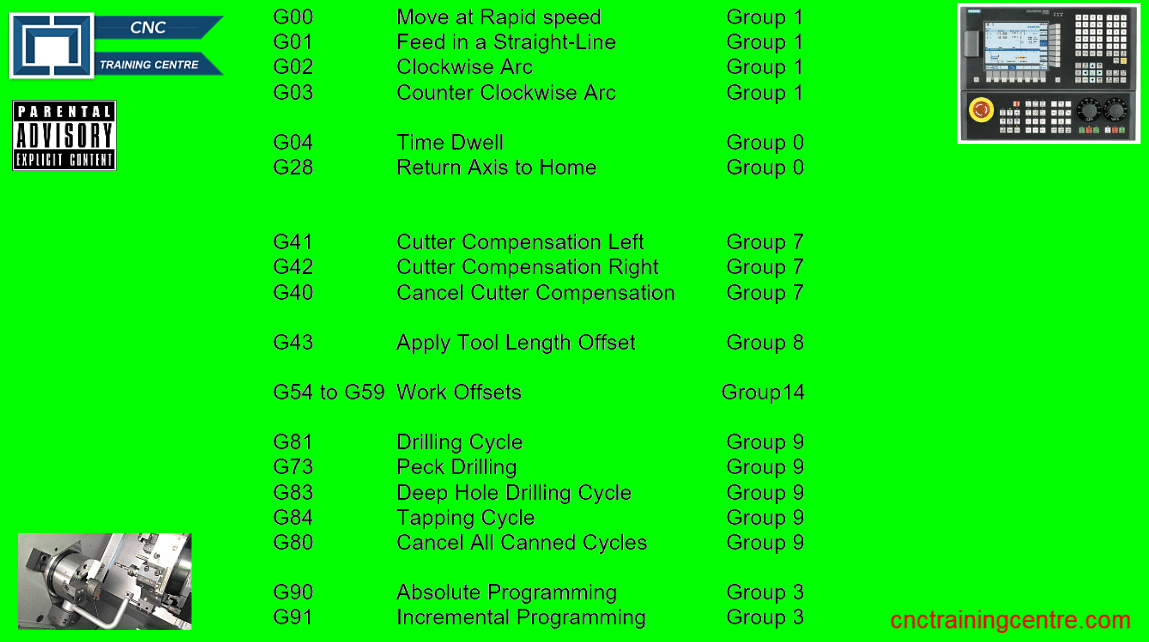
Here is a list of G codes and the groups that they are in

G Code
G Code List with Groups

Hass G Code Groups do vary a little.

Now I know this is boring but please try to keep focused it gets exciting soon honestly.

If you are loosing the will to live already then off you go, this video is amazing.

I know it’s only two of us now but I will carry on. I wrote this article a bit back about macro for the over 18’s.

“Read More”

Tool Length Offsets Beginners CNC

CNC Training Call David: 07834 858 407

30 Five Star Reviews

CNC Training Centre Reviews

Contact CNC Training Centre


This article will explain all you need to know about tool length offsets and setting tool length offsets Fanuc

Ok so you managed to write a CNC Programme for your CNC Milling Machine, well done.

A CNC program is a set of instructions telling your CNC Machine exactly how to machine your component.

It contains all the necessary tool paths XY position and Z depths.

It also contains on off signals to do things like starting the spindle (M3 clockwise M4 counterclockwise).

The progam will have all the feeds and speeds for your tools. You may have performed a simulation using the graphics on your machine.


tool length offsets

Lots of software like Edgecam can perform full collision detection. You have a model of every tool and it’s holder. There is full model of the machine and all the work-holding.

tool length offsets

Edgecam will even tell you if the flute length of the tool is too short!

Ok so that is all great so far but when we put this program in the machine to run there are three things the machine doesn’t know.

Can you guess what they are?

No it doesn’t know jackpot winning lottery numbers (that would be four things it didn’t know).

  1. It doesn’t know where the part is in the machine coordinate system.

  2. It doesn’t know how long the tools are (tool length offsets).

  3. It doesn’t know the diameter of the tools.

Vital information wouldn’t you say?

So first of all we use the Work Offsets to tell the machine where the part is.

Read this for more CNC Help if you want to learn how Work Offsets are used.

Please don’t worry if you don’t know how to do this after all this is beginners help with tool length offsets .

Your mates don’t know your reading it, you can tell them you already knew all this shit.

tool length offsets

So in the picture above we would touch the spindle nose onto the Z datum of our work-piece. This would tell the machine where the part is in the Z axis.


tool length offsets


This distance is input into our work offset table (in this case G54).

If we now program G0 G54 Z0 the spindle would rapid down to this position (G54 is where the values are stored).

We wouldn’t do this by the way cos the machine would crash.

tool length offsets

Now The Tool Length

What we now need to do is take into account the length of the tool.

We would measure each tool length and store it in our tool length offsets file.

tool length offsets
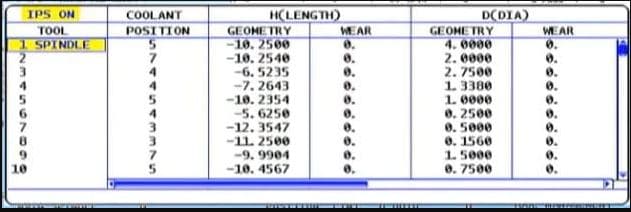
This is how they look on a Haas Machine

This tool length offsets file stays in the machine and is independent of your CNC Programs. So now any program can access this file.

So how does it do that?

It uses G43 and G43 says “ok get me a tool length offset”

G0 G43 Z3. H1

Which tool offset?? Well that’s the H number.

So the line above says to the machine rapid to Z3. Oh and by the way allow for the length of Tool 1 before you get there.

That’s the H1

So it gets the tool length from the tool length offsets file. It then does all the maths for you.

Actually it’s just a bit of simple arithmetic. Your (G54) work offset) minus your tool length.

Your tool will arrive 3mm above your component.

So whatever tool you called into the spindle with your M6 command you need to use the corresponding H number.

M6 T5                                                  (Get tool 5 in the spindle)
G90 G0 G54 X0 Y0 S1500 M3    (Rapid to X0 Y0 and start the spindle)
G43 Z3. H5                        (Rapid to Z3. but allow for the length of tool 5)

How do you measure the tools?

tool length offsets

Well some people use a bit of paper!!!

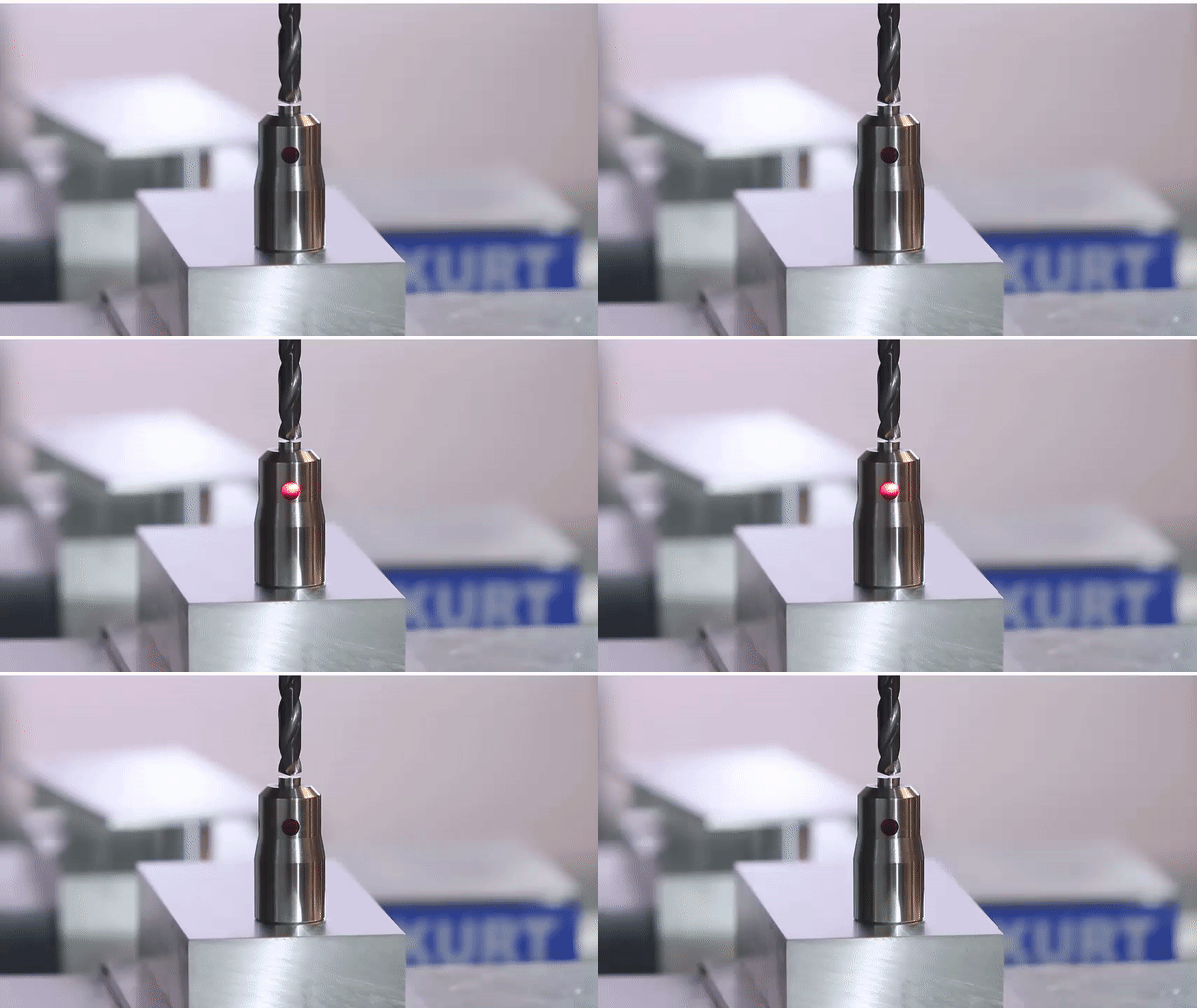
And some buy one of these little babies.

“It’s just a light on a fuckin stick” I hear you say. But it’s so much more. I comes on at an exact distance above your part. And because it’s all spring loaded, if the tool carries on a bit it don’t bust anything.

Only cheap but do a great job.

setting tool length offsets fanuc

And if your a very good boy you might get one of these for Christmas.

tool length offsets

Auto tool measurement (yes it’s all done for you)

In the cases above we are storing the actual tool length in the offset file.

Now let’s take a look at that tool file again.

tool length offsets

Some of my readers are very astute but before you start writing me an email or commenting on this article. “oh David it looks like you fucked up again”

I know……

Why are the tool lengths (Under Geometry) minus figures?

That’s because as always there are several ways to do this. What some people do (and I am not one of them) is……

They bring each tool down from zero return and touch on the part. This figure is then recorded in the tool length offsets file. And yes it’s a minus figure. Of course the G54 work offset would be zero in the case of Z.

tool length offsets


Now I am not prepared to argue with you about this (your doctor told me not to). It’s just bad.

Maybe you might want to read this?

That figure has no relation to the actual tool length and you need to reset every tool for every Job!!

I’m saying no more I’ll just wait for the comments.

There is Only One Way

Actually there is something else to consider. (I know I
said I’m saying no more).

By setting your tool length the correct way (my way), the stored offset is the actual tool length and you can do a rough check with your steel ruler before proving your program.

Auto tool length measurement will always give actual tool length and so will a tool pre-setter. That means you can swap tools between machines.

A Few Other Things About Tool Length Offsets

If you have a Mazak. Mmmmm if you have a Mazak.

Well it’s easy. Mazak machines have active offsets so the minute you do a tool change and get your tool in the spindle the tool lengths offsets are active. They also nearly always have an auto tool measurement system

.

Sorry if you are a Mazak user and you are thinking “this dozy bastard has made me read all this gratuitous shit for nothing”

Now’s the time to leave. Go on off you go.

Ok so what.

Mazaks also do this…….

When you write a G code type program for a Mazak you don’t need a G43 and you don’t need the H

M6 T5                                                  (Get tool 5 in the spindle)
G90 G0 G54 X0 Y0 S1500 M3    (Rapid to X0 Y0 and start the spindle)
Z3.                        (Rapid to Z3. but allow for the length of tool 5)

Forget the G43 H5 shit…. soooo easy.

Those Mazak guys just don’t believe in stating the obvious and wasting your precious finger tips typing in a load of bollocks that the machine should know anyway.

Just remember you can change this by parameter if you want it to work the same way as your Fanuc or your Haas. Oh and you don’t care about increasing your carbon footprint with those extra finger presses.

That way you can put programs from your Fanuc into your Mazak and vice versa.

One other thing


Haas have a little trick up their sleeve.

You can alter the settings on a Haas machine so that if your H and your T are not the same you get an alarm.

M6 T5                                                 
G90 G0 G54 X0 Y0 S1500 M3   
G43 Z3. H1                       

Remember our program. If you changed the tool number but forgot to change the H you would be using the length of T1 for T5


Yes you just bent your machine.

Of course if it’s a Haas you just get an alarm.

Learn all this and more


Careers in CNC

View all current vacancies in CNC

Click here

Call David: 07834 858 407