G71 is sometimes known as a canned cycle when in fact it is a multi repetitive cycle. The G70 cycle goes with it and can pick up the same lines to finish.
The N numbers are important as the cycle uses these as the points of reference to jump to.
G71 cycle interprets the shape between these two N numbers and then breaks up the shape for roughing.
Basic Turning, in the early days of CNC Turning G96 was one of the things that really made a massive difference.
It meant that instead of having to turn a part at a fixed speed and feed, the part could be programmed in G96 which was a constant surface speed.
Where diameters changed, particularly when facing, it made a massive improvement to tool life and surface finish as well as speeding up the whole process.
G97 Speed In RPM
In Basic Turning when you program G97 your machine will start the chuck up at a speed in RPM. So if you program. G97 S1500 M3
Your chuck will start revolving clockwise at 1500 rpm.
G97 for Drilling Tapping and Screwcutting
When drilling a hole you are on the centreline of the machine so you just want plain old simple RPM.
G96 however means meters per minute. This is a surface speed. G96 S200 M3
Your machine would start up at a surface speed of 200 meters a minute. Now your RPM would depend on where on the diameter the tool was positioned.
If the tool was positioned at a 100mm diameter it would be as if the tool were able to run around this diameter at a speed 200 meters a minute.
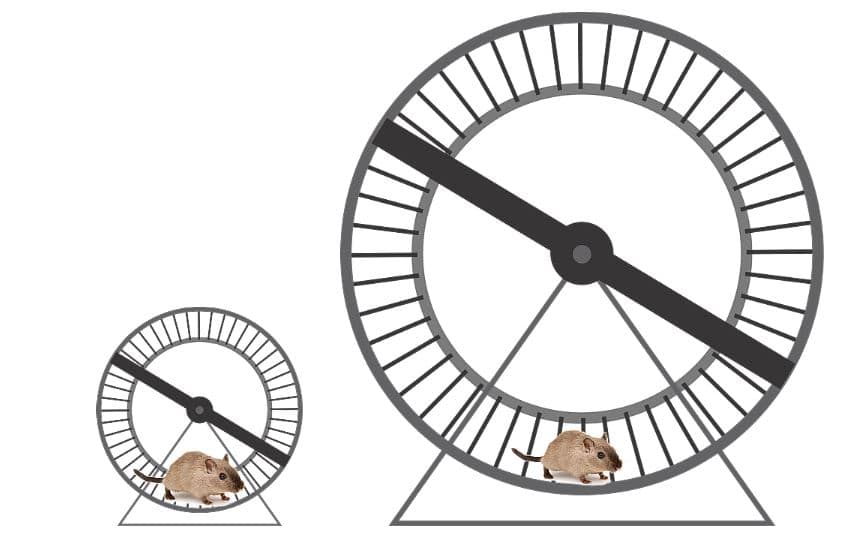
It’s a bit like being on a running machine if you ran at 200 meters a minute and placed various diameters under your feet the large ones would turn at slow rpm and the small ones would turn at high rpm. (Just like the hamsters above)
That’s why on a manual lathe it is hard to face a large diameter without changing speed half way.
Neeeeeoooooooowwww
You know when you face a part on a CNC Lathe and you hear that change in pitch? It’s the spindle increasing in RPM as it gets closer to the center of the part.
Well I bought my hamster loads of different wheels to play on just like the one above.
My hamster suffered with depression on account of being stuck in a cage all day and not having a girlfriend oh and he had a lot of credit card debts too.
These wheels varied in diameter from about 6 inches to a massive 2 foot one. They kept him happy all night. He was so tired he slept all day.
Harold could only run so fast but I noticed when he was on the small 6 inch wheel it absolutely whizzed around. Now on the big two foot diameter one it took him ages just to get it to spin around once.
G96 G97 all about hamsters
Harold Had G96
A CNC machine in G96 will give a lovely finish because the surface speed always remains the same.
So even though Harold ran at 200 metres a minute (this is fuckin lightening speed for a hamster)
The wheels ran at different RPM depending on what diameter they were.
Harold Was a Clever Bastard
Oh by the way Harold had a tail (unlike other hamsters) and a maths qualification.
He knew that if he multiplied the diameter of the wheel by .00312 it would give him the circumference of whatever wheel he was running on in meters.
200 mm wheel (.00312 x 200 = .6864)
All he now needed to do was divide this answer into the speed he was running at and he would know how many RPM his wheel was revolving at.
If he was running at 200 meters a minute not only would he be fuckin knackered but the wheel would be running at 291 rpm
200 / .6864 = 291
Basic Turning Manual Machining
Using a manual machine you have to compromise. At the outside your speed is too fast and when you get to the centre you are too slow.
Manual Lathe
On a CNC lathe we would normally program in mm per revolution as well because the speed is changing all the time so we need our feed to be locked into the speed.
With a machining centre our cutter is always revolving at the same speed so the feed can be constant in mm per minute.
Someone out there will be thinking “what happens in G96 when you get to the centre of the part”. Well the spindle will be flat out!
See how surface speeds are translated to speeds in RPM. There are many converters online that you can use for this and I do recommend their use. It will also mean you don’t have to watch my tedious video.
When I train people at the CNC Training Centre my emphasis is on understanding not memorising. I usually start by saying “please don’t remember all the things I am telling you”.
In the early days training students in Basic Turning I remember them saying to me the next day that they had G codes floating around in their head from the lessons the day before.
G96 and G97
What I really mean is that the most important thing is to understand what the machine can do and the concepts of programming and Basic Turning.
You could say “I know there is a G code that makes the machine run in RPM” so all you need is a list of G codes.
If you can be bothered to work through the simple maths above. It will help you to fully understand how G96 is works.
We all know that programming can be complicated. So let me explain to you how it all works. This article explains the real meaning of Modal and non modal G codes.
Modal means that once a command is issued it stays in the control.
How Can you Actually Use This?
If you issue a G0 or G00 command the machine is in rapid and you do not need to re-state it.
Rapid means all motors are flat out, like a teenager in a Ferrari.
Every move from then on will be a rapid move unless you tell it otherwise. The G code that changes it must be in the same group. For example G0 G1 G2 and G3 are all in the same group a bit like The Beatles used to be.
The other day I was talking to a “young person” who hadn’t even heard of the Beatles. I mean fuckin hell, am I really really old or are they doomed to be forgotten?
G92 threading Cycle is something that concerns me. It’s sadly neglected. Now I know you’re probably saying “no one uses that old shit anymore”
Well you could be wrong.
G92 Threading works exactly the same as G76 except you need to programme every pass. This would be a pain in the arse but hear me out.
The Haas G76 cycle does not have any facility for a spring pass. This is where you add extra cuts at the end of a threading cycle to take out any metal left from the tool pushing off.
On a Fanuc control you can put these extra spring passes in as part of the G76 cycle.
Today I got to train someone on a Haas SL15 Lathe, it had live tooling and a sub spindle.
It also had a bar-feed.
Not worked on one of these for a while. Tell me why on earth don’t other companies look at the pragmatic approach that Haas take to CNC Machining and copy it?
Say what you like about Haas machines but they have an incredible knack of shattering the bullshit and making stuff easy.
Here are two massive ones.
G112
G112 tricks the Haas SL15 CNC Lathe into thinking it’s a machining centre and that it can mill.
It’s like gender identity for CNC Machines. But, and this is the “for fuck sake bit”, on most machines you have to program it like a machining centre but then when your done you need to double X and switch all the Y’s for C’s.
Sounds simple but in practice it’s a shit storm, specially when programming G2 and G3.
When Mr Haas invented the Haas SL15 CNC Lathe he must have looked at this and laughed. Here is a really clever idea. We’ll trick the machine into thinking it’s a machining centre and here is the clever bit. We’ll keep up the facade.
So you make a milling program (XY) and then……. you leave it that way. How incredibly clever is that?? Mmmmmm