This is an article designed to help you avoid CNC crashes.
I listened to a fantastic documentary on Radio 4 the other day about Airline Crashes. The program explained how the hierarchy (cabin crew, flight crew) caused wrong decisions to be made.
In the Kegworth air Crash, cabin crew knew that the pilot had shut down the wrong engine. Unbelievably no one felt empowered to tell the pilot. The program went on to explain about “The No Blame Culture” and how they had taken this further and created a system where everyone could speak out.
Although this is not the main crux of my post it does highlight some of the points I want to make.
So when a machine crashes. What do you do?
- Whose fault is it?
- How easy will it be to fire this person?
- How quick can we get the machine running again and make some parts?
WRONG!!!!

The above are all the things I definitely would not do.
LinkedIn is full of all these soundbites and bulshit.
Quick one word banners. You know the stuff.
 “Don’t Eat Yellow Snow”. Well maybe that’s not one on LinkedIn but you know the sort of stuff I mean.
Anyway I bet there is one about making disasters into learning opportunities.
If you know one then send it to me. Cos I agree.
So when you have a collision on a CNC Machine here is what you do.
-
Make it very easy for everyone to tell you exactly what has happened.
-
Do not apportion blame. It must be seen as a way to improve things (a learning opportunity).
-
Make a detailed report on the whole incident.
-
Analyse the report with all parties involved.
When you analyze the information you have gathered, try to break it down into small parts.
(Oh and by the way if you think this is a waste of time work out what the collision just cost you.)
Each time you spot something wrong come up with a permanent solution so that it can never happen again.
The idea is that you only make the mistake once. If you say things like “he’s an idiot”. What are you going to do about that? Well maybe you could sack him. That is after he punched you for calling him a twat.
Sorry but this won’t work. Next time you inadvertently employ an idiot your machine will get broken again.
Avoid CNC Crashes
Now the idea is to Avoid CNC Crashes. If an idiot can operate the machine and not crash it then we have a solution.
I once suggested in a meeting that we fire all the machine operators. The management team had gone on at length about all the problems with staff and how useless they were.

What would we do then? I was asked. Well we will recruit more. What would we get?
- A moaner.
- Someone who is often late.
- A person who has loads of sick days.
- The guy who crashes machines.
- A brilliant worker.
- A total prick.
- One not so brilliant worker.
Actually you would get what you have now. So the message is to work with the staff you have and get the best out of them.
So an example would be:
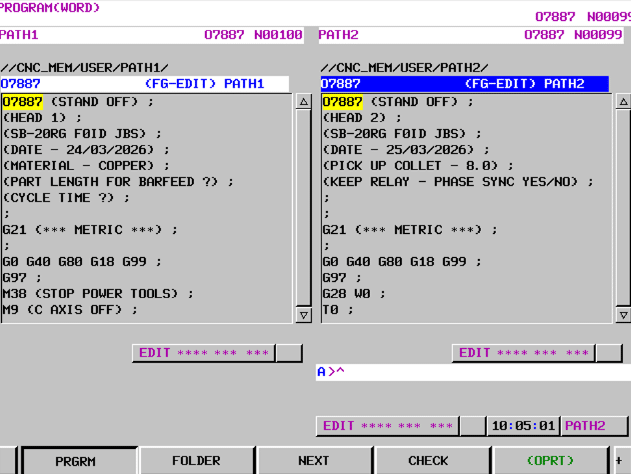
An operator altered a program and made a mistake. This resulted in the machine crashing.
We could carefully analyze what happened and come up with solutions. These would then become part of everyday procedures,
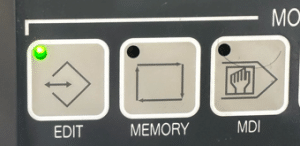
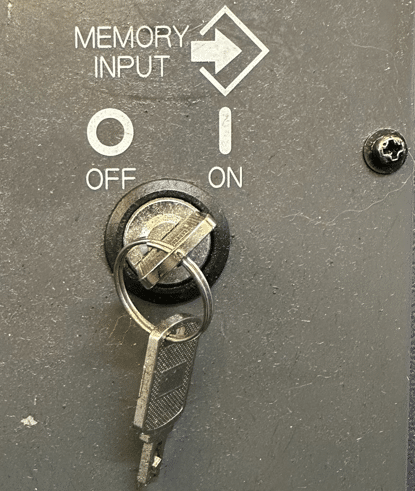
- You could remove the edit key so that operators needed supervision to alter programs.
- You could make a tutorial video on the prove-out procedure after program alteration. Then get all involved to view it.
- What did he alter wrong? Maybe there is a training issue.
- Maybe he missed out a decimal point and needs to read my post.
Some ideas below on how to help Avoid CNC Crashes.
Wrong Offset
Always prove out correctly remember the movement after the tool change is very often the most dangerous one as this is when the offset is applied.
Always adjust the wear offset not the big number (Geometry)
Always use + INPUT that way you any mistakes will be smaller. Depending on settings Fanuc will show you the result before you input i

You can also restrict the value it can be adjusted by read this.

This control has a WEAR screen and a GEOM, geometry screen.
What changed?
If program has been used many times before. There should be a procedure in place to keep it in a special folder marked “proven”.
- You may be using different tools so did you edit the tool numbers?
- Do the offsets correspond to the tool numbers H and T? oh and don’t forget the D read this.
The Rules
If this is an existing program then the first tool moving toward the part is the most dangerous move.
- Your work offset could be wrong (G54 to G59) or work shift on a CNC Lathe.
- Tool measurement could be wrong.
Once this first tool is proven correct then you know your work offset and your first tool are correct. Beware if the work offset changes say from G54 to G55.
G54 may be fine but what about G55?
From now on you need to check the line where each tool comes into the component.
Once the tool is in use it’s happy days. Just keep an eye out for changes in work offset (G54 to G59).
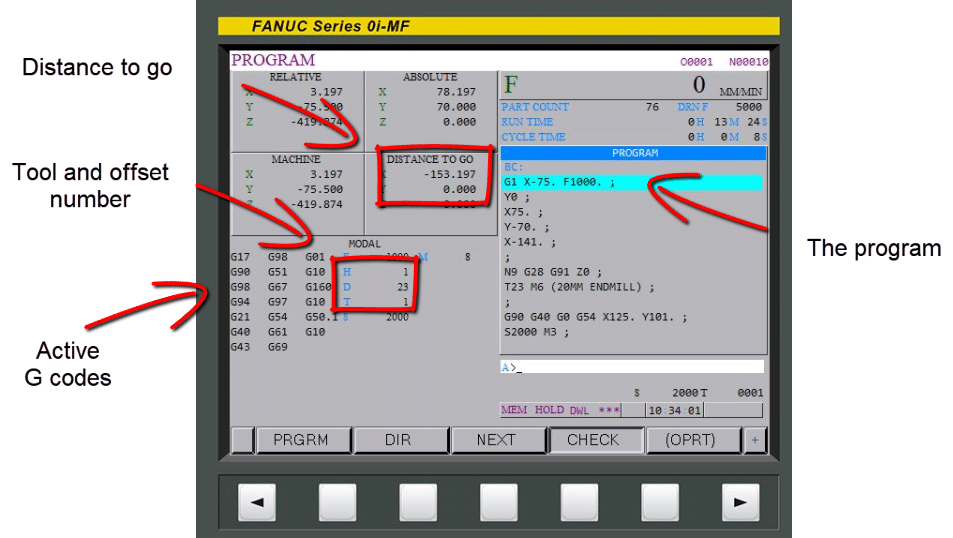
Use your check screen.
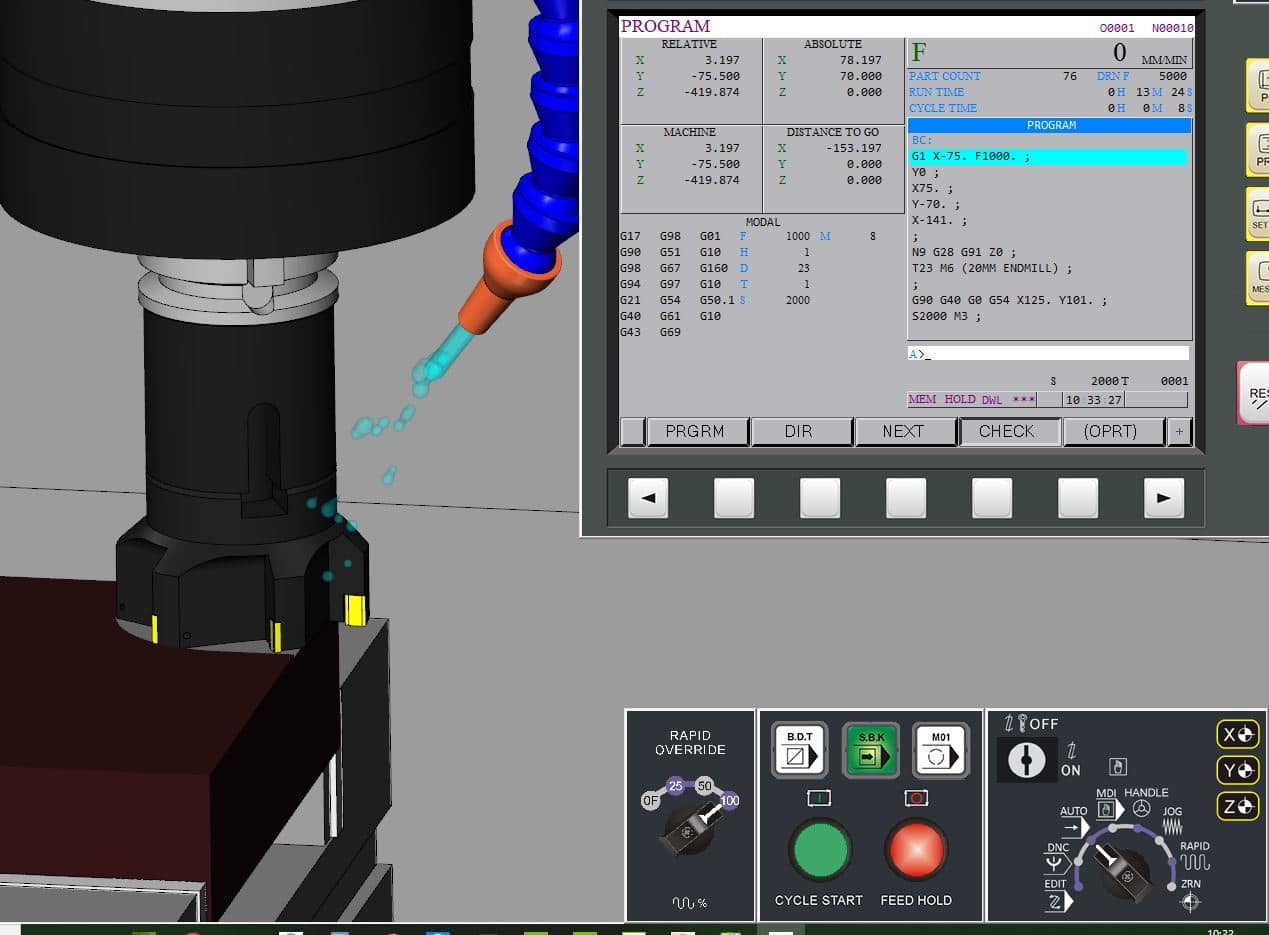
From this you can see all the information you need
Absolute Incremental (Don’t be afraid to use it)
If you use G91 (incremental) make sure you immediately program G90 (Absolute).
To move the tool to the tool change position it is much safer to use G53 Z0 rather than G28 G91 Z0. That way you don’t need to remember to change back to G90.
If you are using a sub-program end it with G90 and begin with G91 that way you won’t forget.

In the parameters of most machines you can set it so that when you press reset the machine will revert back to G90.
Read this on machine wake up state.
G91 is very safe to use if you follow the rules.
Decimal Points
Some controls will take calculator type inputs. X20 will be X 20.00. Beware this can be read as X.020 and there is a big difference.
Fanuc, Haas and Mazak will allow you to set a parameter that allows either.
Speed Clamps On CNC Lathes (Avoid CNC Crashes)
G50 is really important it should be at the head of every program or possibly on every tool.

https://www.youtube.com/watch?v=x14poOHTXlM
Services offered at CNC Training Centre
Edgecam training.
Classroom programmer training.
Onsite CNC Machine Training.
CNC Training on all controls and machines.
Mazak Training Fanuc Training
Don’t forget we offer training on all types of Mazak Machines and all Fanuc Controls 6m to 31i Oi old to young.