CNC Help Beginners Operation Modes

CNC Help, this article is about the different modes of operation on a CNC Machine

CNC Help

Depending on what mode you are in

  • Zero Return
  • Jog
  • Handwheel
  • MDI
  • Memory/Auto/Full Run
  • Drip Feed/Tape
  • Edit

This determines what you can do on the machine.

CNC Help

Learn all this and more

Zero Return

So when we turn on the machine we would need to zero return the machine. What is Zero Return you ask?

Well when you switch on the machine it’s a bit like when you wake up the next day after drinking a whole bottle of whisky.

First thing you think is where am I? Then the memories flood back of how you were dancing naked on the bar.

A CNC machine is much the same (except they don’t piss in a complete strangers cupboard). So you need to let the machine know where it is.

We move the machine back to it’s zero position and on the way it triggers a dog which is like passing over a button. This tells the machine where it is.

You’ll notice it slows down as it passes over this dog. That gives it time to sort itself out.

No dogs were harmed to create this post

Not a real dog you turkey that would be cruel I mean a switch.

You only need do this when you first turn on the machine. After that the machine always knows where it is.

Jog

Jog what’s Jog? Well in this mode you will have an X Y and Z buttons.

CNC Help

You will also have a feed control potentiometer.

(A twisty knob to you)

It’s like when you turn the music up.

CNC Help

This determines how fast your axis will move when you press X Y or Z in the plus or minus direction.

This very often has a rapid button that you can hold in to make the moves really fast if you really want to shit yourself.

So you can use this to move your axis around. You could even use it to drill a hole or face mill a part.

CNC Help Hand wheel


CNC Help

When you use the hand wheel you would normally be required to select an axis and an increment as below.
CNC Help

If you selected the X axis and an increment of 0.1 then each click of the hand wheel will move the X axis 0.1mm.

The hand wheel always reminds me of the robbers cracking the safe in the old movies.

Again you can use the handwheel much like jog to get the machine in the position you want and maybe drill a hole or something.

Haas handwheels have a really course setting like 1mm a click so beware!! But it’s great for quickly getting around the machines.

Also beware of over-run, because some Haas Toolroom Machines will carry on after you finished turning the hand wheel!!! Holy shit batman.

Just remember that these articles are designed as general guidelines as machines will vary.

If you use the analogy of driving a car then it’s like borrowing your mates car. It will definitely have lights and indicators. You just got to find where the switches and buttons are.

Got this off ebay only 5000 quid

Incremental Jog

Just thought I’d add this in. Some machines have an incremental jog and I suppose it’s a bit of a combination between handwheel and jog.

You select an increment and each time you press the axis button (XYZ) the machine feeds that amount.

Very useful for clocking in bores and stuff like that. Personally I like the idea and if I worked on a machine with this I’d be using it.

Read the manual and get the most out of your machine.

Safety

It’s important to remember that handwheel and jog can usually be used with the door of the machine open. They may seem gentle and there’s not much noise going on.

Please note you are using the full power of the machine and if your hand is in the way the handwheel will not stop.

MDI

Remember that these modes may have slightly different names but all CNC machines will have them.

Like on some Siemens controls MDI is called MDA (don’t google that one!!!)

Manual Data Input (I suppose it’s kind of self explanatory).

It’s just a way of writing little short bits of CNC code and it’s normally automatically deleted after use.

You could use this for things like doing a tool change or starting the spindle.

Almost anything that you would put in a program can be done in MDI.

It is usually used once and thrown away, not really environmentally friendly single use program.

CNC Help

Most controls have a way of converting this MDI program into a permanent one to keep in memory. Fanuc uses program O0000 for MDI and it’s a bit like a clipboard. You can change this program O0000 to a real program number like O0001.

There is also a parameter you can change that makes the program stick around after you used it.

Some operators only use MDI for tool changes so you might want to keep the code  there for whenever you need it.

Moan Moan Moan

On a Fanuc control you have to put an EOB (end of block or semicolon) at the end of the line of code to make it work. Otherwise you get an alarm. Drives me bonkers.

Digital punishment

Memory/Auto/Full Run

This mode can have different names but it’s the mode where you get to run your programme.

After selecting the programme you want to use select this mode.

When you press cycle start the programme will run.

CNC Help

You can run your programme in single block

And that red button at the side there is feed hold, it will halt the programme movement but it won’t usually stop the spindle from rotating.

Drip Feed/Tape

This mode is usually for running direct from a Memory Card or PC and it varies from machine to machine. Some will run direct from a floppy disc.

It is for those massive programs too big for the machine memory. Some really old machines will even run a paper tape.

Drip feed is a bit like lying under a beer tap and slowly getting pissed.

Anyway you don’t need to worry your pretty little head about that one at the moment.

Picture of a floppy disc for our younger viewers.

Let’s get on to the interesting shit.

CNC Help Edit

Edit well it’s kinda when you edit….

Yes it’s when you alter the program. In the edit mode you can look at any of your programs stored in your machine and Edit them.

There are massive differences in what you can do depending on your CNC control.  Don’t get me started on this one cos I think CNC Machines have been in the stone age on this one for years. Now I’m not going to mention names but even simple things like copying programs can be an absolute piece of shit.

So if your used to the power of editing on a PC get ready to go back in time. Most new machines are pretty good on this now but it’s taken a long time and I still find it really convoluted and counter intuitive. (I don’t know what either of those words mean).

CNC Help

Here is a short video on how to copy and paste on a Fanuc 18i it’s very similar on most oldish Fanuc controls. (Excuse the long intro on the video but I am trying to flog records as well here).

Oh and if you want to copy a program on an 18i Fanuc view this one.

Editing in its simplest form is INSERT ALTER and DELETE.

CNC Help

These are self explanatory but I have put a nice little gif above just to hold your attention.

Most modern controls will have FIND and REPLACE. It is well worth learning to use this because it guarantees that you don’t miss any figures in your programme.

Like if you had X57.65 in your program six times if you use FIND/REPLACE to change em all to X57.66.

You are sure to catch them all and you can be sure they are all accurate. Even if you altered em to the wrong figure at least they will all be the same.

Click here if your interested in training with us.

Or just get in touch.


DMG Mori CTX

Category : New Stuff Siemens

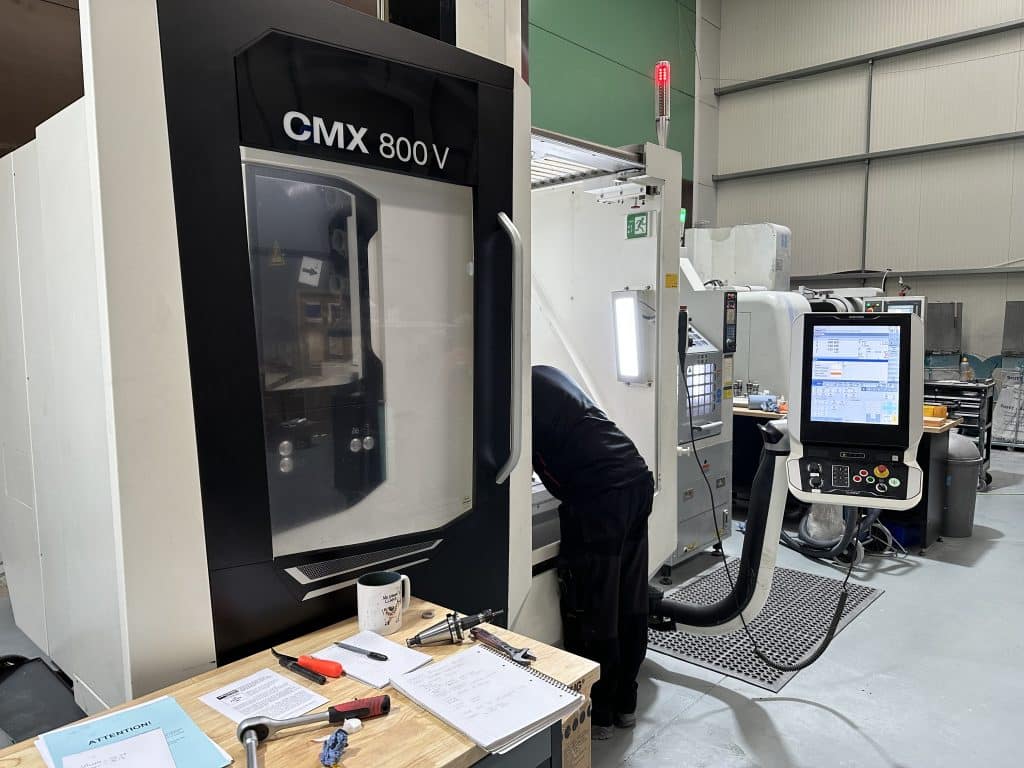
DMG Mori CMX 800 V Review: The iPhone of CNC Machines

This is my honest DMG Mori CMX 800 V review, written after getting back behind the control and remembering all the little rituals this machine expects you to know.

This machine is gorgeous.

The first time I saw one was at the NEC quite a few years ago. I remember looking at it and thinking:

“This thing is beautiful.”

To me, it brought CNC machines properly into the 21st century.

DMG Mori CMX 800 V review

This is definitely the iPhone of the CNC machine world.

Even the handwheel is sexy. Yes, I know.

I’ve reached the age where I’m describing a CNC handwheel as sexy. Things could be worse.

When You Know, You Know

Something that annoys me about modern CNC machines is the rigorous protocol you sometimes have to follow to do the simplest bloody thing.

This machine definitely has a few of those little rituals.

I think I now understand the expression:

“When you know, you know.”

Because until you know, you haven’t got a fucking clue.

I was genuinely excited about working with this beast.

That excitement lasted right up until I couldn’t get the handwheel to work.

Fortunately, I always allow plenty of time to get back into using a machine I haven’t seen for a while.

Partly because machines have their own quirks.

Partly because controls change.

And partly because my memory now works like an old Windows computer with twelve toolbars installed.

“Read More”

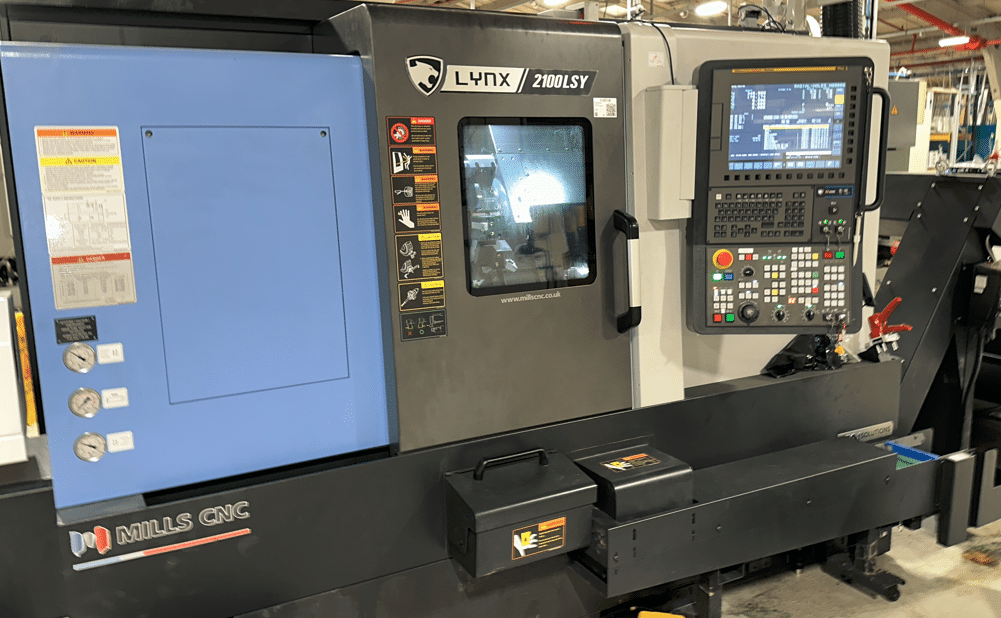
Doosan Lynx 2100 LSY

This week had loads of fun on Doosan Lynx 2100 LSY. Seems to be a very well thought out machine oh and they don’t skimp on the extras.

Not the simplest of machines to operate but once you get over it’s little quirks let’s face it we all have them.

I mean I keep scratching my bollocks but as long as its not in public or in front of the wife I usually get away with it.

Doosan Lynx 2100 LSY

This machine has one turret and two spindles both spindles have a rotary C axis. The Doosan Lynx 2100 LSY has a Y axis the clues in the title.

Most impressive of all is the 24 station turret which means you can be more tooled up than Arnold Schwarzenegger on his birthday.

Loads of driven tools.

There are half stations so you can get special holders that cover two stations.

The other option is to space the tools out like a twelve station turret.

I mean these tools are like elephants in a fuckin lift meaning you don’t have much clearance.

You need to look out for the tool below if you do decide to cram more tools in. If you know what it’s like to run out of tool stations then you won’t mind compromising a bit.

Congratulations Mr and Mrs Doosan on the Doosan Lynx 2100 LSY, it might be a compromise but it works well.

Fanuc Speed Amnesia

Why can’t a Fanuc control remember the speed.

Age old problem, you try to start the spindle in manual and it sits there fuckin laughing at you. So you have to go into MDI and start the spindle or just give it a speed before you can manually start any of the two spindles.

Speed amnesia so bloody annoying, come on girls give us a break. Logically if you have to start the spindle in MDI is there really any point of a manual spindle on off button. Mmmmm.

Icons I hate Icons

I can never remember what all the buttons are on these machines. What chance has someone who’s only experience of working a machine was in Costas

Anyway I have a labelling machine so I stuck em everywhere. Does it really cost that much money to have different button on a machine for an English speaking country than say a French one?

I could sell Doosan my labelling machine, maybe that’s the solution.

“Read More”

Fanuc CNC Parameter 14852, Fixed Form Character Length

Fanuc CNC controls include hundreds of parameters that quietly shape how the control behaves. One that often goes unnoticed—but can make a real difference to usability and program readability—is Fanuc CNC Parameter 14852, Bit 4.

This article explains what parameter 14852 bit 4 does, when you might want to change it, and what to watch out for before making any adjustments.

Shibaura Training

Call David: 07834 858 407

CNC Training Centre Reviews

30 five star ratings on Google


What Is Fanuc Parameter 14852 Bit 4?

Parameter 14852, Bit 4 controls the number of characters that can be displayed or entered in each fixed form field on supported Fanuc CNC controls.

When this bit is enabled, the control allows more characters per fixed form, effectively expanding the usable text length within those fields.

In practical terms, this means:

  • Longer text entries are possible
  • Descriptions and identifiers are less likely to be truncated
  • Fixed-form screens become more informative and easier to interpret

The exact behaviour can vary slightly depending on the Fanuc control series and software version, but the purpose of Bit 4 remains the same: increase character capacity per fixed form.


What Are Fixed Forms on a Fanuc Control?

Fixed forms are structured input screens used to quickly create program.

Typical forms:

  • Start of program
  • Call a tool
  • Call a cycle
  • End a program

I means the programmer does not need to memorise loads of G and M codes. The structures is created.

For more details on Fanuc macro variables and fixed forms, check our Fanuc Parameters that cover advanced control functions.


Why Increase the Number of Characters per Fixed Form?

Enabling Parameter 14852 Bit 4 can be particularly useful in the following situations:

1. Improved Program and Process Clarity

Longer character limits allow more information to be added in one keystroke.

2. Better Operator Understanding

Operators can see more meaningful descriptions without abbreviations, reducing the risk of misunderstandings on the shop floor.


“Read More”

Rads and Chamfers Fanuc Parameters 8134 3453

Category : Fanuc Parameters

Messing With Parameters Can Be Fatal!!!!!

To change parameters you need to go to the setting screen in MDI. Now put a 1 in the parameter write box.

Bits n Bobs

When counting the bits in parameters you count from right to left so the first one on the right is bit 0 or sometimes known as #0

Rads and Chamfers Fanuc Parameters. Today we are going to change the parameters that make ,R and ,C work this means you can program point to point and just stuff in some rads and chamfers as an afterthought.

Here’s an article on it if you want to use it

Fanuc have two ways of putting on chamfers and rads and that’s where the confusion lies.

Just do as you’re told (oh and read this article)

So in Parameter 3453 you can set bit #0 (CRD) to a 1 this allows what Fanuc call “Direct Drawing Inputs” to work.

Rads and Chamfers Fanuc Parameters

Also in Parameter 8134 set bit #2 (CCR) to a o

Rads and Chamfers Fanuc Parameters

Now don’t let the description put you off this turns on the crappy one that uses R and R- and K and K-. This only works on 90 degree corners and unless you won Mastermind I wouldn’t even try to understand how it works.


Trust me it’s shit

Anyway Rads and Chamfers Fanuc Parameters 8134 3453 all sorted!

Isn’t it just great to sort out those annoying problems?

If you want to learn about rads and chamfers on a Sinumeric Siemens 840D read this

Other Parameters Of Interest

1300 Stops over travel alarm

1401 Cutting Feed-Rate 0% stops movement of machine

3101 Clear Screen

3102 Unlock Programs

3203 Clear MDI Screen

3204 Unlock Program 9000 to 9999 and 8000 to 8999 to Edit

3291 Wear Offset requires Key to Adjust

3401 Calculator Type Decimal Point or Integer

3402 G Codes that are Active When The machine is Turned On

5003 Retain Geometry when you Press Reset

6005 Allows the Use of Local Subroutines (Newer Control)

6050-6059  Allows you to Call a 9000 series Program with a G Code

6080-6089 Allows you to Call a 9000 series Program with An M Code

8134 3453 allows you to use ,R and ,C (Rads and Chamfers)

That’s it away you go.

Oh just one other thing before you go off and cripple your machine forever.

Do yourself a favour take a picture of the screen before you change a parameter.

If you aint got a camera then you must have a piece of paper.

Even better back everything up.

Thanks

If you have been affected by any of the issues in this post or need CNC Counselling then contact me.

Or call us

If you want to learn to program CNC Milling Machines

Look no further Contact CNC Training Centre


Careers in CNC

View all current vacancies in CNC

Click here

Call David: 07834 858 407