Let’s learn to Convert Manual Guide programs into normal vanilla CNC Code.
Manual Guide i is very popular now on Fanuc Controls. I’ve got to be honest I’m not a great fan. There are parts of it that are very useful. But anyway knowing me I’ll probably change my mind.
I do work in some companies that just use manual guide and nothing else. One such customer got me in to do some training and also helping to develop an Edgecam post for a Toshiba Machine with a Fanuc Control.
As part of the development of the post I needed some sample code. Well they didn’t have much so I decided to convert one of the Manual Guide Programs to a standard CNC Program so I could see exactly what code it was using.
Change Your Underwear Regularly
My thoughts were that I’d forget how to do it as it’s not something I do that often. You know it’s a bit like changing your underpants, if you don’t do it too often you can forget how and then somehow you just avoid it.
Anyway here’s what you do. (Convert Manual Guide not change thongs)
First of all call the program in the Edit Mode. Reset to the head of the program. Then change to Memory mode or Auto.
If you press the side arrows eventually you’ll see a button called NC CNV.
You can only do this in Memory mode, if you are in Edit you’ll never find the button!
Press this and you will be asked to input a program number.
Enter a new program number and press CREATE.
I you use an existing program it will be overwritten so be careful.
You will now see the same buttons that you use for simulation.
If you press the START button.
Your program will be converted and you’ll see all your code in your new program.
(You can stop and pause and all sorts of other shit if you want.)
Press STOP
and then RETURN
Once you press RETURN your all done and it will take you back to your original program.
NOTE
DON’T FORGET YOU NEED TO BE IN MEMORY MODE FOR THIS TO WORK.
(I didn’t and I’m still seeing a therapist having nightmares about trying to find the convert button)
I even headbutted the control.
Thanks for watching and reading
If you have been affected by any of the issues in this post or need CNC Counselling then contact me.
Or call us
If you want to learn to program CNC Milling Machines
This article is about using G10 on a CNC Lathe to set the work shift or work zero offset as it is known on a Haas control.
If you have ever used Mazak machines you will know that when you call a program the work offset is kept with it.
Obvious really……
I mean if you were teaching your dog or your cat to program a CNC Lathe and you told him that he had to reset the workshift every time he called a new program what would he say.
I mean nothing really but he’d probably give you a strange look.
But you can do it on a Fanuc control or on a Haas control.
You just put this………………….
G10 P0 X0 Z-98.1
So you would put that at the head of your program and it would change the work shift screen as above.
Advantages
No need to set workshift everytime.
Automatically sets X figures so there’s no chance you could alter it by accident.
Well there is a slight catch.
It’s obvious really but from now on you can only change the workshift from the program.
If you altered it on the workshift screen it would just change back when you run the program.
Now I know your not stupid enough to do that but I bet the bloke on nights is.
This article is about the Workshift on a CNC Lathe with a Fanuc control.
As a beginner one of the first things you will need to learn is how to set the workshift.
The workshift is an adjustable figure that tells the control where the work zero is.
It defines the relationship between the turret and the workpiece.
So we have a programme for our part on a our CNC Lathe. Let’s assume this programme is perfect with no errors.
But at the moment it’s just a part floating around in space.
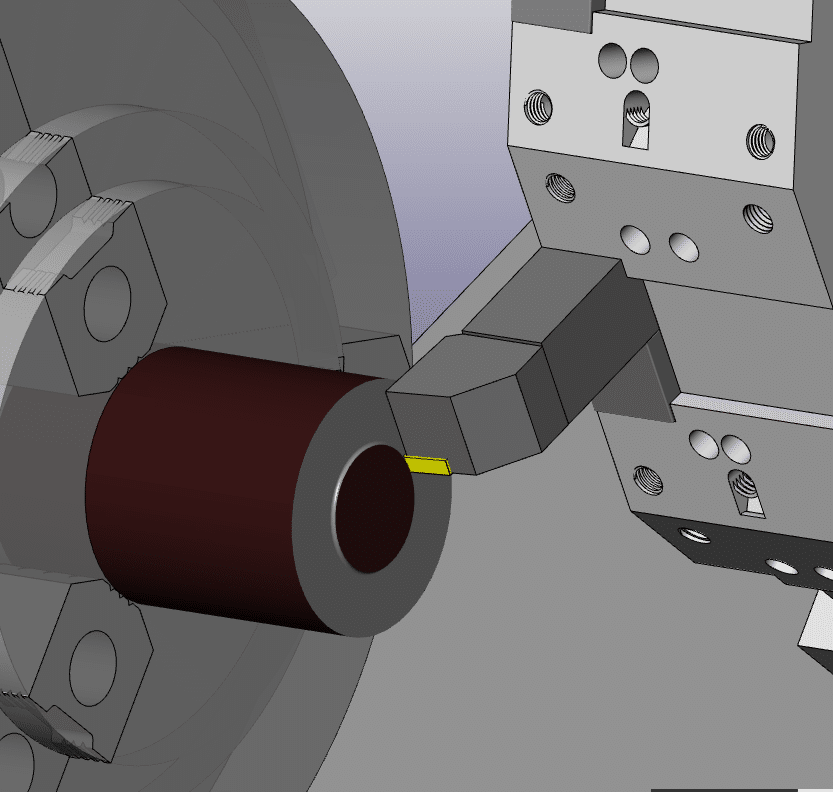
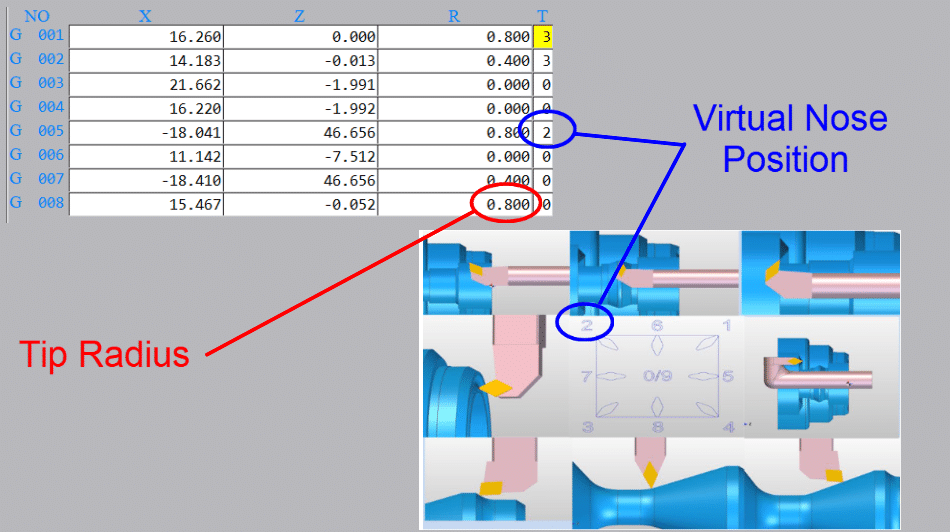
You have measured the tools using cut and measure or a tool presetting arm. You also need to tell the machine the radius of the cutting tool tip and its virtual nose position.
Tool tip radius and virtual nose
So now all the machine needs to know is where the workpiece stock is. That’s where the workshift comes in.
Bring the tool to the front face of the component. If you want to machine metal from the front face then you would position the tool slightly behind the front face.
You could even start the spindle and machine the front face. That way you will know you took off the right amount of metal.
Machine the front face when setting workshift
(You can use any tool for this provided it has been measured and you call its offset)
Cursor to the Z underneath (MEASUREMENT) on your workshift screen.
Type in 0 then press INPUT
The Z SHIFT VALUE will change.
If you want to you can input zero into shift value on the left to reset it before you start.
I like to do this when I am setting the workshift because you can clearly see the new figure when it goes in.
My screenshots are from newer Fanuc controls. Even if yours is an old banger it will be much the same.
Be very careful not to set anything in the X figures because it will completely mess up your X axis position. This could leave you in deep shit.
It is always good to note the X figure even if it is set to zero.
This X figure can be used to set the centre-line for your drills and centre cutting tools so it may not be zero.
Mine is set to X270. which is the centreline of my machine. So if I am using a drill or any tool that works on centreline then I only need put zero in the X offset.
Be careful before changing this if you have a tool measurement arm as it will alter all your X figures. You will need to re measure all of your tools.
In the table above tool 9 is a drill and because my workshift is set to the centreline (X270.) I would input zero in the X offset geometry.
Otherwise you would have a standard figure that you put into X for all your centreline tools.
On my machine it would be 270. but it usually ends up at something close like X270.106 which is hard to remember.
I often see this figure written on the side of the machine in felt tip pen for operators to remember.
If you do have a figure in the X it is really important not to change it. I would recommend using G10 in all your programmes. That way you can always be sure this figure is correct.
(G10 is a way of entering your offsets and workshift from the CNC Program)
In the program above it is the G10 P0 X270. line. The P0 tells the control to write to the workshift.
This way even if you fuck up the X position the control will just ignore you and keep writing the correct figure in at the beginning of the program.
Please note I am not putting anything in the Z for the G10 as I don’t want this updating. You can do this if you want, but you need to remember that you can now only alter the Z from the G10.
Testing The Workshift
Once your workshift is set you are ready to prove out your part.
You can test the workshift in MDI if you wish.
T0101; G0 Z0;
Make sure to override the rapid moves (not 100%) and look at
DISTANCE TO GO
If when you run your program the front face of your part does not clean up or you feel you are taking too much off then the workshift will need to be altered.
Note
Changing the workshift moves all the tools together. I does not change the relationship between the tools.
How to Alter The Workshift
Always use + INPUT as this will add the value to the present value.
If you use input it will replace the figure and now your in trouble.
How to Adjust workshift
Be Careful Not to Alter X
Thanks for watching and reading
If you have been affected by any of the issues in this post or need CNC Counselling then contact me.
Or call us
If you want to learn to program CNC Milling Machines
I must be honest I didn’t have that many creative uses for it.
Anyway when I posted it on Linkedin I did get some interesting replies and comments. I was surprised to see how many people do use incremental U and W.
About a year ago I was working at Gardner Aerospace and we were struggling to get rid of a taper on a shaft we were machining.
Not a particularly difficult job other than this pesky taper we kept getting.
It was something like 30mm diameter by about 140mm long. We were making it on a new Haas ST lathe we struggled to hold the size which was about plus or minus .02mm and were getting a taper too.
I noticed that when we programmed a taper it was easy to make a mistake.
The above program would take the size .015 less.
When it came to changing the taper again the calculation had to be made. I suddenly had a brainwave and realised we could program it in incremental by using a U figure.
The great thing about doing this is that you can see exactly what taper you have and it’s really easy to modify.
The other thing is that the figure is always going to be small so it’s easy to spot mistakes.
I got so excited I even made a video.
Thanks for watching and reading
If you have been affected by any of the issues in this post or need CNC Counselling then contact me.
Or call us
If you want to learn to program CNC Milling Machines
On a CNC lathe G96 is used for most machining. It was amazing in the old days when we suddenly discovered G96.
Because you are using a constant surface speed the metal cutting is consistent so you get a great finish.
The Black Art Of CNC Programming
CNC Programming was a bit of a black art back in the old days and generally speaking we used G96 for everything except for screw cutting and drilling holes on centreline (G74 Drilling Cycle).
When CNC Programming a drilled hole you would always use G97, (this means the speed is in RPM).
If you were to program for example G96 S50 M3 and then rapid to X0 and Z3. ready to drill a hole the machine would just go to its maximum RPM. This would be the speed you set in your G50. (The G code used to restrict the speed.)
Oh by the way that 50 meters per minute is for a B & Q drill.
Don’t get me wrong I love B & Q products but HSS drills are not for grown up engineers they are great for metal work classes at school and making a coffee table for the misses but it’s time to join the big boys and spend some money.
I Digress
Anyway the machine would calculate the speed at its current diameter. So at zero the spindle would always be flat out.
So you could say G96 is pretty useless for a drill.
But you would be wrong!!!!!!
Take a look at this bit of code.
The idea is to send the machine to the drill diameter. Because the machine is in G96 it calculates the correct speed. When you then issue G97 it fixes the speed. Now when you move to X0 it has the correct speed.
Let The Machine Do What It’s Good At
Mmmmmmm… So all you need to do is send the drill to its diameter and the machine does the arithmetic.
Let the machine do what it’s good at and you do what you’re good at.
What are you good at by the way?
Threading is the same if you were machining an M20 thread at 100m/min calculate the surface speed.
(This is the quickest way I have seen)
20/314.2 =.06365
100/.06365 = 1571 RPM
You could do the same thing let the machine do it’s shit.
Rapid to the diameter of the thread then program G96
G0 X20. Z5.; G96 S100 M3 (Start Spindle at 100 metres per min);
; G97 (This will swap to RPM and clamp the speed at the correct RPM); X21.;
; G76 P010060 Q20 R.02; G76 X16.93 Z-25. P1534 Q485 F2.5;
;
ETC
So with this bit of code you can get the machine to calculate your speed.
Thanks for watching and reading
If you have been affected by any of the issues in this post or need CNC Counselling then contact me.
Or call us
If you want to learn to program CNC Milling Machines


 Tool Presetting Arm