Category Archives: New Stuff

Star SB-20R Parts Counter Screen Fanuc Oi TF

Onsite Training Enquiry

CNC Training Call David: 07834 858 407


CNC Training Centre Reviews

30 five star ratings on Google (just saying)

Operator Training beginners to Macro programming.

Star SB-20R Set Parts Counter

This machine is a sliding head CNC Lathe it runs two simultaneous programs. This article shows you how to set the parts counter screen to your required number of parts.

It also shows how to reset back to zero after your parts have been completed.

The machine is a Star SB-20R sliding head.

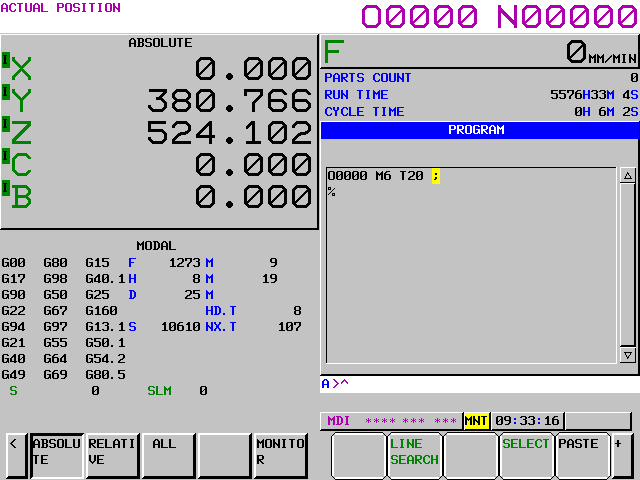
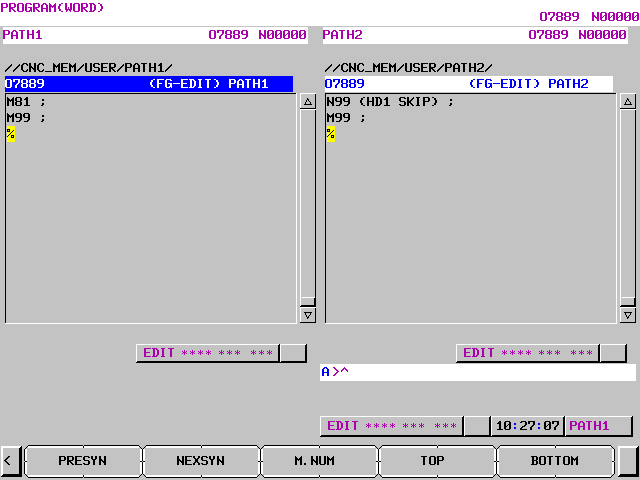
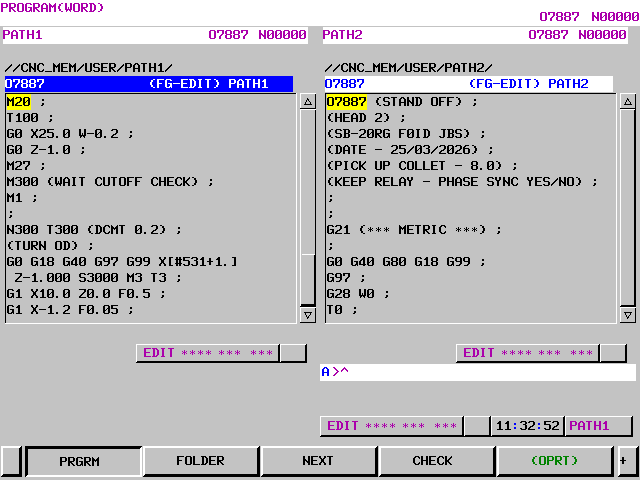
In your program an M20 tells the counter to add one part to its counter, there it is in yellow on the left hand screen.

Now press your CSTM GRPH key

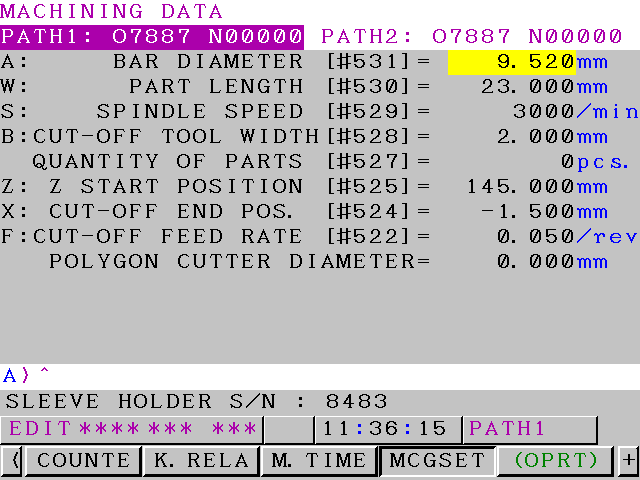
This is the page you want to see.

Star SB-20R Parts Counter

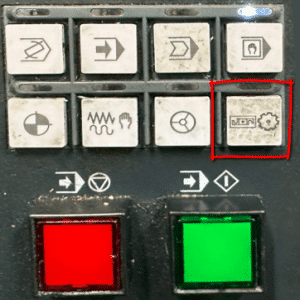
You may need to press the green OPRT button below to find the screen.

Star SB-20R Set Parts Counter

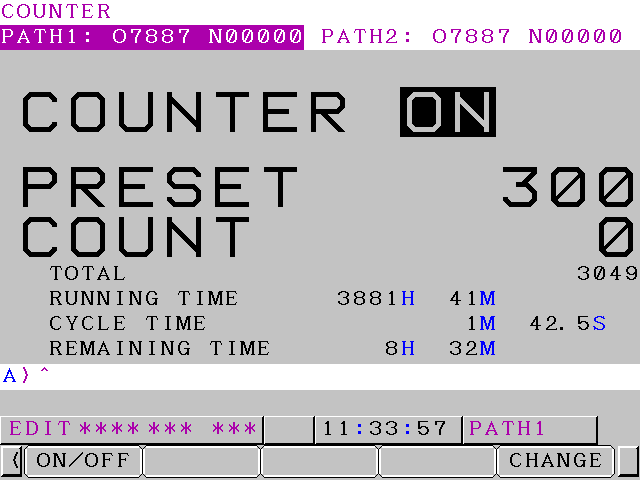
Press COUNTE and you’ll get to this.

Star SB-20R Parts Counter

Press the ON/OFF key to switch counter on and off.

“Read More”

How to Make a Program Active Fanuc 0i-TF

Onsite Training Enquiry

CNC Training Call David: 07834 858 407


CNC Training Centre Reviews

30 five star ratings on Google (just saying)

Why do You Make a Program Active Fanuc 0i-TF?

In order to run or edit a program on a Fanuc control you first need to make it active. On a Fanuc control you are editing in real time so you don’t need to save your work. Unfortunately any edits you make are permanent.

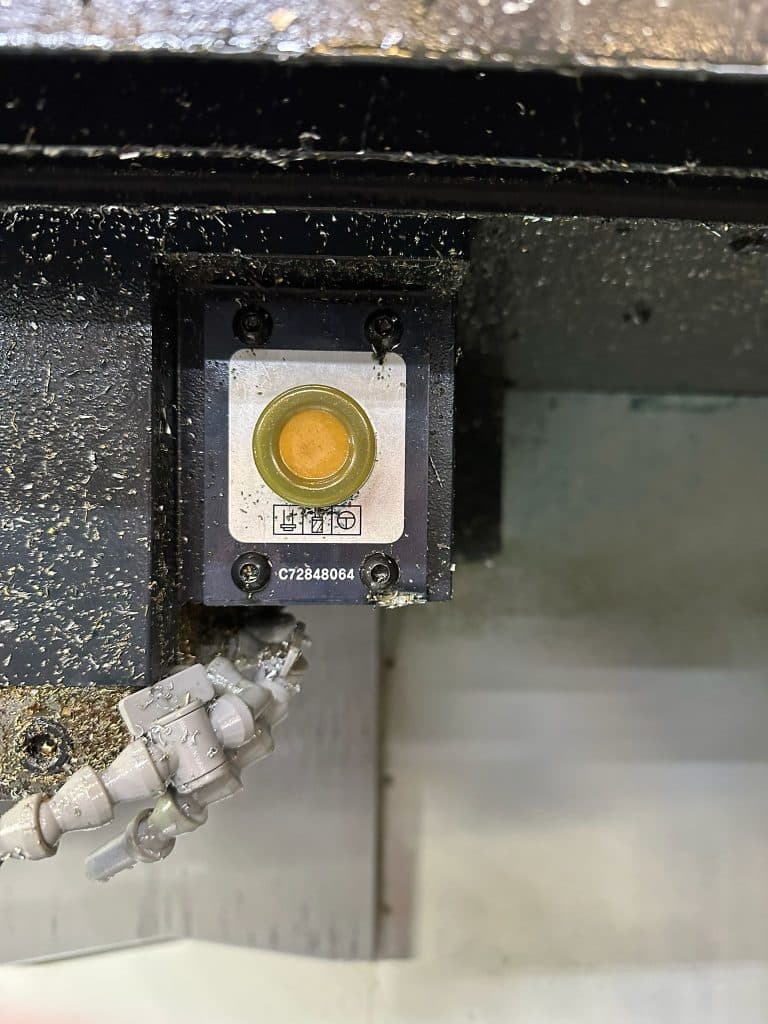
You will need your keyswitch in the on position to allow any kind of editing

In the off position below you will not be allowed to edit

This step-by-step guide shows how to Make a Program Active Fanuc 0i-TF control, specifically on a **Star SB-20R Type G** sliding head lathe, which uses a dual-path (two-channel) setup.

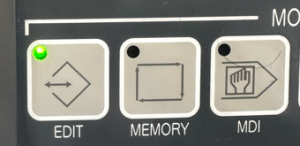
First of all you need to be in the EDIT mode.

how to Make a Program Active Fanuc 0i-TF

Press PROG to view your program.

How to Make a Program Active Fanuc 0i-TF

Now press FOLDER to see a list of programs.

How to Make a Program Active Fanuc 0i-TF

Use your cursor to move down to your program.

How to Make a Program Active Fanuc 0i-TF

Press the OPRT for more options

Now press MAIN to make your program active

How to Make a Program Active Fanuc 0i-TF

The @ or “at” symbol means this is the active program. Program O0007 is now your active program.

Another way is to type in the number of the program you want to make active O3 or O0003 for program 3

“Read More”

How to Copy programs Fanuc 0i-TF

Why Copy your programs?

Copy programs Fanuc 0i-TF, it is often necessary to duplicate (copy) an existing CNC program on your machine—for creating variations, backups, testing modifications, or transferring to another program number without starting from scratch.

This step-by-step guide shows how to copy a program on a **Fanuc 0i-TF** control, specifically on a **Star SB-20R Type G** sliding head lathe, which uses a dual-path (two-channel) setup.

backup programs Fanuc 0i-TF

Copy programs Fanuc 0i-TF

Be sure the USB is plugged in. Refer to this article if it is not setup.

Edit

First thing we need is to get in the EDIT mode.

Then press your PROG button.

Your program will now be displayed.

You will need your key-switch in the on position to allow any kind of editing

In the off position below you will not be allowed to edit

Copy programs Fanuc 0i-TF

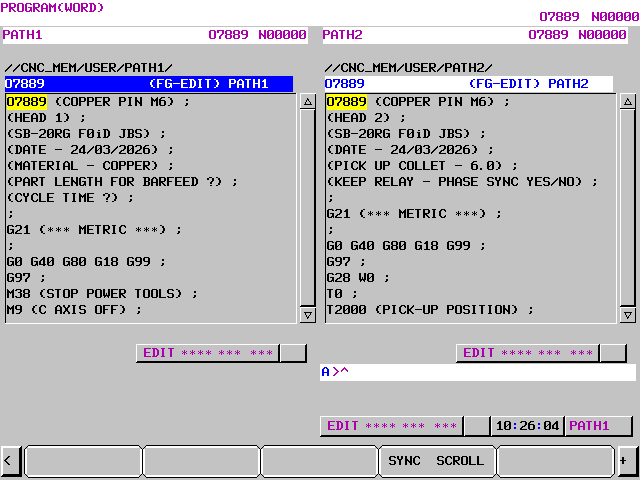
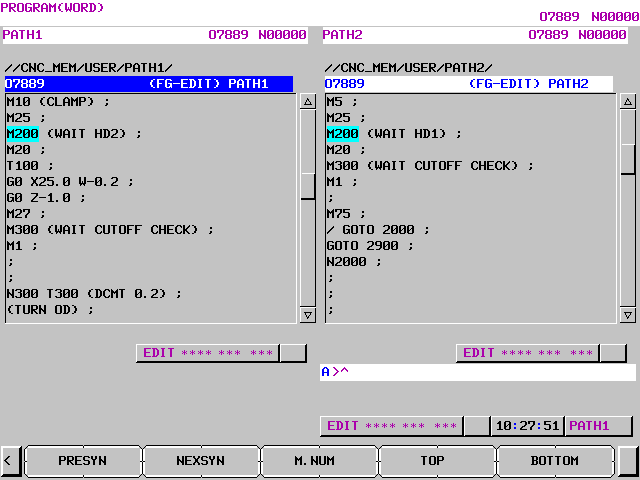
Because this machine is a sliding head machine running two simultaneous channels you have to select a path.

On standard machine you will not need to do this.

First of all turn off the path buttons.

Now select which Path you want, just press below.

The PATH change button will select which path you want. Whichever path you are in the program number will highlight in blue. It will also show in the right hand corner.

“Read More”

Explain M Codes and G Codes Star SB 20-R

Onsite Training Enquiry

Star Sliding Head CNC Training Call David: 07834 858 407


CNC Training Centre Reviews

30 five star ratings on Google (just saying)

Explain M Codes and G Codes Star SB 20-R, the Star SB20-R has a Fanuc Oi TF control. It is configured especially for the Star machine.

Being a sliding head machine you get loads and loads of G codes and M codes even codes like M8 and M9 coolant on and off are different on this machine.

As I always teach people it is a good idea to put explanations on all your M codes so that you can easily see what they mean when going through programs.

To the rescue comes this screen

Explain M Codes and G Codes Star SB 20-R

You need to be in EDIT mode

M Codes and G Codes Star SB 20-R

And your key switch needs to be in the unlock position so that it allows you to edit CNC Code and programs

Press your PROG button to display your program.

Press your side arrows until you see the COMM soft key.

M Codes and G Codes Star SB 20-R

Press COMM this will take you to this screen.

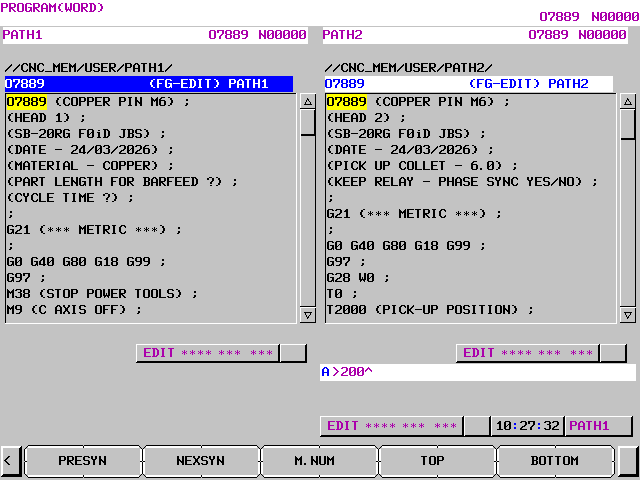
You can now search for any M code that you want. Input the number for example below 154 then press NO. SRH.

Explain M Codes and G Codes Star SB 20-R

This will take you straight to that M code.

Explain M Codes and G Codes Star SB 20-R

You can do it with G Code too.

“Read More”

Star SB-20R Save Programs Fanuc Oi TF

Star SB-20R Save Programs, this machine is a sliding head CNC Lathe it runs two simultaneous programs. This article shows you how to backup your programs to a USB memories stick. It has a Fanuc Oi TF control.

The machine is a Star SB-20R sliding head.

This works for saving to a memory card too, you just need to select it. It also works on most Fanuc controls.

To change this on the settings look at this article

Star SB-20R Save Programs USB

Star SB-20R Save Programs Data Card

First of all make sure you are in the Edit mode

Star SB-20R Save Programs

Then make sure you Edit key is in the unlock position. This allows you to edit programs.

If you have two paths, which I do, you will need to select one with this button.

Star SB-20R Save Programs

Now Let’s Go Into The Folder

Press the FOLDER button.

Now cursor to your first program you want to copy and press RANGE

As you cursor down, your selected programs will turn blue. If you select too many the control will tell you. All you need to do is move back one program to reduce the selection.

Now press the END button

If you now press COPY your selection will be on the clipboard.

Star SB-20R Save Programs

“Read More”

Careers in CNC

View all current vacancies in CNC

Click here

Call David: 07834 858 407