Star Mechatronics Search Paths

Star Mechatronics Search Paths

Onsite Training Enquiry

CNC Training Call David: 07834 858 407


CNC Training Centre Reviews

30 five star ratings on Google (just saying)

On a sliding head machine you are running two simultaneous programs. It can be quite difficult to see where various wait codes synchronise.

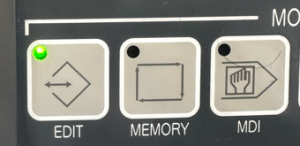
First of all you need to be in the edit mode.
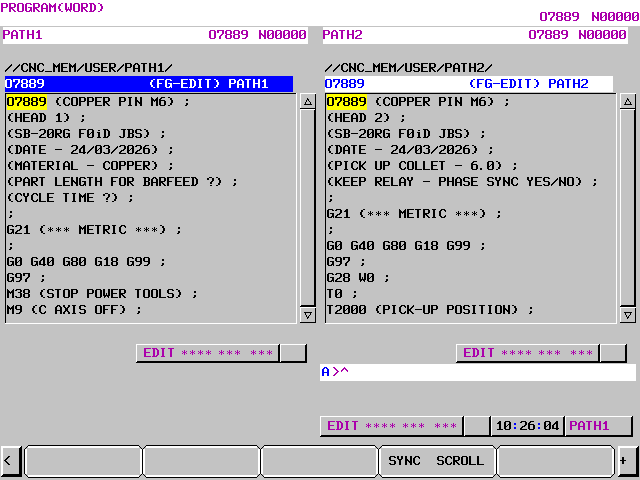
Cursor across until you see SYNC SCROLL
Now press it

The SINGLESCROLL button will take you back. Now as you cursor through both programs will scroll together. When you find a wait code it will turn blue. The opposite screen will keep scrolling till it finds the corresponding wait code.
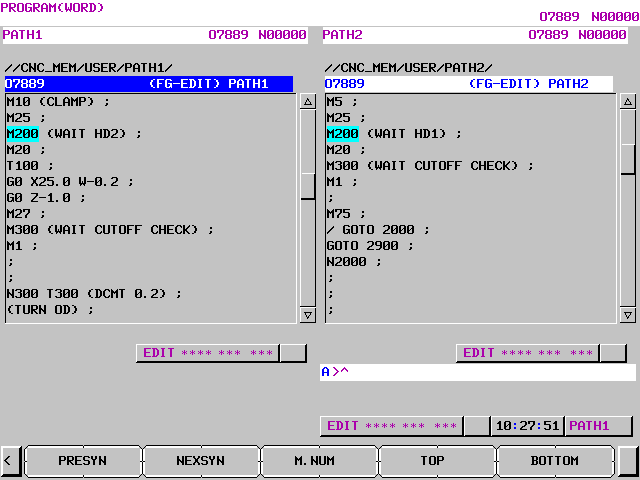
Press the TOP button to return to top of program
BOTTOM will take you to the end
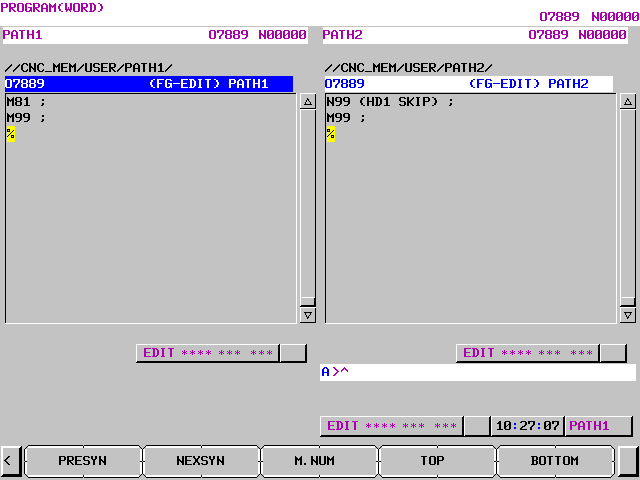
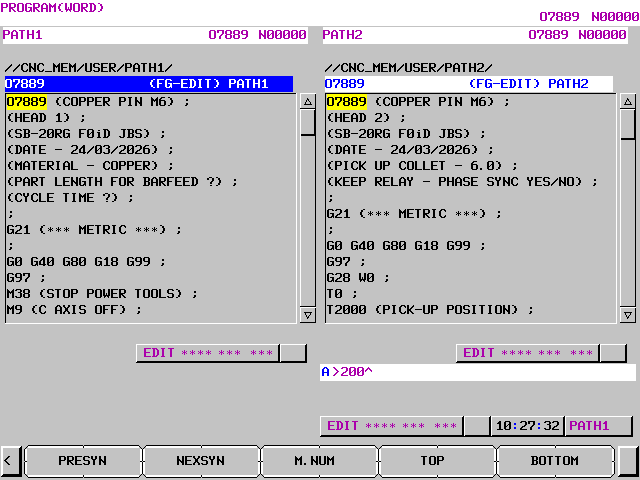
If you type in a wait code number for example 200

When you press M.NUM it will find it. Use the NEXSYN to jump to next wait code and use PRESYN to get to previous sync code.

Learn loads more Fanuc stuff on this website


How to Make a Program Active Fanuc 0i-TF

Onsite Training Enquiry

CNC Training Call David: 07834 858 407


CNC Training Centre Reviews

30 five star ratings on Google (just saying)

Why do You Make a Program Active Fanuc 0i-TF?

In order to run or edit a program on a Fanuc control you first need to make it active. On a Fanuc control you are editing in real time so you don’t need to save your work. Unfortunately any edits you make are permanent.

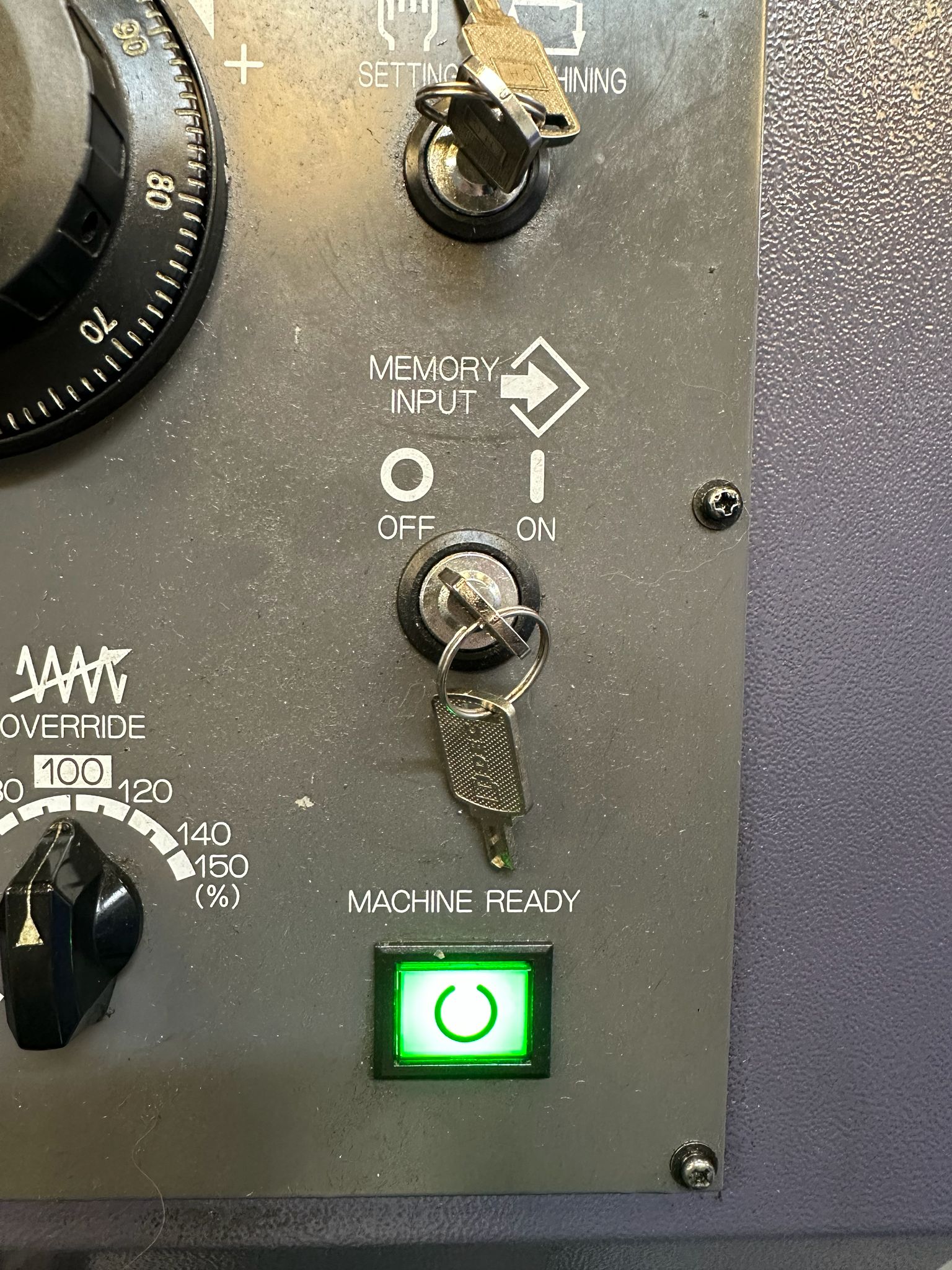
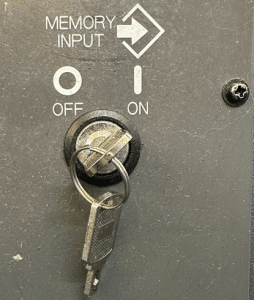
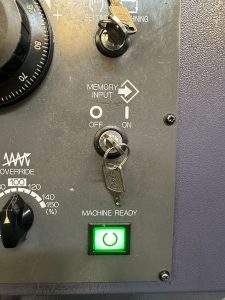
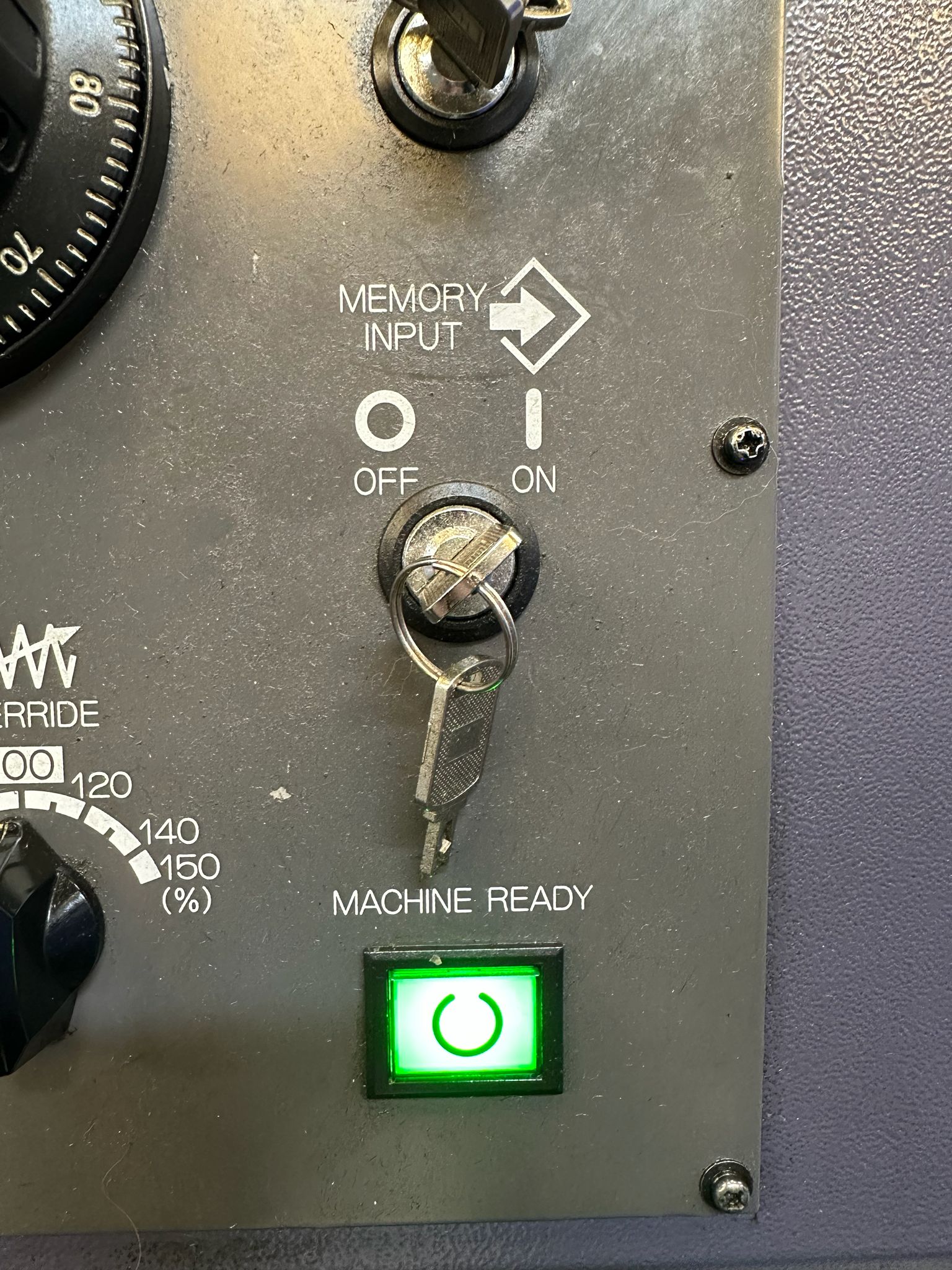
You will need your keyswitch in the on position to allow any kind of editing

In the off position below you will not be allowed to edit

This step-by-step guide shows how to Make a Program Active Fanuc 0i-TF control, specifically on a **Star SB-20R Type G** sliding head lathe, which uses a dual-path (two-channel) setup.

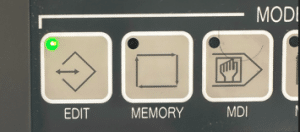
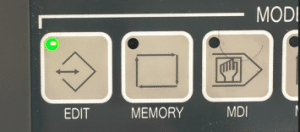
First of all you need to be in the EDIT mode.

how to Make a Program Active Fanuc 0i-TF

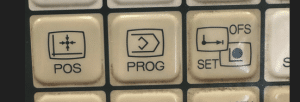
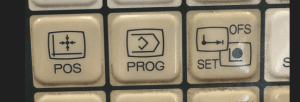
Press PROG to view your program.

How to Make a Program Active Fanuc 0i-TF

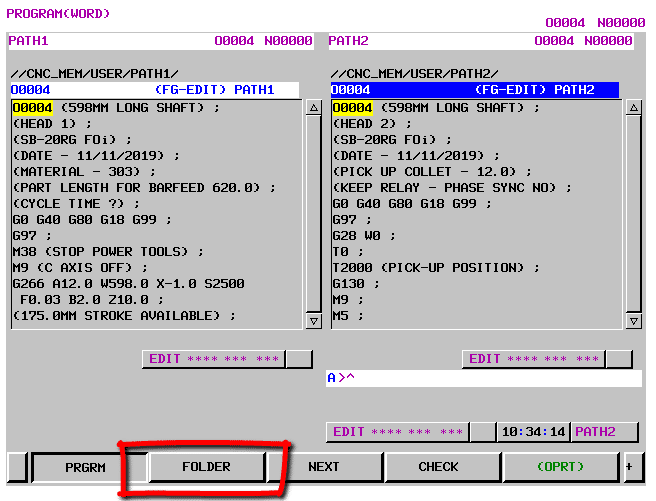
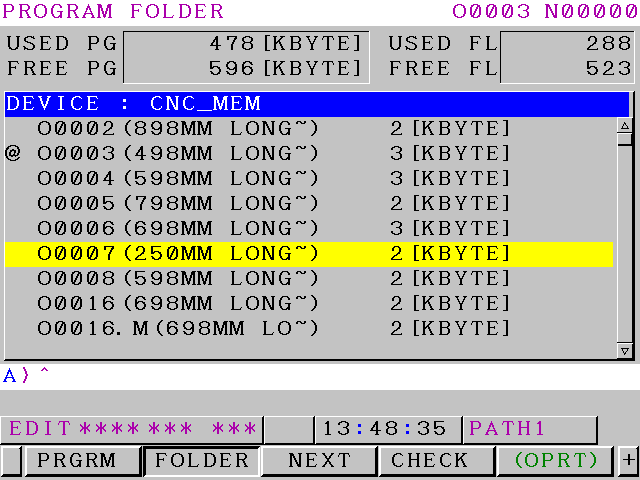
Now press FOLDER to see a list of programs.

How to Make a Program Active Fanuc 0i-TF

Use your cursor to move down to your program.

How to Make a Program Active Fanuc 0i-TF

Press the OPRT for more options

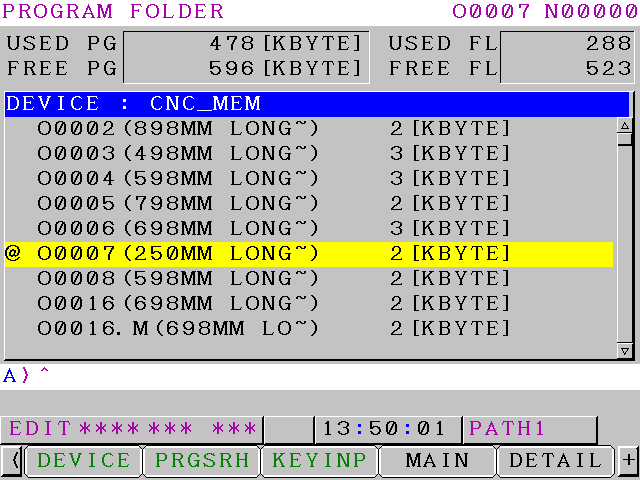
Now press MAIN to make your program active

How to Make a Program Active Fanuc 0i-TF

The @ or “at” symbol means this is the active program. Program O0007 is now your active program.

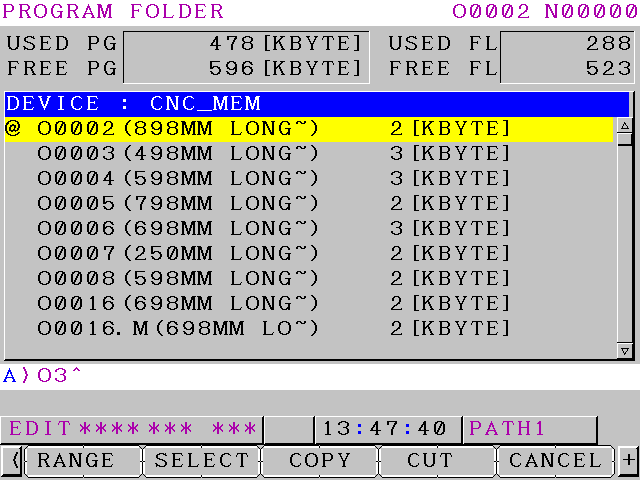
Another way is to type in the number of the program you want to make active O3 or O0003 for program 3

“Read More”

How to Copy programs Fanuc 0i-TF

Why Copy your programs?

Copy programs Fanuc 0i-TF, it is often necessary to duplicate (copy) an existing CNC program on your machine—for creating variations, backups, testing modifications, or transferring to another program number without starting from scratch.

This step-by-step guide shows how to copy a program on a **Fanuc 0i-TF** control, specifically on a **Star SB-20R Type G** sliding head lathe, which uses a dual-path (two-channel) setup.

backup programs Fanuc 0i-TF

Copy programs Fanuc 0i-TF

Be sure the USB is plugged in. Refer to this article if it is not setup.

Edit

First thing we need is to get in the EDIT mode.

Then press your PROG button.

Your program will now be displayed.

You will need your key-switch in the on position to allow any kind of editing

In the off position below you will not be allowed to edit

Copy programs Fanuc 0i-TF

Because this machine is a sliding head machine running two simultaneous channels you have to select a path.

On standard machine you will not need to do this.

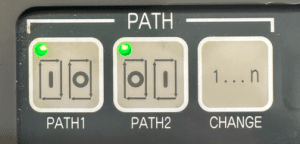
First of all turn off the path buttons.

Now select which Path you want, just press below.

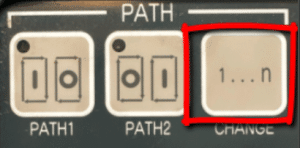
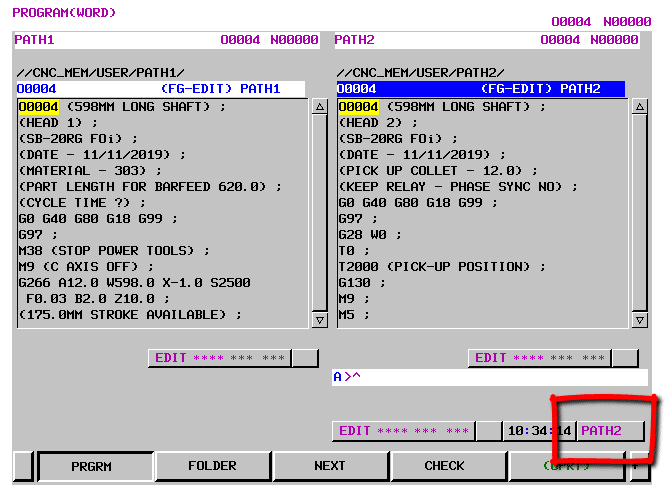
The PATH change button will select which path you want. Whichever path you are in the program number will highlight in blue. It will also show in the right hand corner.

“Read More”

Careers in CNC

View all current vacancies in CNC

Click here

Call David: 07834 858 407