How G28 Works. Why two pushes of CYCLE START?

How G28 Works

Every wondered why G28 takes two presses of the CYCLE START Button when you are in single block.

How G28 Works

Be amazed you are about to find out.

One of my pet hates, and at my age you have thousands, is when people say

“Oh I don’t know we’ve always done it”

I just think, well you are stood at this machine for eight hours a day why not find out what’s going on.

How G28 Works

How G28 Works

G28 tells the machine to return to its home position. This is usually a convenient point for a tool change.

The command on a machining centre looks a bit strange.

G28 G91 X0 Y0 Z0

Why G91?

Well G28 means return to your home position via an intermediate point.

So if you programmed G28 X0 Y0 Z0 then your machine would rapid down to the workpiece (probably crash) and then go to it’s home position.

What G28 G91 X0 Y0 Z0 tells the machine is this……

  • The reference point is incrementally zero from where you are.
  • So the machine does not move.
  • Then it goes to it’s home position.
  • Hence the two presses of cycle start.

On a CNC Lathe we use U and W for incremental. Read this post if you don’t know.

So if you programmed G28 U0 W0 your X and Z axis would return to their home position. This being because the reference point is incremental.

If you programmed G28 X0 Z0 you would probably get a collision like below.

Well at least it went home.

First move is to X0 Z0 which is the front of the part. (This is your reference point.)

The machine would then move back to zero return.

G28 is fine on a CNC Lathe but on a CNC Machining Centre you must remember to change back to G90 (Absolute).

My preference is to use G53 to get back to your home position.

Read this article if you never heard of G53.

Please note some older machines don’t have G53. Oh and it is classed as an option!

If you are affected by any of the issues raised in this post or need CNC Training then contact us.

Contact CNC Training Centre

Don’t forget to watch my Tutorial Videos

We offer training on all types of CNC Machines and controls check em out.

Or fill out the contact form below


Fanuc Calculator Using the CALC ALTER Key

Category : Fanuc

Fanuc Calculator, did you realize you had a calculator on your Fanuc control?

On the Fanuc Oi control this is what you do to use the calculator.

Just check the buttons before you get too excited you might not have it.

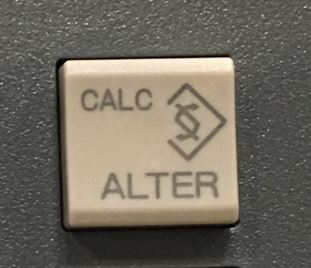
Your ALTER key should look like this.

Fanuc Calculator

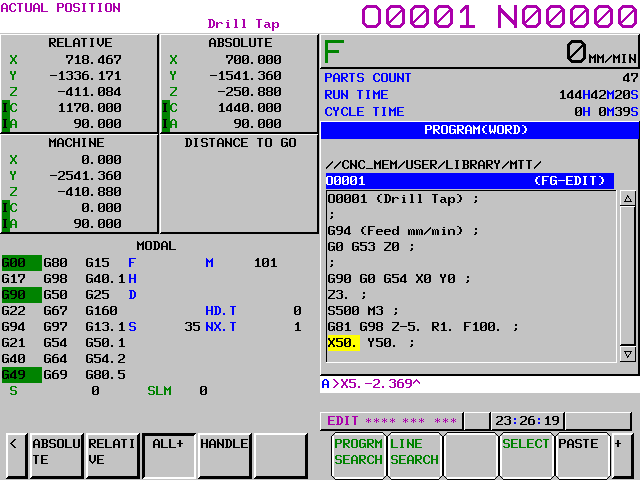
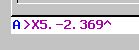
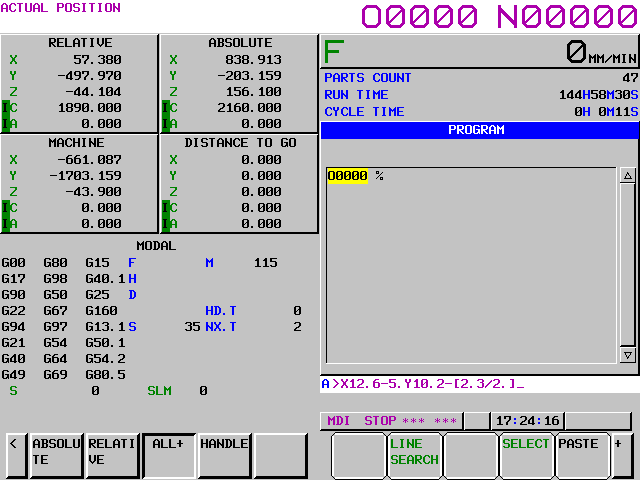
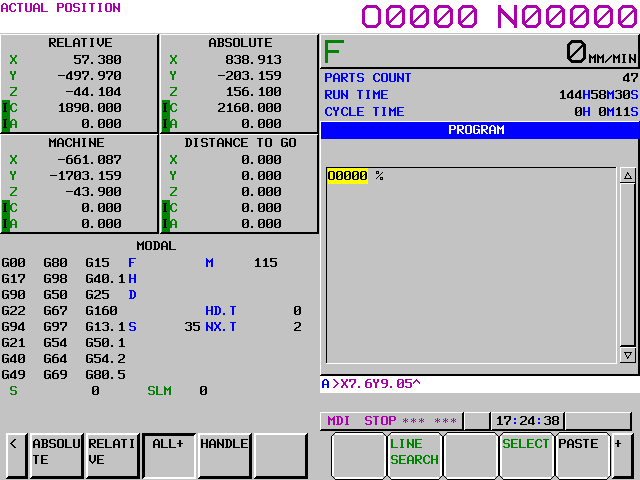
First of all input your calculation which can be part of your X, Y or Z figures.

Fanuc Calculator

So if I wanted to subtract 2.369 from my X value of 5 then I just input it.

Fanuc Calculator

Now press your SHIFT key (mines a bit bent).

Fanuc Calculator

Then press the CALC/ALTER Key

Fanuc Calculator

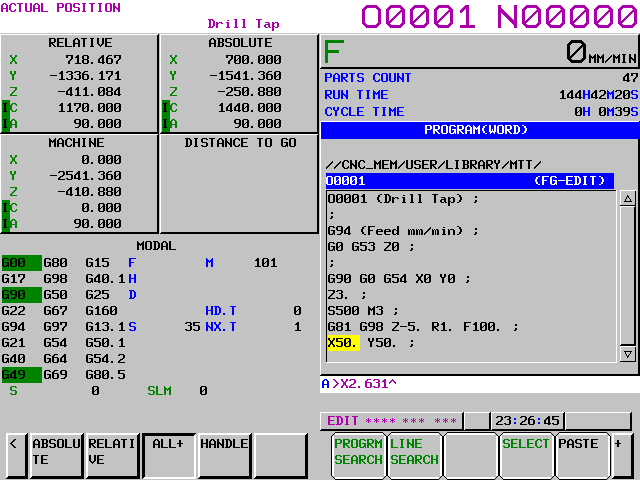
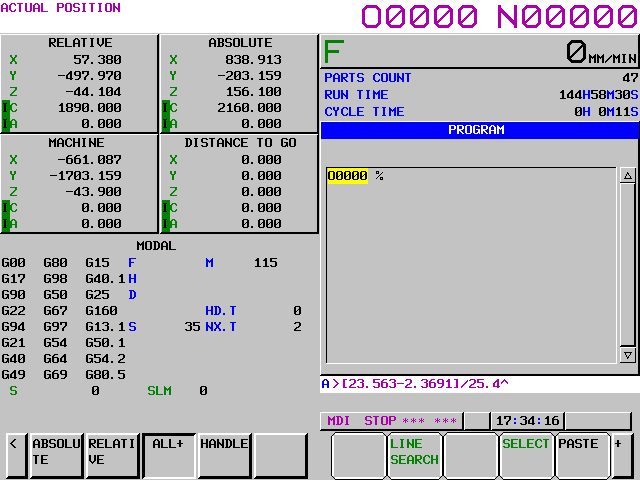
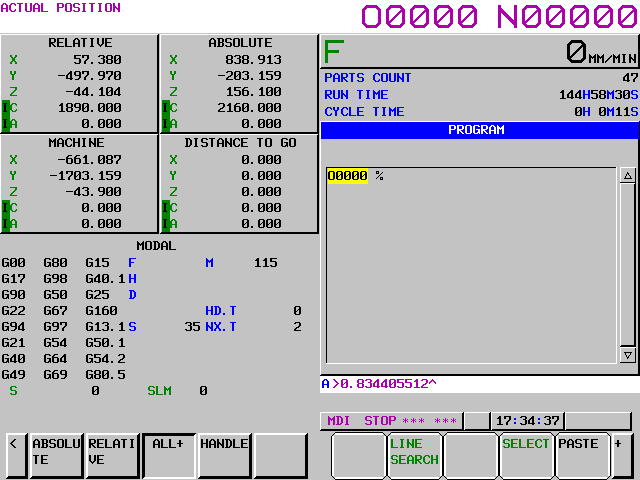
Voila, down in the buffer you magically get your answer.

Fanuc Calculator

(The next bit is boring but read on cos there’s more on the calculator)

History Lesson

If you are an old codger like me you may remember FANUC FAPT. It was an early attempt by FANUC to create an automatic programming system. It was actually pretty damn good at the time.

Well I got trained by this Japanese guy it was in the days where we were genuinely worried about exploiting Japanese workers. Oh how the times have changed.

This guy didn’t speak very good English (but then neither do I). He did a great job of training me but one thing sticks in my mind.

He insisted that I always input exactly what was on the drawing.

Don’t Add Em Up Stupid

If a drawing had two lengths say 12.6 and 13.4 he wouldn’t let me add them together. I had to input 12.6+13.4 into the computer.

It really makes sense because humans are shit at adding up numbers but computers are great at it. It’s in their DNA. We are much better at getting pissed and eating chips.

Yes you could put in the wrong numbers but at least you’re not adding them up as well and messing that up you stupid boy.

Fanuc Calculator

You can even do calculations on two or three axis at once look at the example below.

Fanuc Calculator

Fanuc Calculator

Fanuc Calculator

Down in the buffer you get your answer ready to use.

Fanuc Calculator

Fanuc Calculator

To use it as a regular calculator, type in as below.

Fanuc Calculator

Same again for the answer

Press your SHIFT key.

Press the ALTER Key

Fanuc Calculator

Fanuc Calculator

Fanuc Calculator, oh and guess what?

You can even do simple triangle calculation (you know all that trigonometry shit.)

Yes you know the score now SHIFT then the ALTER key

How exciting is that, you might have to get rid of some of those extra numbers but you get it now.

If you need training or have been affected by any of the issues in this article please contact us.


Step Through All Fanuc Programs

Category : Fanuc Mill Fanuc Turn

Step Through All Fanuc Programs

In the edit mode if you type letter O then press your lower cursor you can step through all the programs in the machine.

This was really useful in the old days (for old gits like me) because there was no directory screen on the old Fanuc 6M control.

But it still works.

Heidenhain Training


Letter O Head of Programme

Letter O Head of Programme

There is a quick way of doing most things on computers and CNC Machines

It’s just being bothered to first find out what they are but most importantly force yourself to keep using them until it becomes habit.

To get to the head of your Fanuc Programme type in letter O and press your upper cursor.

Letter O Head of Programme

It beats the shit out of pressing reset which can stop everything if you press it by accident.

Classroom Training

Mazak Training


Safe Turning Programme Re-Start

Category : Fanuc Turn

Safe Turning Programme Re-Start

Safe Turning Programme Re-Start. On fanuc controls programme restart has never been a great thing. What most people do is start from a tool change line.

So, you go into edit mode. Search for the tool you want to start at. Change to Memory (Auto) and press the cycle start.

Safe Turning Programme Re-Start

Easy, but what if you select the wrong line. That’s a potential crash.

So imagine you did this and bent the machine. The boss says “Ok this is a no blame culture”. Then after he fires you and shoves a P60 up your arse he looks for a way to stop this happening again.

mmm corned beef hash for tea

Memory Search

With a Fanuc control the only thing you can search for in MEMORY (AUTO) mode is an N number.

Why you may ask?

Read on to find out why I think they did this.

Safe Turning Programme Re-Start

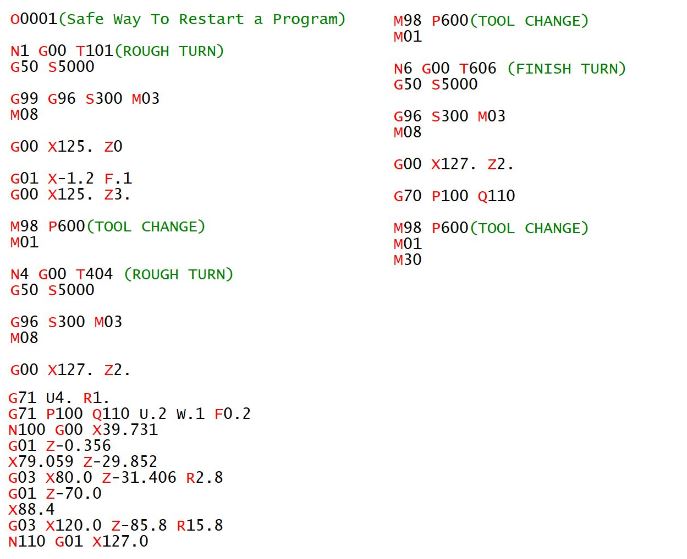
Here is the Plan

  • Each tool has an N number that corresponds to it’s T number.
  • You only use N numbers from 1 to 20 for this purpose.
  • N numbers in your turning cycles are in the hundred series N100 to N900
  • If you have to use other N numbers use N1000 to N6000
  • Only restart your programme in MEMORY (AUTO) mode.
  • Search for the tool number you want to start at (T1 will be N1)
  • Off you go.

N Number Corresponds to T Number

Safe Turning Programme Re-Start

Safe Turning Programme Re-Start

Now I would be a fool to say this can’t go wrong, so I won’t.

  1. You could pick the wrong tool.
  2. You could pick the wrong N number like N6000 for example.
  3. You could be blind drunk

But I think it is quite a good system to implement.

It would certainly work well for an operator who you want to just operate the machine.

In Conclusion

I think Fanuc made your machine so you could only search N numbers in memory so that you could have this safe restart process.

Proof that they love you really.

Create an SOP for programme restart  (Standard Operating Procedure).

This would catalogue exactly how to perform a programme restart within your organisation.

If you are affected by any of the issues raised in this article please contact us.

Oh and let me know what you think. How do you do it? (Programme restart)


Careers in CNC

View all current vacancies in CNC

Click here

Call David: 07834 858 407