Category Archives: Haas Mill


CNC Milling G Code List For Beginners

CNC Milling G Code List

Download and print this nice large print CNC Milling G Code List

Download CNC Milling G Code List PDF

I always begin my training sessions by telling my students not to remember anything I say.

This sounds completely stupid and my excuse is it wasn’t my idea to say it.

About ten years ago I worked in France. After about a year and it seemed obvious that I would need to speak to people to order “Fish n Chips” and stuff like that.

Anyway I got these CD’s to teach me French and the bloke (can’t remember his name) started off by telling you not to remember anything he told you.

I think there is a bit of reverse psychology going on but the main idea is that you understand not remember. It didn’t work for me because I still managed to completely fuck up the language. Not realizing French Canadians speak differently to native Frenchmen (I was working for Bombardier) . Anyway I asked this bloke, in French, to “come with me”. I can’t remember what it is in French and after all the bloke on the CD had specifically told me not to remember.

Anyway turns out this had a sexual connotation and made me the complete laughing stock everywhere I went from then on. (I’ll let you do the maths on that one.)

“OK who bought all The fuckin toilet paper?”

When it comes to CNC Programming the idea of not remembering loads of G Codes is really important. Truth is you only need a few and it’s all about understanding what they do.

For Example I want to drill a hole.

You completed a training course at the CNC Training Centre. You understood it all and you practiced with you free simulation software that you get with the course.

You start writing a program to drill some holes.

From your training you know that there is a cycle that drills holes.

You understand how the cycle feeds the tool down to a depth and then it rapids out ready to do another.

Quick Fix G81 Video

You also know that if you keep adding more positions (X50. Y50.) it will keep drilling holes.

And… when you are sick of drilling holes there’s another G code to stops it.

What Are These G Codes?

So you just look em up on your CNC Milling G Code List.

G81 Drilling Canned Cycle
G80 Cancel Canned Cycle

Then you think “mmm I’m sure there’s one that pecks the material out and breaks it up”

“Let me see… Ah this looks like the one

G73                 Peck Drilling

CNC Milling G Code List

Type up or print this list in nice big letters and stick it to the side of your machine

Download CNC Milling G Code List PDF

CNC Milling G Code List

G00                 Move at Rapid speed
G01                 Feed in a Straight Line
G02                 Clockwise Arc
G03                 Counter Clockwise Arc

G04                 Time Dwell
G28                 Return Axis to Home

G41                 Cutter Compensation Left
G42                 Cutter Compensation Right
G40                 Cancel Cutter Compensation

G43                 Apply Tool Length Offset
G54 to G59     Work Offsets

G81                 Drilling Cycle
G73                 Peck Drilling
G83                 Deep Hole Drilling Cycle
G84                 Tapping Cycle
G80                 Cancel All Canned Cycles

G90                 Absolute Programming
G91                 Incremental Programming

Download CNC Milling G Code List PDF


CNC Programming Basics Letter O Number Zero

CNC Programming Basics Letter O Number Zero

CNC Programming Basics, in my very early days of CNC I got to do quite a lot of work for Hitachi Seiki the Japanese machine tool maker that unfortunately no longer exist.

CNC Programming Basics

Many of their machines are still around and running. I was fortunate enough to be trained by a Japanese engineer who focused on the CNC programming basics.

The control was called Seicos which I think was based on the Fanuc control which Hitachi made themselves.


Anyway they had an equivalent of the Fanuc FAPT which was an automatic programming system.

It was the dogs bollocks of the day.

CNC Programming Basics

You could do maths on the fly with this control which I recon is a great idea.

Maths On The Fly


You could input say 8/25.4 then when you pressed enter, it would calculate the answer and input it for you. Lots of software like Fusion 360 do this today.

A couple of times I read a radius from a drawing say 15 for example and I would input 30 for the diameter. Every time he would stop me and say “no no wrong” (sorry I can’t do a Japanese accent).

He would insist that I input 15 x 2 and then press enter.

I didn’t think too much about it at the time. Over the years the penny has dropped as to the significance of this lesson.

CNC Training

When I am training people now I always say that you must input exactly what you see.

Roy Walker has a Catchphrase “Say What You See”  I just love this show. I suggest you watch it now because this article gets more and more boring as it goes on.

Anyway

So if you input exactly what you see you will make less errors.

“Say What You See”

“Say What You See”

For example if I had worked it out that 15 x 2=29 or I made a typing error then I would have been in trouble.

So at what point do you decide that you will use a calculator?

What he was teaching me was, wherever possible make the machine do the work.

CNC Programming Basics


Taking this to its logical conclusion the way you programme from a drawing is really important and it is all part of CNC Programming Basics.

  • Make the datum wherever possible the same as the drawing.
  • If the drawing has several datum’s you could also have several datum’s.
  • If holes are dimensioned 15.865 apart and you have 4 holes don’t add it up programme it as incremental.
  • If you have polar programming (G16) on your machine and the drawing is dimensioned that way, with angles and rads, then use polar.
  • Here is a post on how to use G16

It’s Right there in Front of You

What this means is that when you look at the programme and you look at the drawing it is really easy to understand what you are doing. Remember what I have said in many posts before.

If you are the programmer the setter is your customer.

If you are the setter then the operator is your customer.

When someone else picks up your work they should easily be able to see what you are up to.

Unless your one of those assholes that really doesn’t want them to understand.

  • Read the drawing and you can see the same figures as the programme.
  • Check out the datum and it’s the same as the drawing.

We always emphasise this when we are training programmers.


The Point

Let me now get to the real point of this article this Japanese guy would never allow me to say G O as in letter O. He would insist on me saying G zero. If you think about the translation here, the only reason that we get the two mixed up is because they look the same. I would imagine to him it seemed totally wrong.

The thing is it is totally wrong.

CNC Programming Basics


CNC Programming Basics

If you place a letter O accidentally in your code instead of a number zero when you read it into your machine it will start a new programme as soon as it sees the letter O.

So you will end up where you and your poor machine are both very confused.

The letter O has only one use in a CNC programme it precedes the programme number to begin a programme (see below). The comments in brackets are totally ignored by the control and therefore you can put what you like while you are protected by the brackets.

By the way if you want to use foul language or childish rude comments them please make sure they are parenthesised. I often do this myself.

O0001 (G81 DEMO)
G21 G90 G40
T01 M06 (20.0 MM DIA X 90 POINT SPOT DRILL)
G90 G0 G54 X12.64 Y88.0 S2546
G43 H01 Z15.0 M8
G0 Z100.

Where Else Can you Use The Letter O?

Sorry I lied to you. There are other uses for the letter O.

I only lied to protect you as a beginner.

What are they? Let me know

Please contact me if you require:

  • CNC programming training.
  • Want to learn CNC programming.
  • Fanuc control training.
  • Yasnac programming training.
  • Any type of CNC course.
  • Fanuc training courses
  • CNC lathe training
  • CNC Vertical Machining Centre training

Services offered at CNC Training Centre

Edgecam training.

Classroom programmer training.

Onsite CNC Machine Training.

CNC and Training on all controls and machines.

Mazak Training Fanuc Training

Don’t forget we offer training on all types of Mazak Machines and all Fanuc Controls 6m to 31i Oi old to young.


Programme Restart Haas

Programme Restart Haas

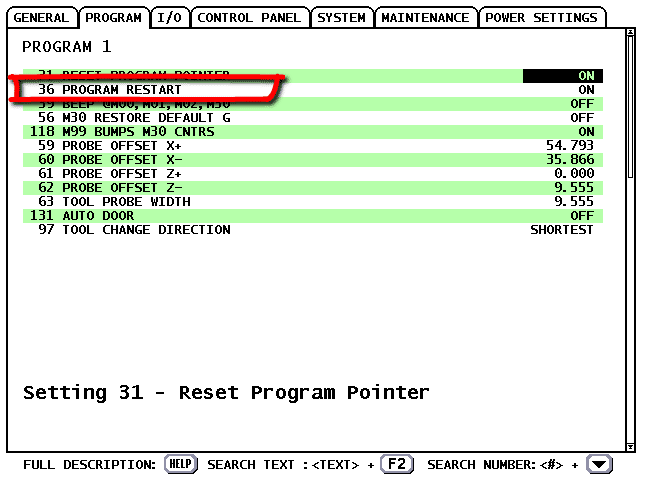
Best feature by far on a Haas Machine is it’s programme restart. Guess what, loads of people don’t use it. In fact they don’t even have it switched on.

Restart Haas

First thing to do is switch it on on the setting screen.

If you are used to using a Fanuc control then you probably restart on a tool-change line.

Restart Haas

So you would search for N19 and start at that line.

Haas Restart, Total Confusion

What I find confuses people when they first try this on a Haas machine is that it picks up the previous tool. This is purely because it thinks the tool change is what you want to do. So it gets ready.


All you need to do is start on the next line.

Yep it’s that easy.

The control sorts out everything.

Coolant
Spindle
Position
You name it

It will even feed the dog, change your underwear and load the dishwasher.

Sorry I’m joking how could it feed the dog when you don’t have one.

Press cycle start and away you go. If  your Z axis is above the part it will come down slowly just in case something is in the way.

It really is that easy.

Oh n by the way it works just as well on a Haas CNC Lathe


Haas Screenshot How to Make One

CNC Training Call David: 07834 858 407

30 Five Star Reviews

CNC Training Centre Reviews

Contact CNC Training Centre


You might not know it but if you put your memory stick into your Haas control then press and hold SHIFT as you press F1 you get a Haas screenshot or a (Haas screen capture) on your memory stick.

Haas Screenshot

It is really useful if you need help because you can save a record of what is on the screen.

With this Haas Screen Capture. You could use it for set up sheets. It will also be useful if you want to create training literature.

If you want to enter a name for your screen capture just input it before doing the above.

I love the fact that Haas are constantly improving their products the machines are so well thought out. They were the first ones to incorporate a coolant hose to clean down the machine.

Extras

I notice now some things do come as extras but they still come well loaded. It’s not like when you buy a car and you find that all the things that really attracted you to it (don’t we just love the toys) are extras.

Haas Screenshot
Range rover with no wheels

Just having a memory stick on a machine is really good. I cant help but think that it seems to be taking so long for machine tool companies to really get to grips with technology.

Sometimes when I am training people who never worked a CNC before I feel embarrassed to say “oh the memory is like the size of a 1980’s calculator”

Haas Screenshot
1970’s Calculator

The editing on some controls (and I won’t name names, as I can’t retire yet) is poor to say the least. Students used to using a PC expect to be able to easily COPY and PASTE bits of programme.

Good luck with that one.

Fanuc Screen Capture

Yes you can do it.

Where’s The UNDO Button?

UNDO (don’t even go there) some do have it. But wouldn’t it be great if you could UNDO things like offset changes. These things are gradually coming in on new controls but I can’t believe how slow it’s all been.

And you thought this articcle was just about taking a Haas Screenshot

Anyway I’m rambling again (only doing it to get the word count up), I will be using this Haas Screen Capture all the time. Typical Haas practical, user friendly. Keep up the good work boys.

Fanuc Screen Shot

Yes Fanuc Does it Too

Go to a screen you would like to capture.

Press and hold the [SHIFT] button for 5 seconds.

The control appears to lock up for about 15 seconds.

Once it frees up an image will be on your memory stick or memory card.

Please contact me if you require:

  • CNC programming training.
  • Want to learn CNC programming.
  • Fanuc control training.
  • Yasnac programming training.
  • Any type of CNC course.
  • Fanuc training courses
  • CNC lathe training
  • CNC Vertical Machining Centre training

Contact David

Services offered at CNC Training Centre

Edgecam training.

Classroom programmer training.

Onsite CNC Machine Training.

Siemens Sinumerik

CNC  Training on all controls and machines.

Mazak Training Fanuc Training

Don’t forget we offer training on all types of Mazak Machines and all Fanuc Controls 6m to 31i Oi old to young.



Careers in CNC

View all current vacancies in CNC

Click here

Call David: 07834 858 407