Hyundai Wia L 300LC CNC Lathe
Category : Fanuc Manual Guide News
CNC Training Call David: 07834 858 407

30 five star ratings on Google (Just saying)
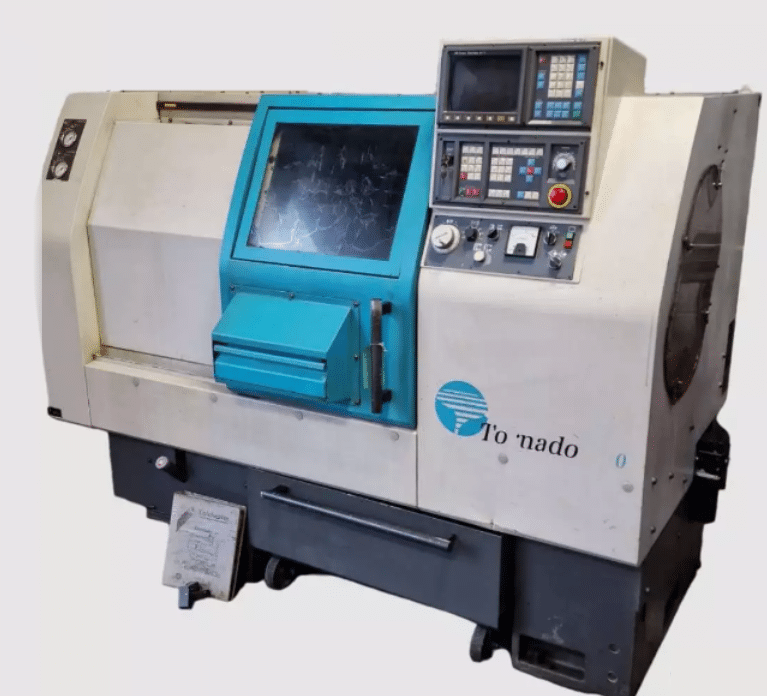
Very solid nice big Hyundai Wia CNC two axis lathe with Guide i, what more could you want?

You know like when you have been on holiday eating loads of fancy food and you get home and all you fancy is a nice simple chips n egg?
Staple diet of my childhood. Anyway that is what this machine is. It’s the chips n egg of the CNC Lathe world.
Having just worked on a Nomura sliding head that’s as complicated as a nuclear reactor (are they complicated, I don’t know?) Anyway it just seems nice to come back to some nice simple stuff.
This is a no messing sturdy beast, none of your namby pamby driven tool shit.
No Y axis, and no stupid sub spindle to mess about with. G12.1 forget it. C axis no way.
Happy days, easy training job simple two axis CNC Lathe with a Fanuc i series control. Oh and it’s got Guide i too. I’m gonna love this.
Hyundai Wia With Guide i
Seem to get loads of these lately an I’m kind of getting to like them mmm maybe not. There’s loads of good stuff mixed in with some bad shit.
Sorry I’m rambling.
Guide i Did You Know?
Well I certainly didn’t. Anyway it’s got this button called alter.

Always wondered what it did so today after some deep breathing exercises I plucked up the courage to press it. Put on a mask, gloves and full PPE.
Safety shoes, check.
Incontinence briefs, check.
Crash helmet, check.
Bingo I pressed it.
Guess what it did…….
Nothing, jack shit, fuck all.
Ah but wait don’t go off to some other boring stupid website with naked chicks or naked dudes. No no no.
After much deliberation me and my new bestie (James) tried every combination.
Anyway if you highlight an M code and then press the beast. Guess what it comes up with a list of all your M codes, all their meanings and you get to pick one.

Woopee, err, not. Well I suppose it must have a use. If you didn’t know the M code you needed I suppose it could be good.
Now I lost a good 10 minutes of my life trying to sort out what this button did and I’m not impressed.
No matter how totally bladdered my mates are at the pub tonight I wont be able to impress them with this one.
Anyway enough said, I bet someone at Fanuc got promoted after inventing this exceptional, programming aid. A close runner up to the Fanuc PROGRAM RESTART button as another contender for the “this button is fuckin useless” award 2023.
Guide i Did You Know
Honestly this one really is worth reading. When you want to call a sub-program and you are not sure what number it is this one helps.
Press 
Then from the screen move over to subprogram.

This takes you into the directory and from here you can select your subprogram. It will insert this into your program complete with the M98. And if you use names for your programs then it puts it in those nice little V shaped brackets. What do you call those funny brackets by the way. Does anyone out there know?

Names For Programs
Using names for programs is cool. When you are an old school pre-septuagenarian git like me it seems real 21st century. Saves on all those shitty four digit numbers and bracketed descriptions.
This is mine above <FACE-GUIDEI>, certainly save on typos. I recon if you get into the habit of using this it could be very useful.

If this sub program call feature is on Trust pilot I will give it 6 out of ten or maybe 7.
So bloody shit-faced convoluted to find. I mean who the fuck would think right I’ll press this button called FIGURE I mean it’s bound to take me somewhere where I can input my sub programs straight from the folder they are in.
Enough said.
The Machine David The Machine
Oh yea, some stuff I like on this machine.
Absolute encoders, no stupid zero return. Switch it on wait a few minutes press the standby button and you are good to go.
No open and close the door shit, no rotate the turret shit no no no just switch the beast on. Lovely.
Clever that is, my tellies at home are the same, can safely say I never had to zero return any of my many 50″ tellies. One in every room by the way except for the shit-house.
No open and close the door shit, no rotate the turret shit no no no just switch the beast on. Lovely.
Gear Change
Now I knew this thing had a gearbox but I couldn’t get the thing to change gear. Well actually you don’t need to. Just select a speed in G97 and it gets the right gear. What’s all the fuss you ask? Well if you are in G96 and it’s in low gear. Imagine you are facing off a part, well it will get to 1000 revs and just stay there.
Anyway the technique is as follow
You will get low gear
G97 S500 M3
G96 S200
You will get high gear
G97 S1200 M3
G96 S200
The G97 will make the machine select the correct gear.
Hand wheel Hyundai Wia
The jog and hand wheel are the same mode just press this button.

When an increment is selected the button will start to flash indicating that You are in hand-wheel mode.

There is a slight delay in starting the jog mode so be patient. A couple of times I thought it wasn’t working and started playing around with other buttons.
Turret Index
Turret will only index in manual mode when the X axis is at zero return. It is probably better to use MDI as it doesn’t mind where it is. Obviously take a good look at the surroundings before pressing cycle start.
Indexing the turret is done with these buttons. Hold in the middle one and press either of the outside ones to move turret clockwise or counter-clockwise. Press and hold for continuous rotation, Top red number is station number.

Don’t forget when you index the turret the tool is not active, the Fanuc control will only display last tool used in MDI or in program.
Start Spindle Hyundai Wia
As with most Fanuc controlled machines you will have to set a speed in MDI before you can start the machine manually. Once the speed is set use these buttons. Press and hold central button and your direction to start spindle manually,

If you press forward or reverse without the central button the machine will jog the axis at the programmed speed. You can also do this with the door open. lucky you.

Rapid does not work at all with the door open.
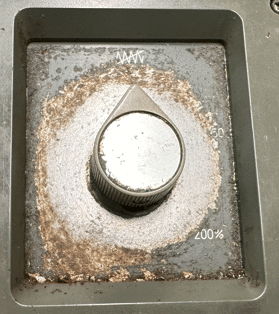
The jog feed potentiometer will stop all movement in rapid if set to it’s lowest position, It needs just one notch to make rapid work. A little trick, you only make this mistake once. A call to some smart arsed service engineer who says “did you try moving the dial one click?”
Zero Return
Select zero return then press direction key. One press and you don’t need to keep your finger on the button, This machine has a tailstock so keep an eye out for it when referencing the Z axis,
You can set both axis going together.
I like the door locks on this machine because they release on their own, There is no button to open and close, I like that,
A Room With a View
The viewing window is a bit small but I suppose its a good safety thing when you have a big chuck spinning at 3000 RPM.
One very concerning thing is the fact that there is no safety back kick plate on the chuck pedals, This is a 2022 machine so I would have thought it would have one.
It means you can accidentally press the pedal and open the chuck!! Holy fuckin shit.
We decided to put the pedal under the bench so you couldn’t press it by accident.
Guide i Again
Every time I use guide i I find something new that I like about it. Me and Guide i are definitely in a love hate relationship.
This time I found the two things above.
Fixed Forms
I recon with some work using Fixed forms is a good quick way of programming, Given time you could get a really good library of things.
This would make program creation very quick. Multi screen editing is also good on Guide i. You can have several programs open together and switch between them when editing.
This also means no pesky background edit where you get locked in a fuckin time warp and nothing works until you find the escape button (BG END)
Graphics Graphics Sodding Graphics
Graphics are still pretty shitty, When you alter the rotation or size of the part you lose everything and have to start again.
How annoying is that. I mean I should be used to it by now.
Come on Fanuc this is 2024 not 1981. There is no speed control on the graphics either so it’s all over in a flash.
Not sure on this one can somebody explain? Some controls have a speed control on graphics and some don’t!!
Hyundai Wia Tool Measure
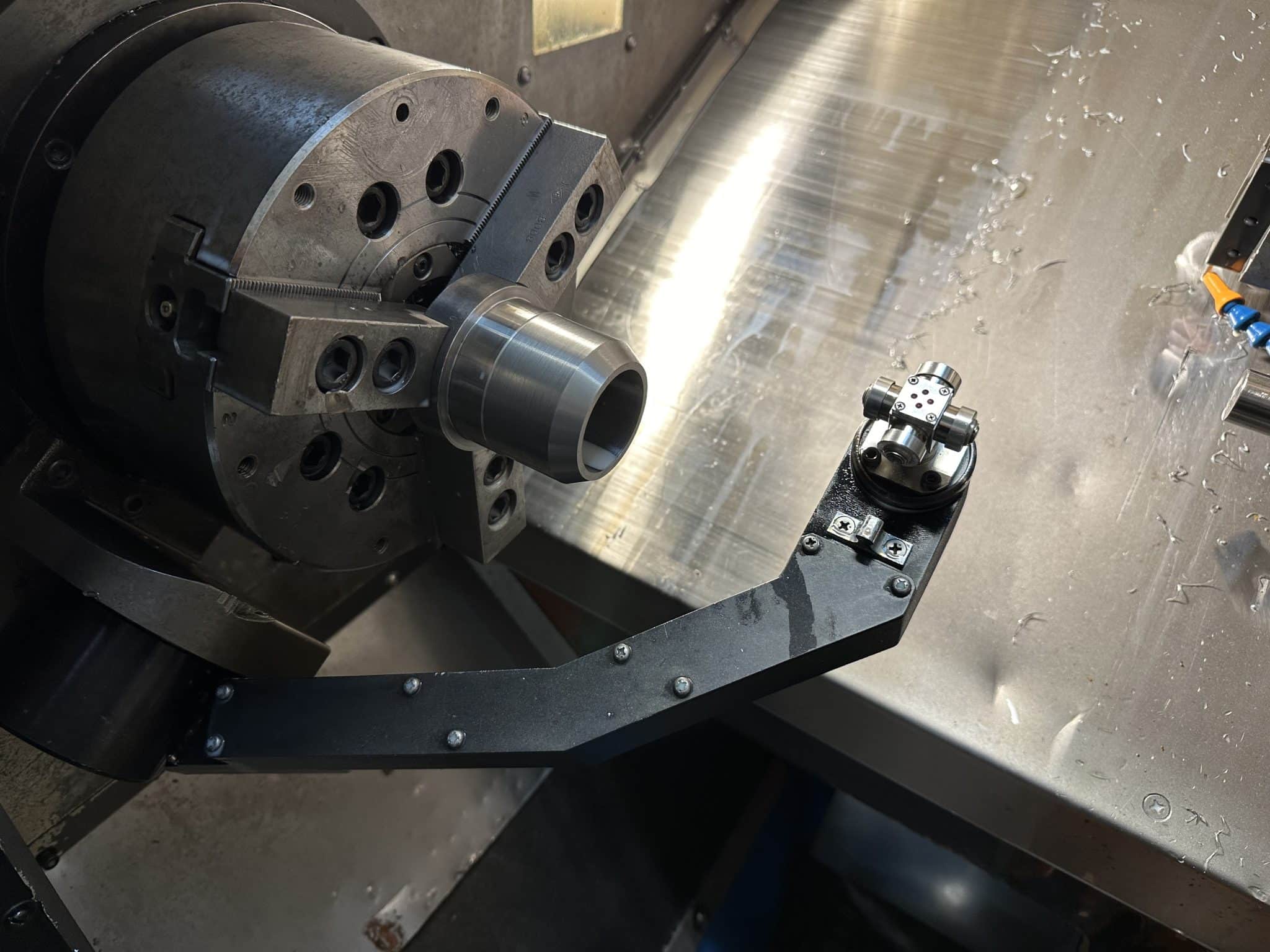
Tool measurement with the tool arm uses the hand-wheel to drive tool towards the probe. Never been a great fan of this way of setting tools but I suppose it’s still better than cut and measure.
You can index the turret with the arm down so beware. Jog and rapid don’t work when the arm is down so that’s good.
No lights on the probe! What no lights on the probe, that’s annoying. When you make contact with the probe the axis just stops, There is no light so you are not sure it has stopped.
It does jump to the correct offset for you and it zeros the wear, Good because not all machines do that.
Big Chuck
It is a big 12 station turret but with a large chuck therefore adjacent tools can easily cause a problem so beware.
Take a look below the tool you are using as it approaches the chuck. Better still bring em in manually just to check before running.
I know you are never supposed to have the jaws above the chuck outside but that’s difficult with hard jaws but it’s really important to watch out for this one.
Big Fanuc Guide i Screen
All men love big TV’s, why is that? I know I do.
Anyway this machine a has a big “fuck off” screen. Big screen means more keys are visible happy days.
Means you don’t have to keep using arrow keys to find butttons.
QWERTY keyboard too, What utter luxury.
Hyundai Wia Easy to Use
All in all I liked the interface on this Hyundai Wia machine, Pretty easy to get it to do most things. Not too many frustrations. Apart from the slight delay on some buttons like the jog, I’d prefer to be able to index the turret anywhere and I don’t like using the Hand-Wheel to measure tools. A light to indicate when you are touching the probe wouldn’t go a miss either.
Tool Change Position
This Hyundai Wia has G30 P2 which you can set a position in parameter 1241 and have a second Zero Return position (G30 P2 U0 w0)
Personally I wouldn’t use it. You will need loads of different tool change positions on a machine this big. Otherwise you’ll be travelling a mile to get to small jobs.
I set it up to use local sub routines. This means I can call program 500 in any program and it can be a unique tool change position. Read this.
My tool change position is local to this program so you can change it for every job.