Haas Screenshot How to Make One

CNC Training Call David: 07834 858 407

30 Five Star Reviews

CNC Training Centre Reviews

Contact CNC Training Centre


You might not know it but if you put your memory stick into your Haas control then press and hold SHIFT as you press F1 you get a Haas screenshot or a (Haas screen capture) on your memory stick.

Haas Screenshot

It is really useful if you need help because you can save a record of what is on the screen.

With this Haas Screen Capture. You could use it for set up sheets. It will also be useful if you want to create training literature.

If you want to enter a name for your screen capture just input it before doing the above.

I love the fact that Haas are constantly improving their products the machines are so well thought out. They were the first ones to incorporate a coolant hose to clean down the machine.

Extras

I notice now some things do come as extras but they still come well loaded. It’s not like when you buy a car and you find that all the things that really attracted you to it (don’t we just love the toys) are extras.

Haas Screenshot
Range rover with no wheels

Just having a memory stick on a machine is really good. I cant help but think that it seems to be taking so long for machine tool companies to really get to grips with technology.

Sometimes when I am training people who never worked a CNC before I feel embarrassed to say “oh the memory is like the size of a 1980’s calculator”

Haas Screenshot
1970’s Calculator

The editing on some controls (and I won’t name names, as I can’t retire yet) is poor to say the least. Students used to using a PC expect to be able to easily COPY and PASTE bits of programme.

Good luck with that one.

Fanuc Screen Capture

Yes you can do it.

Where’s The UNDO Button?

UNDO (don’t even go there) some do have it. But wouldn’t it be great if you could UNDO things like offset changes. These things are gradually coming in on new controls but I can’t believe how slow it’s all been.

And you thought this articcle was just about taking a Haas Screenshot

Anyway I’m rambling again (only doing it to get the word count up), I will be using this Haas Screen Capture all the time. Typical Haas practical, user friendly. Keep up the good work boys.

Fanuc Screen Shot

Yes Fanuc Does it Too

Go to a screen you would like to capture.

Press and hold the [SHIFT] button for 5 seconds.

The control appears to lock up for about 15 seconds.

Once it frees up an image will be on your memory stick or memory card.

Please contact me if you require:

  • CNC programming training.
  • Want to learn CNC programming.
  • Fanuc control training.
  • Yasnac programming training.
  • Any type of CNC course.
  • Fanuc training courses
  • CNC lathe training
  • CNC Vertical Machining Centre training

Contact David

Services offered at CNC Training Centre

Edgecam training.

Classroom programmer training.

Onsite CNC Machine Training.

Siemens Sinumerik

CNC  Training on all controls and machines.

Mazak Training Fanuc Training

Don’t forget we offer training on all types of Mazak Machines and all Fanuc Controls 6m to 31i Oi old to young.


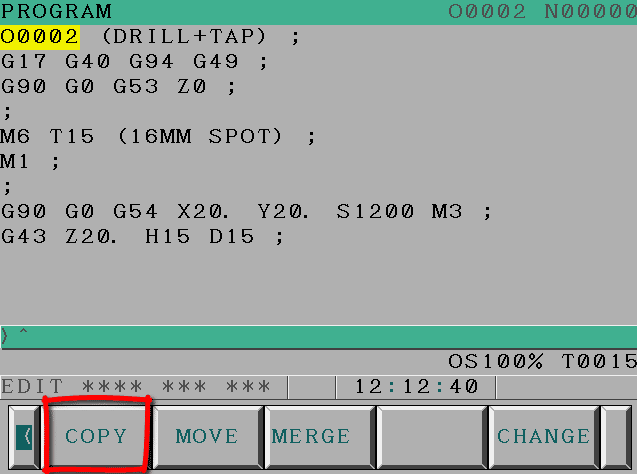
Programme Copy Fanuc Oi

Category : Useful Stuff

Before we start, Programme Copy Fanuc. I have decided to stop moaning, I’m just sick of the sound of my own voice constantly complaining about just about everything. These days there just seems so much shit going on at any one time that theres always something skulking in the background waiting to piss me off.

Well today it’s not going to happen, today instead of grumbling about how awkward it is to copy a programme on a Fanuc Oi control. I am going to explain how easy it is.

I think sometimes it’s not that something is hard to do it’s just that we can’t be arsed to get out the manual and drudge through the boring shit to find how to do it.

Heres One (I found in the book)

Increase Decrease Scale Oi Graphics

On the graphics screen on the Fanuc Oi control you press P to increase the scale and M to decrease the scale.

I mean that’s bloody obvious isn’t it. (Sorry I said no moaning). Took me a week and a powerful microscope to find that in the thick fat Oi Fanuc manual.

Programme Copy Fanuc

Programme Copy Fanuc

First of all press EX-EDT it’s this little beast

Good luck finding it (sorry no moaning).

Solution to finding Softkeys On a Fanuc Control

Beat the shit out of the fuckin keyboard with two fingers, simultaneously pressing every button, till the screen comes up that you want.

My many years of working on these controls has taught me this.

What Next, Programme Copy Fanuc

Press Copy

Programme Copy Fanuc

Then press ALL

Come on now it’s going great

New mouse for my CAD CAM system


Now This Bit I didn’t Know

What I always do here is just press EXEC

The programme will then manifest as programme O0000 and you just change it’s number to the one you want. O3 ALTER you know that kind of thing.

Pay Attention You’re Not At Work Now

If you look closely at the screen shot above you’ll see I’ve input 3. Just type in 3 then press INPUT

It looks like this


Now when you press EXEC guess what, it creates a new programme (programme O0003)

So there you have it. My advice as always is to keep using these techniques and shortcuts until they become second nature.

If you have been affected by any of the issues in this article maybe you should get some training from me, call me anytime.

Classroom training or onsite training at your place.

Checkout my five star reviews (it took my mate ages to make them all up)

I know my place looks a bit of a shithole from outside but like the Tardis it’s amazing on the inside.


CNC Training Classes Classroom Training (CNC Training Centre)

Category : Training Courses

At CNC Training Centre we have CNC Training Classes to suit everyone. From an absolute beginner to more advanced programmers who want to learn Macro Programming

Here is a list of all the CNC Training Classes we currently offer

Setter Operator Beginners Turning

Setter Operator Beginners Milling

 Learn to Programme

Learn To Programme Turning

Learn To Programme Milling

Absolute Beginners

Beginners turning

Beginners Milling

Advanced Programmers

Macro Programming

Come to us for:

co*****@***************re.com

Or fill out the contact form below


Using Rads and Chamfers Fanuc Control

Category : Fanuc Mill

Rads and Chamfers Fanuc, yes you heard it there is a quick way of doing it just like on Heidenhain.

On a Fanuc control they offer two ways of adding rads and chamfers, one is pants and the other one is great.

It really is a pain in the arse to get some of these features working but it’s definitely worth the effort to sort it out. Read this article and get to work. Your life will never be the same.

The first way uses R and R- or K and K- depending on which way your going. Now I won’t be explaining how this works because really I haven’t got a fuckin clue

It’s way too complicated. If I did know I wouldn’t waste wearing out my keyboard or damaging my manicured nails to write an article.


Anyway it will only do orthogonal lines (if you don’t know what orthogonal means don’t worry it just means your a bit thick).

Rads and Chamfers Fanuc

This by no means implies that I think all goats are stupid (technically known as goatism).

Orthogonal means relating to 90 degree lines

Now lets do it my way and you get to do shit like this.

Rads and Chamfers Fanuc

Parameters…. Shit!!!!!

First of all you got to alter some parameters.

8134 3453 allows you to use ,R and ,C (Rads and Chamfers)

Well maybe you just need to check them (they might already be ok).

Rads and Chamfers Fanuc

Anyway just read this article it tells you how to do it.

Right having done that here is a simple turned part.

Rads and Chamfers Fanuc

Here is the code if you want to program it……Rads and Chamfers Fanuc

Now if you want to add corner rads and chamfers it looks like this.


Rads and Chamfers Fanuc

Oh and if you got the time and the patience to write the code here is what it should look like……

The Code

(Maybe some of my smart arse readers would like to check it, don’t tell me if it’s wrong because I don’t handle failure well.)


Rads and Chamfers Fanuc

So with a few commas an shit it’s real easy, you should try it some time.

Rads and Chamfers Fanuc

And that’s it job done. Just remember to check those parameters,

By the way if you wreck your machine altering parameters please don’t contact me I’ll just deny all knowledge.

If you want to learn about rads and chamfers on a Sinumeric Siemens 840D read this

Thanks for watching and reading

If you have been affected by any of the issues in this post or need CNC Counselling then contact me.

Or call us

If you want to learn to programme CNC Milling Machines

Look no further Contact CNC Training Centre


Convert Manual Guide Program to CNC Code

Category : Manual Guide

Let’s learn to Convert Manual Guide programs into normal vanilla CNC Code.

Manual Guide i is very popular now on Fanuc Controls. I’ve got to be honest I’m not a great fan. There are parts of it that are very useful. But anyway knowing me I’ll probably change my mind.

Convert Manual Guide

I do work in some companies that just use manual guide and nothing else. One such customer got me in to do some training and also helping to develop an Edgecam post for a Toshiba Machine with a Fanuc Control.

As part of the development of the post I needed some sample code. Well they didn’t have much so I decided to convert one of the Manual Guide Programs to a standard CNC Program so I could see exactly what code it was using.

Change Your Underwear Regularly

My thoughts were that I’d forget how to do it as it’s not something I do that often. You know it’s a bit like changing your underpants, if you don’t do it too often you can forget how and then somehow you just avoid it.

Anyway here’s what you do. (Convert Manual Guide not change thongs)

First of all call the program in the Edit Mode. Reset to the head of the program. Then change to Memory mode or Auto.

If you press the side arrows eventually you’ll see a button called NC CNV.

Convert Manual Guide

You can only do this in Memory mode, if you are in Edit you’ll never find the button!

Convert Manual Guide

Press this and you will be asked to input a program number.

Enter a new program number and press CREATE.

Convert Manual Guide

I you use an existing program it will be overwritten so be careful.

Convert Manual Guide

You will now see the same buttons that you use for simulation.

Convert Manual Guide

If you press the START button.

Convert Manual Guide

Your program will be converted and you’ll see all your code in your new program.

(You can stop and pause and all sorts of other shit if you want.)

Convert Manual Guide

Press STOP

Convert Manual Guide

and then RETURN

Convert Manual Guide

Once you press RETURN your all done and it will take you back to your original program.

NOTE

DON’T FORGET YOU NEED TO BE IN MEMORY MODE FOR THIS TO WORK.

(I didn’t and I’m still seeing a therapist having nightmares about trying to find the convert button)

Convert Manual Guide

Fanuc Training

I even headbutted the control.

Thanks for watching and reading

If you have been affected by any of the issues in this post or need CNC Counselling then contact me.

Or call us

If you want to learn to program CNC Milling Machines

Look no further Contact CNC Training Centre


Careers in CNC

View all current vacancies in CNC

Click here

Call David: 07834 858 407