Category Archives: Mazak Mill

CNC Work Offsets G54 to G59 How to Use Them

CNC Training Call David: 07834 858 407

30 Five Star Reviews

CNC Training Centre Reviews

Contact CNC Training Centre

As part of the basics of CNC Programming you need to have a good grasp of Work Offsets. This article explains how they work on various controls.

More Heidenhain

Make sure you read to the end to see how good use of Work Offsets can dramatically increase production on your CNC Machine.

So you wrote your program and it looks great on your simulation. Great but your machine hasn’t got a clue where your part is.

That’s where the work offset come in.

The control say’s “where the fuck’s the part?” machine says “ask the work offset G54 to G59 they’ll know”.

Drawing Datum

When we write a CNC program we work from a datum on the drawing. All the X and Y figures will be measured from this datum.

CNC Work Offsets G54 to G59

Once we put the component on the machine it needs to know where the part is.

This is called the work offset.

OnĀ  a Fanuc control it’s a G code usually G54 although as standard you have six of these.

G54 G55 G56 G57 G58 G59

Once you set one of these all you need do is use the G code (54 to 59) and the machine will use that offset.

Each one of these G Codes represents a datum position on the machine.

G0 G54 X0 Y0 (Rapid to X0 Y0 using G54)

G0 G55 X0 Y0 (Rapid to X0 Y0 using G55)

Because the work offset is modal once you state it you don’t need to repeat yourself. (It stays in)

Read this if you don’t know what modal means.

G0 G54 X0 Y0 (Rapid to X0 Y0 using G54)
X50. Y50. (Still rapid still G54)
Z10. (Don’t panic I know you still want rapid and G54)

Zero Return

When you first turn on your CNC Machine you would normally reference or Zero Return all the axis. The machine then knows where it is.

All machines will have a position display. This position display will have one set of figures normally called “MACHINE“. This is the machines position from zero return. So when the machine is at zero return this will read.

X 0.000
Y 0.000
Z 0.000

CNC Work Offsets G54 to G59

The “MACHINE” position tells us how far we are from the machine zero. We don’t use this once we have set our datums.

This is the position we need to write into the work offset page to tell the control where each datum is (G54 to G59)

What we do when we are setting (G54 to G59) is enter this position in the work offset page.

CNC Work Offsets G54 to G59

When we subsequently call this G code the machine will use this position as it’s datum.

On the screen above if you programmed G0 G54 X0 Y0 the machine would move -75. in X and –145.5 in Y. This is it’s new zero position. Every subsequent command will work from this datum.

Now Let’s Set The Work Offsets

What we do when we are setting the machines datums or Work Offsets is we tell the machine where our datum is from Zero Return.

CNC Work Offsets G54 to G59

In the above case the datum is 806.25 away from X Zero Return and 147.1 away from Y Zero Return. These will both be minus figures.

CNC Work Offsets G54 to G59

What about Z you say?

Well yes we need to do that also. The Z will be the distance from Zero return to the top of the work-piece.

CNC Work Offsets G54 to G59

So in the above case the distance from the spindle nose to the top of the work-piece is 530.570. Again this will be a minus figure.

CNC Work Offsets G54 to G59

So there you have it your work offset in X Y and Z.

This is how it looks in the offset file on a Haas machine.

This is an imperial (inch) machine so this datum is 12.568 inches away from the X zero and 8.489 from the Y zero.

CNC Work Offsets G54 to G59

On the Fanuc control below it has values set in G54 G55 and G56. you could use any of these offsets.

Not all machines will have minus figures in these offsets as the zero return can be in a different place.

MazakĀ Work Offsets

Now if this were on a Mazak control it would be exactly the same if you were using the machine in ISO G Code type programming.

CNC Training Mazak

If you were using Mazatrol and not ISO this would be recorded in a WPC. No that’s not a Woman Police Constable.

Anyway it looks the same it’s just that they call them WPC 1 and WPC 2 etc.

WPS’s are set in the program as you go along. It’s the sort of “pay as you go” datum system.

Toshiba BMC 800Ā Work Offsets

On the Toshiba BMC 800 machine which uses the Tosnuc Control, H numbers are used for Work Offsets H901 to H999. Even the greediest programmer won’t run out of work offsets on this machine.

Is Six Enough?

Unfortunately on most Fanuc Controls you only get six offsets G54 to G59 this should be enough really. Anyway you can get what is called “Extended Offsets” as an option this gives you another 99.

These are called G54.1 P1, G54.1 P2, G54 P3 etc etc. You get the idea?

They work in exactly the same way as G54 to G59 you just stick in a P number.

G0 G54 X0 Y0 (Work offset G54)

G0 G54.1 P1 X0 Y0 (Work offset G54.1 P1)

Right Let’s Wrap This Up

So what we did is told the machine where G54 was in it’s own master “Machine Coordinate System”.

So now if we program

G0 G54 X0 Y0 the machine will rapid to the position that we set as the datum. All subsequent moves will be around this G54 Datum.

Because G54 is Modal.Ā 

Digital Readout

Imagine how difficult it would be if we had to keep adding all our figures onto the machine position. It’s just like when you have a manual machine with a Digital Readout (DRO).

You just clock up your datum position and Zero the display. Well that’s what this is doing on your CNC Machine.

The good news is you get to keep the position and there are six of them.

Toshiba BMC 800 Tosnuc 888 Control

Oh yea let’s come back to the Toshiba BMC 800 Tosnuc Control.

Toshiba Tosnuc CNC Training

This is one of my favourite controls. Call me a geek but I get really excited about this kind of stuff. Below is the 888 control. (The 666 is a bit of a devil to program)

Toshiba Tosnuc CNC Training

Considering how old these controls are they are packed with great functions. Sorry this is a blatant plug cos if you got one I’d love to train you on it.

On this control you would just record the figures in H901. The program would read.

G57 H901
G0 X0 Y0

The G57 activates H numbered offsets and it needs to be on a separate line.

So Where’s This All Going?

Now then think about this.

Once this offset is in the machine it stays in no matter what. Like the curry you spilt down your white shirt when you were pissed on Saturday. “It’s going nowhere”.

So where do the other offsets come in.

Well. Imagine you set this job up and the boss came over and said “Jack, can you fit in an urgent job before you do that one”

(Please substitute your own name above)

Don’t panic no need to punch the boss or tell him to stick his job up his arse. No no it’s easy. You smile and say “No problem sir I’ll leave that job set up in G54 and I will use G55 for your new job”

Don’t Just Plonk It Anywhere

Something I forgot to tell you. Always set your parts up as near to one end of the table as you possibly can. Never in the middle of the table. That way you get to leave the part on the table and set up another job.

So you would just load up another vice or whatever and set the datum in G55.

Now when you program.

G0 G55 X0 Y0

The machine will use the new datum…. Easy what.

By The Way

Oh and obviously if you call out your old program, for that job the boss doesn’t want yet, it will use G54. Everything will work around the old datum.

There’s More

A tool change on a modern machine is amazingly fast like a fraction of a second.

CNC Work Offsets G54 to G59

But we don’t all have super fast tool changers and I have worked on big machines where a tool change can be two minutes!!

Well let’s compromise. Your machine is a bit of n old banger.

Matsuura Training 500v

Actually these old Matsuura Machines with Yasnac Controls are awesome if you can get hold of one.

The tool change chip to chip is going to be about 17 seconds. Machines like the new Matsuura MX 520 tool change in just over a second. In my world that’s shit off a fuckin stick.

Lets Save Some Time

Imagine if we could get 17 parts on the machine table and set 17 datums. We pick up a spot drill. The tool change time is 17 seconds.

Ah but sunshine it’s gonna spot drill 17 parts so the tool change time really is only one second.

That’s 17 seconds divided by 17 parts. One second per part. It really is that simple.

It’s A Myth Size Really Does Matter

I had you fooled there just when you thought I was talking about Pizzas. I was talking about machines.

Mazak Training

Look at the size of this Mazak Machining Centre it has the new Mazak Smooth Technology control.

Imagine you have an old machine but it has a huge table. Well if you fill the table with parts suddenly your slow tool changer does not matter.

Oh and about the slow rapid moves.

Doesn’t matter either.

The longest rapid moves are the ones to and from tool change. But we took care of them because one tool change does 17 parts.

From part to part there are only small rapid moves so we gain there too.

So our big old Tortoise can beat the Young Fast Hare.

Now The Bit You All Waited For

Work Offset G54 G55 G56

CNC Work Offsets G54 to G59

CNC Work Offsets G54 to G59

So these figures above would be entered into your work Offsets.

This is how it looks when it machines all three parts. No wasted moves and your making maximum use of each tool.

Another thing, notice how the drill starts at one end and instead of going all the way back. The next tool starts where the last one finished.

This won’t be possible on some machines but on most you can tool change wherever you want.

Lets Take A Look Under The Bonnet


The program looks something like this.

Just by putting the new work offset in front of the X and Y figures will make the coordinate system swap to the new work offset.

And…

Because the G code is modal it stays active until you call a different work offset.

Heidenhain

Found on a lot of Bridgeport Machines like the Interact 412, the Heidenhain Control can use the same method as above. You would have an offset table the same where all your offsets are stored.

Bridgeport Interact 412

Great little machines Bridgeport Interact 412 still loads of these in service.

These are then called out by numbers.

Heidenhain Training

This would call out offset 1.

Heidenhain There’s Always a Simple Way

Just zero the display.

How easy is that?

Mmm don’t be confused. That really is all you do and your datum is set.

When you want a different datum you just use a datum shift command.

Heidenhain Training

This would shift the datum by the above amount from your zero. And to change it back.

Heidenhain Training

These can be put in Label commands so that they can be retrieved and used again.

Heidenhain Training

Oh and you can have as many of these as you like.

So there you go from Heidenhain on a Bridgeport Machine to Matsuura MX520 with aĀ Matsuura G-Tech 31i control. There are loads of different machines but the principle is always the same.

Understand one and you’ll easily understand them all.

Thanks For Reading

Don’t forget there’s loads more folks.

And a YouTube channel

Call David 07834 858 407

Learn CNC Programming

Services offered at CNC Training Centre

Classroom programmer training.

Onsite CNC Machine Training.

CNC Programming and Training on all controls and machines.

Mazak Training Fanuc Training

Don’t forget we offer training on all types of Mazak Machines and all Fanuc Controls 6m to 31i Oi old to young.


Jump Around Using M99 Plus Block Skip

CNC Training Call David: 07834 858 407

30 Five Star Reviews

CNC Training Centre Reviews

Contact CNC Training Centre

Using M99 Plus Block Skip


Call David 07834 858 407


M99 Plus Block Skip, M99 on a Fanuc, Haas or Mazatrol ISO control can be used to jump sections of code.

Learn to use this in conjunction with the block skip command to switch it off and on.

Now I know you are all thinking “Dave you’re wrong it’s the end of a sub-program”. (Please in the name of holy shit do not call me Dave.)

Well you are right and you are wrong.

Yes it means continue and is used at the end of a sub program.

But it also has another nifty use.

Imagine you want to skip a complete section of program in the case below it’s the Spot Drill.

Let’s See Some Crap Ways Of Doing This

(If you want to do this on a Toshiba Tosnuc 888 or similar control go to the end of the article)

In this example it’s a spot drill we want to miss out.

M99 Plus Block Skip
Standard Code

You could delete it and make two programmes (sounds like hard work and loads of errors). Not to metion wear on your finger tips. Truth is it’s just a shit way to do it.

M99 CNC Code
Block Skip

The programme above Ā contains BLOCK SKIPS sometimes called BLOCK DELETES.

When you switch on your BLOCK DELETE/BLOCK SKIP switch, each time a forward slash (/) is seen that block will not be processed and the control will move on to the next block.

M99 Plus Block Skip

On most Fanuc controls it’s B.D.T not to be confused with CBT (Cock and balls torture) please do not google this in company time.

It works ok but it is very time consuming. If you want to skip a big section of code you will have to write in loads of block skips.

Call me a lazy bastard but I definitely couldn’t be arsed with that.

Some controls even have two three and four block skips so you can switch on any combination of these switches, mmmm complicated. Good luck with that one.

Do You Have Adequate Life Insurance?

M99 CNC Code (Now let’s use it)

The next example is the easiest way.

You probably normally see an M99 at the end of a sub programme.

In the case below it tells the control to jump to N100 (M99 P100).

The P part is the N number you want to jump to.

M99 P600 (Jump to N600)
M99 P6666 (Jumps to N6666)


M99 Plus Block Skip
M99

If you put the BLOCK SKIP/BLOCK DELETE on it will not jump the spot drill.

You would have a choice. If you temporarily want to skip a section of code.

Be careful what N Numbers you choose so as not to mix them up.

Maybe you broke all the taps and you don’t have anymore so you want to skip the tapping. In this case I’d just jump with M99 and then take it out before saving the program.

However, see the next Example.

For this last example you might have to think a bit. Call me finicky but I like the BLOCK SKIP/BLOCK DELETE as a default to be off.

Most machines now don’t have a mechanical switch for BLOCK DELETE/BLOCK SKIP so when you turn on the machine block skip will always be off.

That means the default would be to jump the code.

My way of looking at it, is that you would want the default to be running the whole program as normal.

So We Are Agreed

The default should really be the way the programme was originally done.

In the example below if the block skip is off, which it will be when you start up your machine.

The first thing it will do is jump over the bit that tells it to jump the code.

Meaning it runs as normal not jumping any tools.

The Clever Shit (M99 Plus Block Skip)

M99 Plus Block Skip
What’s This?

Now I know this is a bit confusing and maybe I didn’t explain it too well. Trust me it works.

What’s the matter with you lot just take some time to fuckin read it.

Sorry I’m losing my temper a bit here, the dog’s just pissed on the TV remote again. Just read through it a few times and the penny will drop.

CNC Training Centre Classroom Training

Where the teacher is never angry.

DO NOT PASS GO DO NOT COLLECT £200

Yes you can do this with GOTO

This is my pet Cockroach his name is Boris

GOTO 100
Same as M99 P100

To do this you must have the Macro Option if you don’t then this is where M99 comes in handy.

Best way to see if you have macro is to try using it in MDI.

In MDI Type in #1=6 if you have macro it will work if you don’t you’ll get an alarm and your machine will self destruct in 15 minutes.

Jumping Sections of Code on a Toshiba Tosnuc 888 or Similar

This is how you do it on a Toshiba (the blue bit).

Don’t forget it’s GO (that’s G and letter O) not G0 which is G and number zero (Rapid Command).

Don’t get your letter O’s and your number zeros mixed up.

/M99 P50Ā  Ā  Ā  Ā  Ā  Ā  Ā  Ā  Ā  Ā  Ā  Ā  Ā  Ā  Ā  Ā  Ā  Ā /[GO,50]Ā  Ā  Ā  Ā  Ā  Ā  Ā  Ā (JUMP TO N50)
M99 P100Ā  Ā  Ā  Ā  Ā  Ā  Ā  Ā  Ā  Ā  Ā  Ā  Ā  Ā  Ā  Ā  Ā  Ā Ā [GO,100]Ā  Ā  Ā  Ā  Ā  Ā  (JUMP TO N100)
N50Ā  Ā  Ā  Ā  Ā  Ā  Ā  Ā  Ā  Ā  Ā  Ā  Ā  Ā  Ā  Ā  Ā  Ā  Ā  Ā  Ā  Ā  Ā  N50Ā  Ā  Ā  Ā  Ā  Ā  Ā  Ā  Ā  Ā  Ā  (ARRIVE HERE
THE CODE
THE CODE
THE CODE
ETC
ETC
ETC
ETC
N100Ā  Ā  Ā  Ā  Ā  Ā  Ā  Ā  Ā  Ā  Ā  Ā  Ā  Ā  Ā  Ā  Ā  Ā  Ā  Ā  Ā  Ā  N100Ā  Ā  Ā  Ā  Ā  Ā  Ā  Ā  Ā  Ā  Ā  (ARRIVE HERE)

Without Fancy ShitĀ  (Just jump some code)

M99 P100Ā  Ā  Ā  Ā  Ā  Ā  Ā  Ā  Ā  Ā  Ā  Ā  Ā  Ā  Ā  Ā  Ā  Ā Ā [GO,100]Ā  Ā  Ā  Ā  Ā  Ā  (JUMP TO N100)
THE CODE
THE CODE
THE CODE
ETC
ETC
ETC
ETC
N100Ā  Ā  Ā  Ā  Ā  Ā  Ā  Ā  Ā  Ā  Ā  Ā  Ā  Ā  Ā  Ā  Ā  Ā  Ā  Ā  Ā  Ā  N100Ā  Ā  Ā  Ā  Ā  Ā  Ā  Ā  Ā  Ā  Ā  (ARRIVE HERE)

If you have macro you can do a similar thing on Mazak, Haas or Fanuc.

Services offered at CNC Training Centre

Edgecam training.

Classroom programmer training.

Onsite CNC Machine Training.

CNC Training on all controls and machines.

Mazak Training Fanuc Training

Don’t forget we offer training on all types of Mazak Machines and all Fanuc Controls 6m to 31i Oi old to young.

Call 07834 858 407


CNC Milling M Codes List For Beginners

CNC Training Call David: 07834 858 407

30 Five Star Reviews

CNC Training Centre Reviews

Contact CNC Training Centre


CNC Milling M Codes
List of M Codes for a CNC Milling Machine

Download CNC Milling M Code List

This is my list of CNC Milling M Codes and you will notice there aren’t many.

That’s because you don’t actually need many.

M Codes are used to turn things on and off on a CNC Milling Machine. Sometimes known as miscellaneous functions.

A typical M Code would be M03 which would start your spindle forwards.

M04 would be reverse and guess what?

M05 is stop the spindle.

There, you learned three already.

You don’t need the extra zero so I advise you leave it out, program M3 M4 M5.

It really doesn’t matter but….. You could be wasting memory space or wearing out the tips of your fingers.

Here’s what I think about leading zeros.

M codes are the Snow Leopards of CNC Machining

Snow Leopards are Solitary Animals

Snow Leopards only ever get together to mate, they don’t even have a Christmas party or get pissed on a stag night.

With M codes they hate being on the same line of code. If they are then they will fight to the death.

Tigers Playing

Please note no animals were hurt in the making of this post.

There are exceptions to this rule, M Codes that is, but please don’t overload yourself with this at the moment.

Just trust me.

The first one in the block usually wins but I can’tĀ  guarantee it. So you could get some crazy shit happening.

G90 M8 G0 G54 X0 Y0 S1500 M3;

You wouldn’t even get an alarm on most controls and it may just obey the first M Code it sees and ignore the last one.

The other thing to note with M Codes is that it makes no difference where they are in a block of code.

So if you put your M Code at the front of a block of code.

M3 S1500 G0 X0 Y0;

Or the end.

G0 X0 Y0 S1500 M3 ;

The spindle will start according to the logic of the machine not where the M Code is in the block of code.

The Boring CNC Milling M Codes

That’s my list of M Codes the rest are really boring doing stuff like changing gear ranges and stuff.

Download CNC Milling M Code List

Sorry I’m being flippant again.

CNC Milling M CodesĀ Where Are The Rest?

Sorry you can’t have them. The reason for this is that they are different depending on what machine they are on.

CNC Milling M Codes
Hand Em Over

For example this beast is a Mazak Megaturn

CNC Milling M Codes
Mazak Megaturn

It Has a Gearbox.

To change gear you program M41 M42 and M43 for the different gears

M40 is neutral. Now on machines with gearboxes they do normally use these same M Codes.

However they can be different.

M10….. mmmm well that’s normally a clamp.

I think you get the picture. It is up to the machine tool builder.

It is best to get a specific set of M Codes from your machine manual.

The manual by the way is that book that nobody ever reads, it’s usually at the bottom of a bent up old filing cabinet.

Please Don’t Read It

I’ll read it for you then charge you a shit load of money for training.

Click here for CNC Training

Joking aside please don’t be arsed to learn a load of M Codes you will probably never use.

Well Commented Programs

Try to put M Code descriptions in your program. That way you won’t need to keep looking them up. A part transfer on a CNC Lathe is a good example, there are an absolute shit load of em.

They are everywhere. If you put a meaning to each one in brackets it will make proving the program out really easy. Oh and if you have a CAM system then change your post processor to output them for you.

M11 (OPEN CHUCK)

M10 (OPEN CHUCK)

etc etc

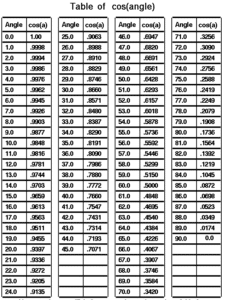
I had a boss once who actually learnt sines and cosines of angles.

Cosines of Angles

Holy shit I mean it’s impressive and I must add in 1975 it was actually worth doing because we didn’t even have calculators.

Hope you enjoyed reading my article on CNC Milling M Codes.

Please remember that it keeps me occupied and while I’m writing these articles I am not holding you up in the supermarkets queue trying to find a coupon for 10p off my incontinence briefs.

Download CNC Milling M Code List


Learn CNC Canned Cycles G81 G84 G73

Learn CNC Programming (Canned Cycles)

Call David:Ā 07834 858 407

CNC Training Centre Reviews

A Canned Cycle What is It?

If you want to learn CNC programming Ā then you need to know what a canned cycle is.

I’m going to have to be honest here it is a funny choice of words “Canned Cycle”. But a wild guess would be that all the information to drill a hole would be kept together in a “Can” ready to use.

In a Can…….Learn CNC

So let’s learn CNC Programming….

Make sure you read the end of this article to see a really cool way to drill equally spaced holes.

First of all we state the cycle:

G81 Z-20. R1. F100. X50. Y50. F200.

The machine will move to X50. Y50. then rapid to 1mm above the part (this is the R1.). It will then feed down to Z-20. at a feedrate of 200 mm per minute F200.

Finally it will rapid out of the hole.

It then sits ready for the next move.

dog-163527

All you need to do now is just keep giving positions.

G81 Z-20. R1. F100. X50. Y50. F200.
X60.
X70.
X80.
X90. Y60.
G80
The G80 at the end will cancel the canned cycle. It just means “Look I am a bit pissed off with drilling holes so can you stop”

So that’s it Canned Cycles it really is that easy you put all the information in the “Can” then each time you give a position you get another hole.

Want to know More?

Thought you would. You want to learn CNC programming don’t you?

There are loads of these canned cycle but I am not going to talk about every one in detail. No sorry you will have to read the boring old manual for that.

Not to Worry They Are All The Same

Well sort of. You state the cycle then it repeats at each position given until you cancel it (and that applies to all the cycles).

Anyway Here are a few:

G84 taps holes, tell it the pitch depth usual stuff.


G73 peck drilling is the same as drilling (G81) but you give it the peck depth.It pecks the hole breaking up the swarf.


G83 same as G73 but with each peck the drill comes right out of the hole. For deep holes or swarf that clogs.


G76 bores a hole, stops at the bottom, moves over and rapids out to avoid marking the bore.

Ok let me tell you this, you are doing great so far. This is how we learn CNC programming. Nice small steps.

G98 G99

I already wrote a post on this click to see it all (it’s truly amazing). I purposely didn’t include it in the cycle above which is ok. The idea was to keep it simple.

Ā G43 Z50.H1 M8

G81 G98 Z-20. R1. F100. X50. Y50. F200.
X60.
X70. G99
X80.
X85. G98
X90. Y60.
G80

g98gif

All it is in a nutshell. G98 returns to the Z point you were at before you started the canned cycle.

G99 will return to the R point (R1.)

Why you ask?

Easy you can jump over shit.

Clamps, high sections on a part, tall buildings, anything.

spiderman-1579249

It Gets Better.

G81 Z-20. R1. F100. X50. Y50. F200.

The Z-20. the R1. the feed-rate etc are all known as parameters. These are the things that control your cycle.

These can be altered at anytime and stay in until you alter them again or cancel the cycle.

G81 Z-20. R1. F100. X50. Y50. F200.
X60.
X70. Z-30. (From here onwards the holes are drilled 30mm deep not 20)
X80.
X90. Y60.
G80

Now let’s alter the feed

G81 Z-20. R1. F100. X50. Y50. F200.
X60. F300. (Change feed)
X70.
X80.F200.(Change it back)
X90. Y60.
G80

Remember it stays in until you say otherwise.

I Think you Now Need to Learn About Modal Information

Read the above article. Modal means that the information stays in the control until you cancel it or change it.

Do’s And Don’ts

Do Not………

Put in a rapid command G0 X50. Y50. it will cancel your cycle and the machine will just sit laughing at you. (No hole drilled).

See this post G0 cancels canned cycle.

G81 Z-20. R1. F100. X50. Y50. F200.
X60.
G0 X70. (Rapid to X70. no hole drilled)
X80. (Rapid to X80. no hole drilled)
X90. Y60. (ETC)
G80 (You already cancelled the cycle with G0)

Do Not Repeat Axis Moves.Ā 

G81 Z-20. R1. F100. X50. Y50. F200.
X60. Y50. (Don’t need Y50.)
X70.
X80.
X90. Y60.
G80

D0…….

  • Always use a canned cycle if possible it saves loads of time. It is also really easy if you need to edit anything.
  • Make your CAD/CAM system output canned cycles, not long hand code. I saves loads of time if you need to edit.
  • Love engineering and be nice to your cat.

Ā Really cool way to drill equally spaced holes

Imagine you need to drill and tap this part. Nine M10 holes.


Learn CNC


Learn CNC


Quite simple but 31.63 added up nine times? Mmmm I never learnt my 31.63 times table.

O0001(Drill and Tap M10)

T01 M06 (20mm Spot Drill)

G90 G0 G54 X0 Y0 S1500 M3

G43 Z3. H1 M8
G81 G98 Z-10. R1. F100 L0
G91 X-31.63 L9
G80
G0 G53 Z0
ETC
M30

Learn CNC Programming? How easy is that?

  • The programme moves to the datum X0 Y0 which is the middle of the part at the right hand end.
  • The G81 has an L0 at the end. L0 is not a Lionel Richie song it just means don’t do one. So it moves to X0 Y0 and does nothing.
  • The next line, G91 means incremental move so it moves incrementally nine times (L9) X-31.63 and drills a hole each time.

Brilliant I told you it was worth waiting for.


Learn CNC


Thanks For Reading

Don’t forget there’s loads more folks.

And a YouTube channel

Call David: 07834 858 407

Learn CNC Programming

Services offered at CNC Training Centre

Edgecam training.

Classroom programmer training.

Onsite CNC Machine Training.

CNC Training on all controls and machines.

Mazak Training Fanuc Training

Don’t forget we offer training on all types of Mazak Machines and all Fanuc Controls 6m to 31i Oi old to young.


Careers in CNC

View all current vacancies in CNC

Click here

Call David: 07834 858 407