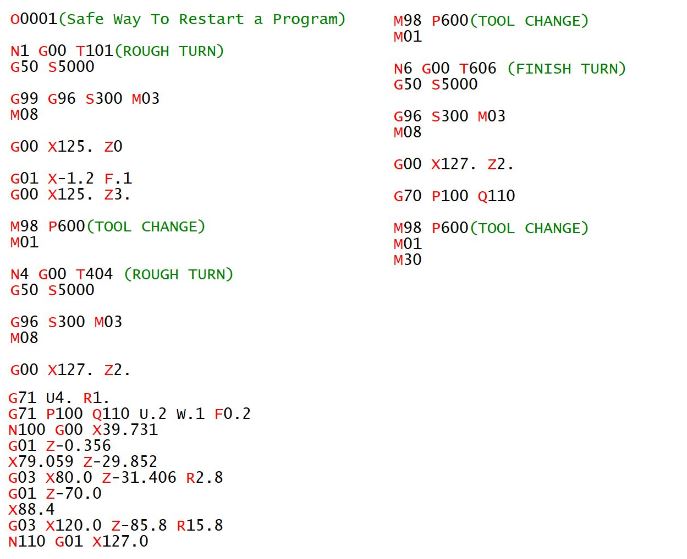
Safe Turning Programme Re-Start. On fanuc controls programme restart has never been a great thing. What most people do is start from a tool change line.
So, you go into edit mode. Search for the tool you want to start at. Change to Memory (Auto) and press the cycle start.
Easy, but what if you select the wrong line. That’s a potential crash.
So imagine you did this and bent the machine. The boss says “Ok this is a no blame culture”. Then after he fires you and shoves a P60 up your arse he looks for a way to stop this happening again.
mmm corned beef hash for tea
Memory Search
With a Fanuc control the only thing you can search for in MEMORY (AUTO) mode is an N number.
Why you may ask?
Read on to find out why I think they did this.
Safe Turning Programme Re-Start
Here is the Plan
Each tool has an N number that corresponds to it’s T number.
You only use N numbers from 1 to 20 for this purpose.
N numbers in your turning cycles are in the hundred series N100 to N900
If you have to use other N numbers use N1000 to N6000
Only restart your programme in MEMORY (AUTO) mode.
Search for the tool number you want to start at (T1 will be N1)
Off you go.
N Number Corresponds to T Number
Safe Turning Programme Re-Start
Now I would be a fool to say this can’t go wrong, so I won’t.
You could pick the wrong tool.
You could pick the wrong N number like N6000 for example.
You could be blind drunk
But I think it is quite a good system to implement.
It would certainly work well for an operator who you want to just operate the machine.
In Conclusion
I think Fanuc made your machine so you could only search N numbers in memory so that you could have this safe restart process.
So if you got into the habit of using G94 Facing Cycle CNC Turning.
When you want to add more cuts it’s easy, piss easy.
So if this blank had 3mm on the face it’s really easy to add some more cuts.
G94 Facing Cycle CNC Turning
Oh just one other thing
This cycle is modal. Notice how all we did was add some Z figures and it just did the facing.
Well just like your wife when you got drunk 15 years ago and urinated in the bed. Well……
It remembers.
So that means we need to stop it. Just by adding a rapid command G0 or G00. It stops. It forgets.
Oh and don’t try n space the code out here because if you leave an extra block in it will face the part again.
I think I need to be honest with you here and confess that until recently I have never seen the point of this G94 code. But now I have seen the error of my ways and I think this demonstrates just how useful it can be.
Now I know some smart prick will say “Oh well I just use G71” . Yes that’s fine but don’t you think it is rather complicated just to face the front off a part that’s too fuckin long?
So when we turn on the machine we would need to zero return the machine. What is Zero Return you ask?
Well when you switch on the machine it’s a bit like when you wake up the next day after drinking a whole bottle of whisky.
First thing you think is where am I? Then the memories flood back of how you were dancing naked on the bar.
A CNC machine is much the same (except they don’t piss in a complete strangers cupboard). So you need to let the machine know where it is.
We move the machine back to it’s zero position and on the way it triggers a dog which is like passing over a button. This tells the machine where it is.
You’ll notice it slows down as it passes over this dog. That gives it time to sort itself out.
No dogs were harmed to create this post
Not a real dog you turkey that would be cruel I mean a switch.
You only need do this when you first turn on the machine. After that the machine always knows where it is.
Jog
Jog what’s Jog? Well in this mode you will have an X Y and Z buttons.
This determines how fast your axis will move when you press X Y or Z in the plus or minus direction.
This very often has a rapid button that you can hold in to make the moves really fast if you really want to shit yourself.
So you can use this to move your axis around. You could even use it to drill a hole or face mill a part.
CNC Help Hand wheel
When you use the hand wheel you would normally be required to select an axis and an increment as below.
If you selected the X axis and an increment of 0.1 then each click of the hand wheel will move the X axis 0.1mm.
The hand wheel always reminds me of the robbers cracking the safe in the old movies.
Again you can use the handwheel much like jog to get the machine in the position you want and maybe drill a hole or something.
Haas handwheels have a really course setting like 1mm a click so beware!! But it’s great for quickly getting around the machines.
Also beware of over-run, because some Haas Toolroom Machines will carry on after you finished turning the hand wheel!!! Holy shit batman.
Just remember that these articles are designed as general guidelines as machines will vary.
If you use the analogy of driving a car then it’s like borrowing your mates car. It will definitely have lights and indicators. You just got to find where the switches and buttons are.
Got this off ebay only 5000 quid
Incremental Jog
Just thought I’d add this in. Some machines have an incremental jog and I suppose it’s a bit of a combination between handwheel and jog.
You select an increment and each time you press the axis button (XYZ) the machine feeds that amount.
Very useful for clocking in bores and stuff like that. Personally I like the idea and if I worked on a machine with this I’d be using it.
It’s important to remember that handwheel and jog can usually be used with the door of the machine open. They may seem gentle and there’s not much noise going on.
Please note you are using the full power of the machine and if your hand is in the way the handwheel will not stop.
MDI
Remember that these modes may have slightly different names but all CNC machines will have them.
Like on some Siemens controls MDI is called MDA (don’t google that one!!!)
Manual Data Input (I suppose it’s kind of self explanatory).
It’s just a way of writing little short bits of CNC code and it’s normally automatically deleted after use.
You could use this for things like doing a tool change or starting the spindle.
Almost anything that you would put in a program can be done in MDI.
It is usually used once and thrown away, not really environmentally friendly single use program.
Most controls have a way of converting this MDI program into a permanent one to keep in memory. Fanuc uses program O0000 for MDI and it’s a bit like a clipboard. You can change this program O0000 to a real program number like O0001.
Some operators only use MDI for tool changes so you might want to keep the code there for whenever you need it.
Moan Moan Moan
On a Fanuc control you have to put an EOB (end of block or semicolon) at the end of the line of code to make it work. Otherwise you get an alarm. Drives me bonkers.
Digital punishment
Memory/Auto/Full Run
This mode can have different names but it’s the mode where you get to run your programme.
After selecting the programme you want to use select this mode.
When you press cycle start the programme will run.
And that red button at the side there is feed hold, it will halt the programme movement but it won’t usually stop the spindle from rotating.
Drip Feed/Tape
This mode is usually for running direct from a Memory Card or PC and it varies from machine to machine. Some will run direct from a floppy disc.
It is for those massive programs too big for the machine memory. Some really old machines will even run a paper tape.
Drip feed is a bit like lying under a beer tap and slowly getting pissed.
Anyway you don’t need to worry your pretty little head about that one at the moment.
Picture of a floppy disc for our younger viewers.
Let’s get on to the interesting shit.
CNC Help Edit
Edit well it’s kinda when you edit….
Yes it’s when you alter the program. In the edit mode you can look at any of your programs stored in your machine and Edit them.
There are massive differences in what you can do depending on your CNC control. Don’t get me started on this one cos I think CNC Machines have been in the stone age on this one for years. Now I’m not going to mention names but even simple things like copying programs can be an absolute piece of shit.
So if your used to the power of editing on a PC get ready to go back in time. Most new machines are pretty good on this now but it’s taken a long time and I still find it really convoluted and counter intuitive. (I don’t know what either of those words mean).
Here is a short video on how to copy and paste on a Fanuc 18i it’s very similar on most oldish Fanuc controls. (Excuse the long intro on the video but I am trying to flog records as well here).
Editing in its simplest form is INSERT ALTER and DELETE.
These are self explanatory but I have put a nice little gif above just to hold your attention.
Most modern controls will have FIND and REPLACE. It is well worth learning to use this because it guarantees that you don’t miss any figures in your programme.
Like if you had X57.65 in your program six times if you use FIND/REPLACE to change em all to X57.66.
You are sure to catch them all and you can be sure they are all accurate. Even if you altered em to the wrong figure at least they will all be the same.
G76 threading start point, when you use a G76 threading cycle on a CNC Lathe the position that you start the tool at is really important.
This is the position you rapid the tool to just before you call the G76 threading cycle.
For example how does the control know if you are producing an internal thread or an external thread.
Actually I learnt this the hard way. It was on an old machine.
Maybe not that old. Anyway I couldn’t get it to perform a G76 threading cycle. It was cutting an external thread but the tool was working it’s way outwards.
What to do Next?
Everything rushed through my head, senile dementia, flashbacks from a misspent youth, did I feed the dog?
Anyway I suddenly realised I didn’t have a dog and that the start position of the tool was wrong.
G76 threading start point how was it wrong?
Well that’s how the machine knows whether you want an internal or external thread. Your start point needs to be inside or outside the thread. What a fuckin dipstick I was.
I had the tool just below the external diameter of the thread. If you do this the machine thinks the thread is internal and therefore cuts outwards.
Correct
So providing the tool is initially placed outside of the maximum diameter it will do exactly what you want.
Incorrect
Put it here and you are in deep shit. The tool will work from this position backwards and you will be totally confused.
So be careful because you might not notice that tiny amount.
Of course if you have a Siemens control Sinumerik 828 840D then this does not apply because you have to specify if the thread is internal or external in the cycle.
Front Clearance (G76 threading start point)
Now let’s think about how far in front of the part you need to be with the threading tool.
Maybe you never thought about it?
Well now’s the time.
Spare a thought for people like me who lie awake at night ruminating about these things. If you don’t know what ruminating means then maybe you shouldn’t be reading this article. Or maybe you just like the pictures.
This is my puppy his name is Donald he is learning to programme a G71 woofing cycle.
Now I need to feed at 6000 mm per minute so this pitch problem will be twice as bad.
Can you see where this is going?
Eat more fish.
No not really, well it is good for you but it’s not what I meant.
The faster you go and the courser your thread pitch the quicker the machine will have to feed.
If you have a coarse pitch thread in aluminium you probably will end up with a super high feed-rate your machine can’t even achieve.
This will all depend on the age of your machine but you must always make this calculation just in case you are trying to cut a thread at the speed of light.
G76 threading start point in Z Axis
This start point distance is really important because it will allow the machine to get up to speed.
I can’t give you exact figures for this, not because I can’t be arsed but because it will vary depending on your machine.
The machine will have a maximum feedrate and it will be in the manual.
You know that old book that you use to prop the door open.
The bigger you make this Z figure the more time your machine will have to get up to speed.
So don’t forget if you are starting at Z1. then the poor old machine doesn’t have much time to get up to speed.
Thanks for watching and reading
If you have been affected by any of the issues in this post or need CNC Counselling then contact me.