Author Archives: David

Haas Spindle Warm Up Macro

Call David: 07834 858 407


CNC Training Centre Reviews

30 five star ratings on Google

Warm up Programme

Haas Spindle Warm Up MacroHaas Spindle Warm Up Macro

This Haas Spindle Warm Up Macro is something I created recently for the Macro training course that we offer at the CNC Training Centre. The course covers Macro Programming suitable for Mazak, Haas and Fanuc.

This course will be available online soon.

Please fill out the enquiry form on the right if you are interested.

I must admit I often think that where Macro programming is concerned, a little knowledge is a dangerous thing. I just think it’s more about a programmer’s ego than really getting good code.

This article gives a brief description of macro programming if you just want the Haas Spindle Warm Up Macro then jump to the end and copy it. I won’t be offended, honestly.

Be Careful What you Wish for.

Gratuitous use of macro programming , can be dangerous and very confusing to the operator using it.

If you don’t know what gratuitous means don’t worry neither do I, I just heard a bloke say it on the telly.

  • Using a macro can automate a regular task.
  • Families of parts can be grouped together in one programme.
  • All macros need to be “fool proofed” you must add alarms to protect from erroneous input.
  • Use parameters to lock and protect your macro programmes.
  • Macros can be aliased to G and M codes.
  • Don’t reinvent the wheel every day, just use a macro.
  • Don’t forget to check if you have the macro option on your machine it can be quite expensive to add on.

This macro (Haas Spindle Warm Up Macro) is for the warming up of the spindle on your Haas machine.

It does not take big leaps in speed so it’s smoother and more gradual.

Set the maximum rpm you want to warm up to and the time you want the warm up to run for. You also set the initial speed you want your spindle to start at from cold. Also give it the amount the speed increases per step.

It will calculate the difference between your start speed and your maximum speed. Then it divides this speed by the speed increment that you give it. From this it will know how many times to loop.

Once in the loop it uses the machine timer #3001. It zeros the timer then runs it for the calculated time each step.

Time needs to be set in milliseconds because that’s what the geeks use in these machine timers, so it multiplies by 60,000.

Ideally I suggest you alias it to an M code.

Alias what the fuck is an alias?

No it’s not like changing your name from Reginald Kenneth Dwight to Elton John no no it is a bit more sophisticated.

What does Alias mean.

It means you can access a programme using your own G code or M code.
Mazak Spindle Warm Up Macro

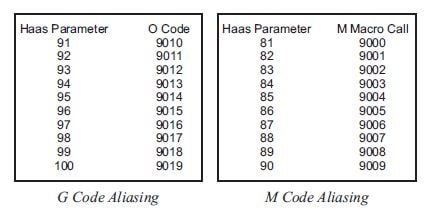
So for example see above. If you put 201 into parameter 91 when you programme a G201 it enters programme 9010. Like programming M98 P9010 or G65 P9010. With a G code you can pass arguments to the programme a bit like G81. In G81 you tell it the depth and rapid point these are the Z and the R values. These are called arguments. So now you can do the same with your very own G code.

G81 G98 Z-10. R1. F100.

Also for parameter 81 (see above) if you put 33 into parameter 81 when you programme M33 the control will jump into programme 9000. You cannot pass arguments when you use an M code. Best not to argue then, I say.

So for my Haas Spindle Warm Up Macro we will use M33 and alias it to programme 9000. So having done all this you can lock out programme 9000 so no one can even see it. (It can be our little secret). They will not be able to edit or delete it either.

All they need to know is that M33 will run the Haas Spindle Warm Up Macro.

M33 is aliased to O9000

A word about testing.

When you test your macro you don’t want your control to look ahead.

Why Does Your Programme Need to Look Ahead?

Let’s talk about cutter compensation:

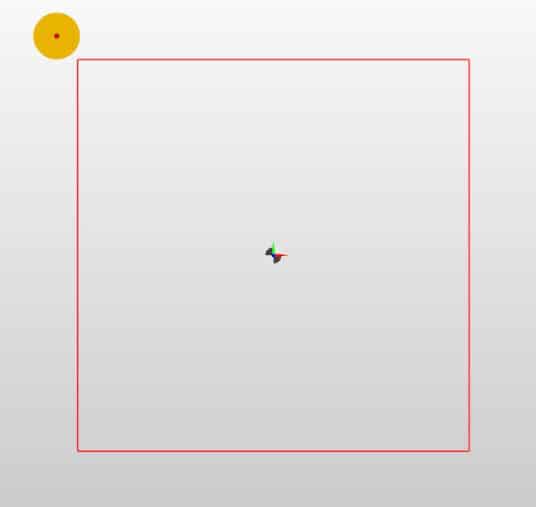
Below is a tool path where the tool is compensated to the left. To machine the part without cutting into it the control would need to read in front.

Mazak Spindle Warm Up Macro

It moves up the left hand side so it needs to know where its going in advance, moving round the outside in single block it would stop here.
Mazak Spindle Warm Up Macro

If it were about to cancel compensation it would end here.

Mazak Spindle Warm Up Macro

If it were about to go left on the inside it would stop here.

Haas Spindle Warm Up Macro

They would all be the same Y position but in single block it would stop in three different places.

So this explains why the control needs to look ahead. Each move relies on the next one for it’s positioning.

When we write macro programmes and are testing them this look ahead can be a real pain in the arse. You see the system often will know the answer before you think it has seen the question.

Complicated? Read on, I meant to confuse you so it makes me look intelligent.

Please Explain

Right , what we do is to use a G code that will stop the system from looking ahead. We can then single block through our macro and check the calculations as we go.

When we are happy with the code we can let the system look ahead again by turning look ahead back on.

Although what you are doing may be very simple in terms of calculations a very simple mistake can really bugger things up.

Be very systematic in your approach and test each section of your macro as you go. As you are happy that each line works move on to the next.

Try my Haas Spindle Warm Up Macro below. Turn off the block look ahead and the single block restriction and check each variable as it changes. It will help you to understand how the Haas Spindle Warm Up Macro works.

One other thing, plan your macro before you start don’t get too excited and rush on. Keep a record of what variables you have used so you don’t accidentally use a variable twice. Things can get very messed up if you do.

Comment, comment, and more comments to say what the comments mean. You can’t have too many comments in a macro. The best approach is to imagine you were abducted by aliens. Will anyone understand your code if they don’t bring you back to Earth?

If you are like me and you have the memory of a goldfish then you will need them for yourself when you look back at this macro in years to come.

Check out this fantastic article on how to lay out your CNC code and comments.

“The code, give me the code?”  you ask.

OK OK.

So here is my Haas Spindle Warm Up Macro.

Hope it is useful to you.

PLEASE DO NOT USE THIS MACRO IF UNDER 18 OR OF A NERVOUS DISPOSITION

Mazak Spindle Warm Up Macro

Oh by the way if you get bored easily then don’t read all this shit. Just put the code in your machine and enjoy it with my compliments.

Haas Spindle Warm Up Macro

O09000 (Haas Spindle Warm Up Macro)

G103 P1 (NO BLOCK LOOK AHEAD)

#3004= 7 (OVERRIDE CONTROL NOT ALLOWED)
#100= 20. (TIME)
#101= #100 * 60000. (TIME MILLISECONDS)

#102= 500. (RPM FROM COLD)
#103= 7000. (MAX RPM)
#104= #103 – #102 (RPM INCREASE)

#105= 1. (RPM STEP)
#106= #104 / #105 (LOOP)
#107= #101 / #106 (DWELL)
M03 S#102 (Start spindle at initial speed)

WHILE [ #106 GT 0 ] DO1 (DO LOOP)
S#102 (START SPINDLE AT INCREASED RPM)
#3001= 0 (RESET INTERNAL TIMER TO ZERO)

WHILE [ #3001 LT #107 ] DO2
END2

#106= #106 – 1 (COUNTER DECREASES BY ONE)
#102= #102 + #105 (INCREASE SPEED BY STEP)
END1

#3004= 0 (OVERRIDE BACK ON)

G103 P0 (NO BLOCK LOOK AHEAD)

M30 

Very boring so what does it all mean? You ask.

Explanation of my Haas Spindle Warm Up Macro

O09000 (Haas Spindle Warm Up Macro)

G103 P1 (NO BLOCK LOOK AHEAD)
(This will stop block look ahead)

#3004= 7 (OVERRIDE CONTROL NOT ALLOWED)
(Set this to a 7 to stop override of speed.)

#100= 20. (TIME)
(Total time of warm up in minutes)

#101= #100 * 60000. (TIME MILLISECONDS)

#102= 500. (RPM FROM COLD)
(Spindle will start at 500 RPM)

#103= 7000. (MAX RPM)
(Maximum RPM you want the warm up to reach)

#104= #103 – #102 (RPM INCREASE)

#105= 1. (RPM STEP)
(This in the step used as the RPM increases)

#106= #104 / #105 (LOOP)
(Calculate the number of times it goes around the loop)

#107= #101 / #106 (DWELL)
(Dwell time after each speed increase)

M03 S#102 (Start spindle at initial speed)

WHILE [ #106 GT 0 ] DO1 (DO LOOP)
S#102 (START SPINDLE AT INCREASED RPM)
#3001= 0 (RESET INTERNAL TIMER TO ZERO)

Haas Spindle Warm Up Macro

WHILE [ #3001 LT #107 ] DO2
(TIMER COUNTS DOWN BY DWELL TIME)
END2

#106= #106 – 1 (COUNTER DECREASES BY ONE)
#102= #102 + #105 (INCREASE SPEED BY STEP)

END1

#3004= 0 (OVERRIDE BACK ON)
(Override works again.)

G103 P0 (BLOCK LOOK AHEAD)
(This will put block look ahead back on)

M30

Single Block

You can stop single block from working in a macro.

It is really annoying if you expect your spindle to warm up in 20 minutes. You come back having made tea cos you left the machine in single block.

“Shit” (expletive of your choice) “the machines been on single block and stopped on 500 rpm for 20 minutes”

#3003= 1 (SINGLE BLOCK OFF)

#3003= 0 (SINGLE BLOCK ON)

Stop single block is used in a G84 tapping cycle. There is a thought, imagine using single block when tapping. (You may need to think about that one)

I also have suppressed spindle override because you want the correct speed in a warm up programme. So your override control won’t work until it’s cancelled again at the end of the macro.

Again this is used in G84.

If you read the code and explanations above you’ll see how it works.

Haas Spindle Warm Up Macro

Oh and by the way here is a similar article for a Mazak machine.

Services offered at CNC Training Centre

Edgecam Training.

Classroom programmer training.

Onsite CNC Machine Training.

CNC Training on all controls and machines.

Mazak Training Fanuc Training

Don’t forget we offer training on all types of Mazak Machines and all Fanuc Controls 6m to 31i Oi old to young.


Fanuc CNC Parameter 14852, Fixed Form Character Length

Fanuc CNC controls include hundreds of parameters that quietly shape how the control behaves. One that often goes unnoticed—but can make a real difference to usability and program readability—is Fanuc CNC Parameter 14852, Bit 4.

This article explains what parameter 14852 bit 4 does, when you might want to change it, and what to watch out for before making any adjustments.

Shibaura Training

Call David: 07834 858 407

CNC Training Centre Reviews

30 five star ratings on Google


What Is Fanuc Parameter 14852 Bit 4?

Parameter 14852, Bit 4 controls the number of characters that can be displayed or entered in each fixed form field on supported Fanuc CNC controls.

When this bit is enabled, the control allows more characters per fixed form, effectively expanding the usable text length within those fields.

In practical terms, this means:

  • Longer text entries are possible
  • Descriptions and identifiers are less likely to be truncated
  • Fixed-form screens become more informative and easier to interpret

The exact behaviour can vary slightly depending on the Fanuc control series and software version, but the purpose of Bit 4 remains the same: increase character capacity per fixed form.


What Are Fixed Forms on a Fanuc Control?

Fixed forms are structured input screens used to quickly create program.

Typical forms:

  • Start of program
  • Call a tool
  • Call a cycle
  • End a program

I means the programmer does not need to memorise loads of G and M codes. The structures is created.

For more details on Fanuc macro variables and fixed forms, check our Fanuc Parameters that cover advanced control functions.


Why Increase the Number of Characters per Fixed Form?

Enabling Parameter 14852 Bit 4 can be particularly useful in the following situations:

1. Improved Program and Process Clarity

Longer character limits allow more information to be added in one keystroke.

2. Better Operator Understanding

Operators can see more meaningful descriptions without abbreviations, reducing the risk of misunderstandings on the shop floor.


How to Set Fanuc Parameter 14852 Bit 4

⚠️ Important: Always back up parameters before making changes. Parameter behaviour can differ between control models.

To change parameters

You need to go to the setting screen in MDI. Now put a 1 in the parameter write box.

Fanuc CNC Parameter 14852 Bit 4

Put a 1 in here.

Compatibility and Control Versions

Parameter 14852 Bit 4 is commonly found on:

  • Fanuc 0i series
  • Fanuc 30i / 31i / 32i series

However:

  • Not all options are enabled on every machine
  • OEMs may lock or modify behaviour
  • Software revisions can affect results

Always consult:

  • The machine tool builder documentation
  • Fanuc parameter manuals for your exact control

Parameter, Risks and Considerations

While enabling this bit is generally safe, keep the following in mind:

  • Some custom screens may be designed around the original character limit
  • Consistency across multiple machines is important in production environments

Summary

Fanuc CNC Parameter 14852 Bit 4 is a small setting with a surprisingly positive impact. By increasing the number of characters allowed in each fixed form, it improves clarity, usability, and allows you to add more code with one quick insert.


Shibaura Tool Retract Tool Recover

Shibaura Tool Retract Tool Recover, I hate it when you have a button on a CNC machine and no one knows what it does.

CNC Training Call David: 07834 858 407


CNC Training Centre Reviews

30 five star ratings on Google (just saying)

Sound familiar,well you should be ashamed of your self. Get off your fat arse and find out what some of these frigging buttons do.

If people didn’t know what buttons did we would have died in a nuclear holocaust many times over.

007, Shibaura Tool Retract Tool Recover

Think of James bond with his fuckin ejector seat, he has some gorgeous chick sat next to him and he says “want the air con on?”. He then accidentally blasts her into next week, not a good look is it.

Anyway let’s talk about these babies, Shibaura Tool Retract Tool Recover

Not a great picture, but then neither was your profile picture before you Photoshopped it so back off.

Anyway I pressed them and all they did was flash.

Gertjan I love You

Two hours later me and my new Dutch friend Gertjan got them working.

I must say the result is awesome, Gertjan the Fanuc guru.

You get to stop your CNC Program, move the tool away, do whatever you want, then return it back before carrying on with the program.

Now for Fanuc users because we are years behind the times this is an absolute arse licking game changer.

Here is How you Do It

Stop your program with feed hold or cycle stop

Shibaura

Now press Tool Retract, Shibaura

Shibaura Tool Retract Tool Recover

The one on the left, it will light up. Now go into Jog or MPG and move your tool away. (This can be up to ten moves). If you need more than that then you are just plain greedy.

You can now change an insert or do whatever you want, I usually make a nice cheese and onion quiche at this point but it’s entirely up to you.

Now switch back to Memory and press CYCLE START, then press Tool Recover.

Your machine will move back, step by step, to it’s position where you so rudely interrupted it. All controled with your feed rate dial.

Shibaura

Don’t you just love that mmmmmm.

What more could you want? A cheese and onion quiche?


Onsite Shibaura CNC Training | Professional CNC Training at Your Facility

Category : New Stuff

Practical Training on Your Own Shibaura CNC Machines

CNC Training Call David: 07834 858 407


CNC Training Centre Reviews

30 five star ratings on Google

All training is carried out on your Shibaura machines, not generic classroom examples. This allows us to tailor the course around:

  • Your specific Shibaura model and control
  • Your tooling, fixtures, and work holding
  • Your components, tolerances, and materials
  • Your current programming and setup methods

This hands-on approach leads to faster learning, better knowledge retention, and immediate improvements on the shop floor.


CNC Training Tailored to Your Team

We structure every onsite Shibaura CNC training course around the experience level of your staff and the results you want to achieve. Training can include:

  • CNC fundamentals for new or developing operators
  • Safe machine operation and best practice setup
  • Datum setting, work offsets, and tool offsets
  • Program editing, proving, and optimisation
  • Cycle time reduction

Whether you need operator training, programmer development, or a productivity-focused refresher, we build the course to match your requirements.


Delivered by Experienced CNC Engineers

Instructors with extensive real-world machining experience. Training is practical, clear, and focused on what actually works in production—not theory alone.

Engineers leave the course with the confidence to:

  • Set up and run Shibaura machines more efficiently
  • Reduce scrap and setup errors
  • Improve repeatability and process reliability
  • Make safe, effective program changes at the machine

Why Choose Onsite Shibaura CNC Training?

  • No travel or offsite disruption
  • Training based on your actual production environment
  • Faster return on investment
  • Immediate, measurable improvements
  • Loads of CNC tips n tricks

Many customers see benefits from day one, including quicker setups, smoother handovers between shifts, and improved machine utilisation.


Why Choose CNC Training Centre?

  • Specialists in onsite CNC training
  • Real-machine training delivered across the UK
  • Courses tailored specifically to Shibaura machines
  • Clear, practical instruction with real results

If you’re looking to upskill your workforce and get more from your Shibaura CNC machines, our onsite training provides a highly effective and cost-efficient solution.

Contact CNC Training Centre today to discuss your onsite Shibaura CNC training requirements and let us design a course around your business.


Manual Guide i Access Tools

CNC Training Call David: 07834 858 407


CNC Training Centre Reviews

30 five star ratings on Google (just saying)

Ever been writing a program in Manual Guide i and wanted to look into the tool offsets?

Well obviously you can but it is a pain in the arse to switch from one screen to another.

Anyway help is at hand I’m going to show you a quick parameter change that will allow you to acces the tool offsets quickly.

If you want to know right now, skip to the end of this article, cos I’m going to rant a bit.

I recently got allowed into Holland to do some training on a Shibaura CNC machine for my mates at Leader CNC who sell these beasts.

Manual Guide i

Anyway anyone who knows me knows that I’m way too old and decrepit to actually work but unfortunately for the CNC World I still do.

I fluctuate between hating my job and retiring to go on cruises where it’s the norm to shit your pants and get a semi erection watching  a Freddy and the Dreamers tribute band.

The alternative is to carry on working and keep paying off the wife’s credit card bill which is the obvious choice.

Anyway when I landed in Amsterdam they gave me a car. First thing I thought was “why the fuck is the steering wheel on the wrong side of the car?”.

May be it was a Monday morning car and they just got it wrong. Any way I spent the next two hours trying to convince all the Dutch drivers that they needed to drive on the correct side of the road.

I made a stand for British values and refused to budge. The roads in Holland are so nice and the road makings are perfect like driving on rails. They just need to stop driving straight at you.

It’s not the same without the pot holes though these roads are for wimps not real men.

Back To Manual Guide i Access Tools

By altering a parameter you get to do this:

Click on the tool number.

Manual Guide i Access Tools

There it is in yellow, then press the ALTER key

Manual Guide i Access Tools

Voila the tool screen appears.

Manual Guide i

You can now modify tools or just take a good nose in there. Press CLOSE when you are pissed off with it and it will go away.

Ha ha, yours won’t work. Send £200 to me and I’ll tell you how.

Only joking, you just need to alter parameter 14705 bit 7 to a 1 and it works.

Manual Guide i Access Tools

Oh and you have to shut down the machine for this to work.

Manual Guide i

By the way if you fuck your machine it’s not my fault. Take a picture or a screen shot before you alter anything. you now have a reverse gear.

I would love to take credit for this but it was my new dutch friend Gertjan who showed me how.

I get to meet some great people and he is definitely is one of them. We exchanged loads of tips he showed me this and loads of other things. I did show him something, how men really can multitask, keep an eye on the door whilst watching porn.


Careers in CNC

View all current vacancies in CNC

Click here

Call David: 07834 858 407