Why Copy your programs?
Copy programs Fanuc 0i-TF, it is often necessary to duplicate (copy) an existing CNC program on your machine—for creating variations, backups, testing modifications, or transferring to another program number without starting from scratch.
This step-by-step guide shows how to copy a program on a **Fanuc 0i-TF** control, specifically on a **Star SB-20R Type G** sliding head lathe, which uses a dual-path (two-channel) setup.
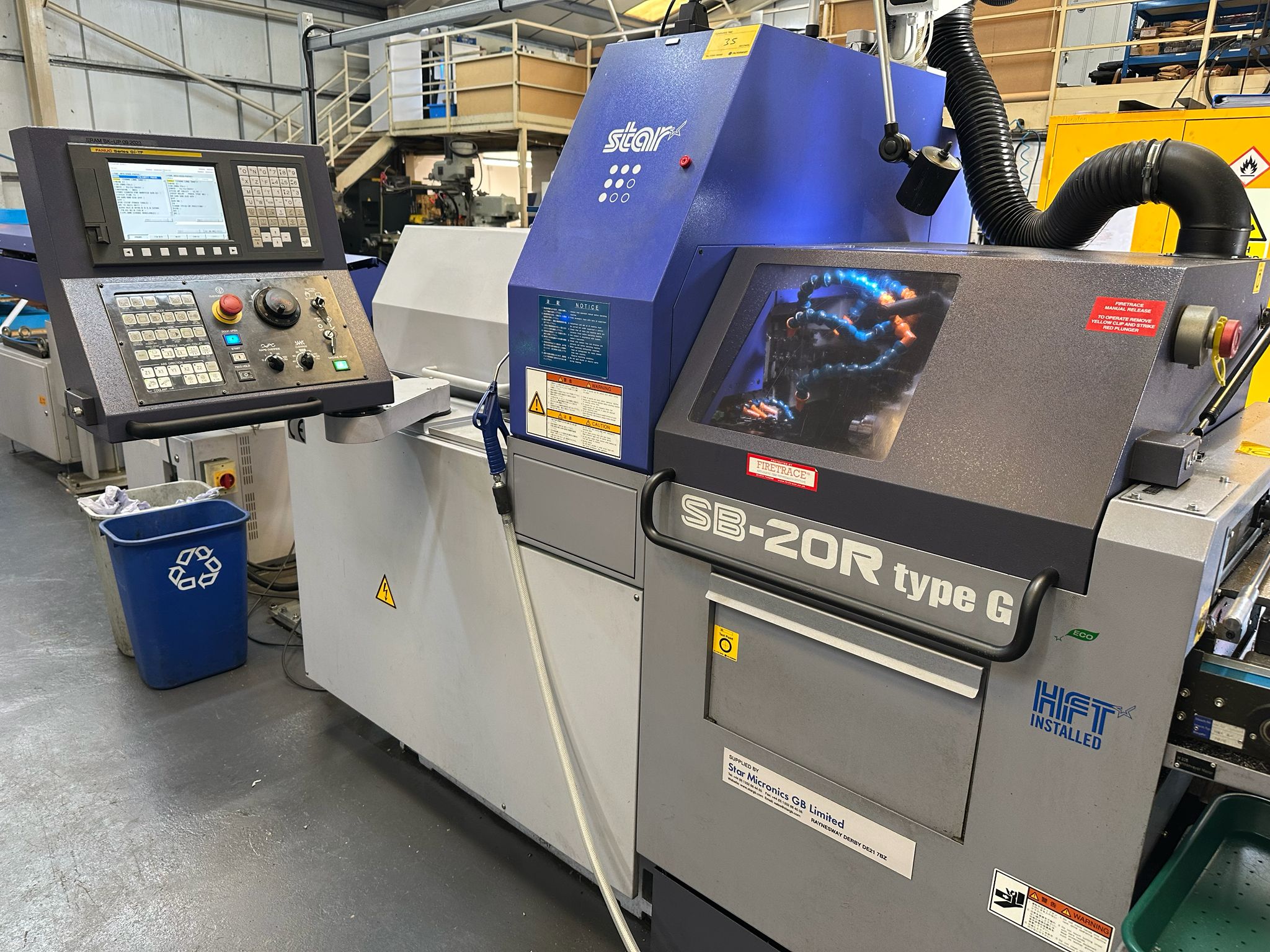
Copy programs Fanuc 0i-TF
Be sure the USB is plugged in. Refer to this article if it is not setup.
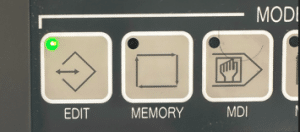
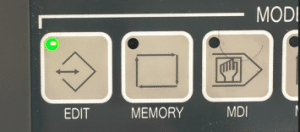
Edit
First thing we need is to get in the EDIT mode.
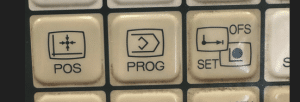
Then press your PROG button.
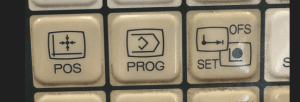
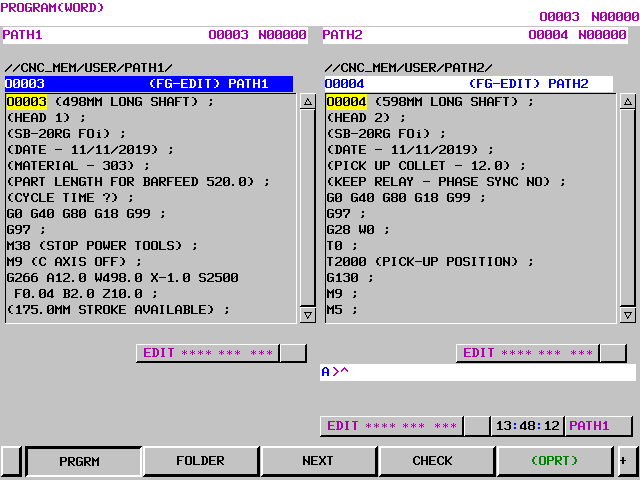
Your program will now be displayed.
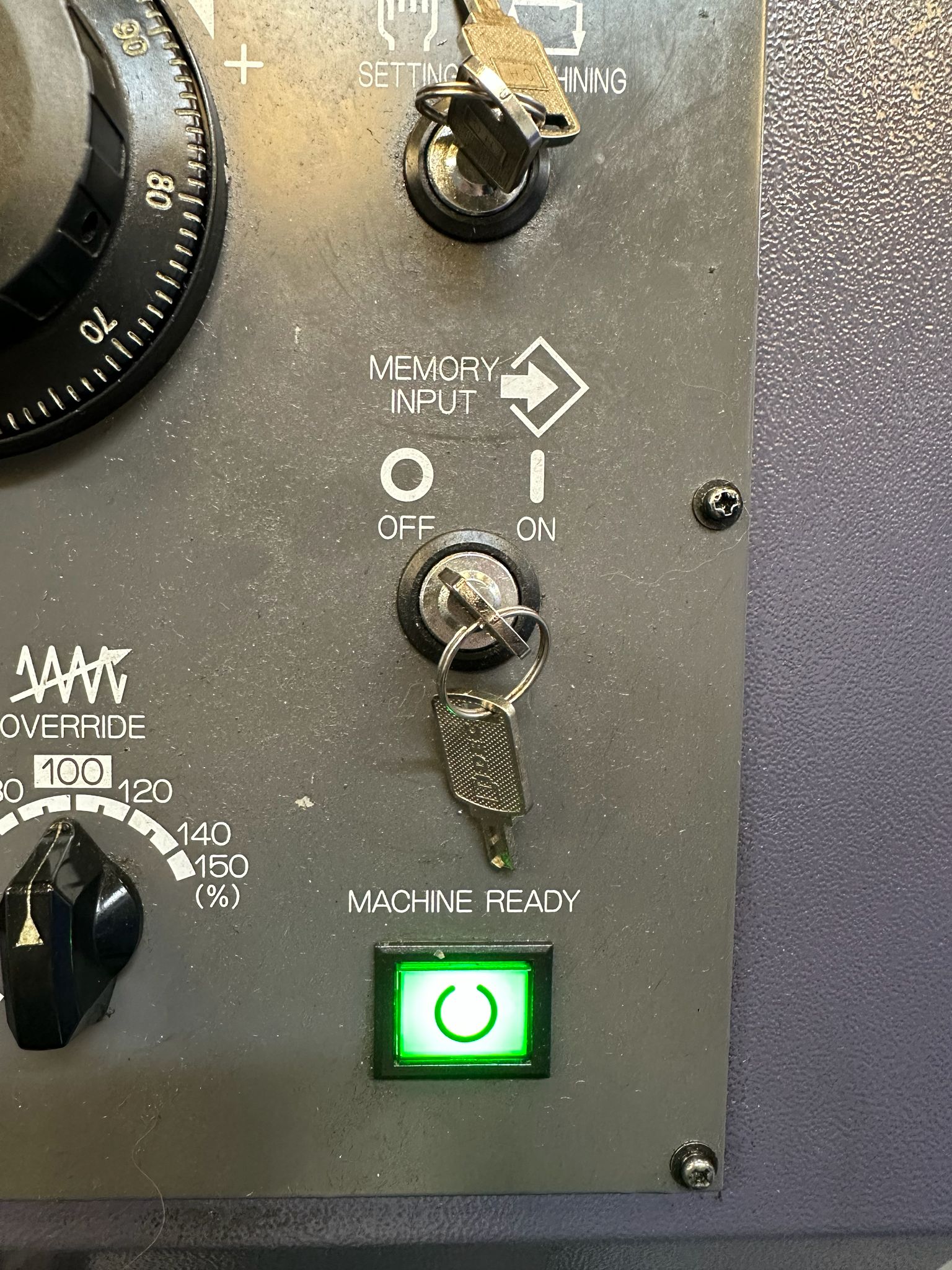
You will need your keyswitch in the on position to allow any kind of editing
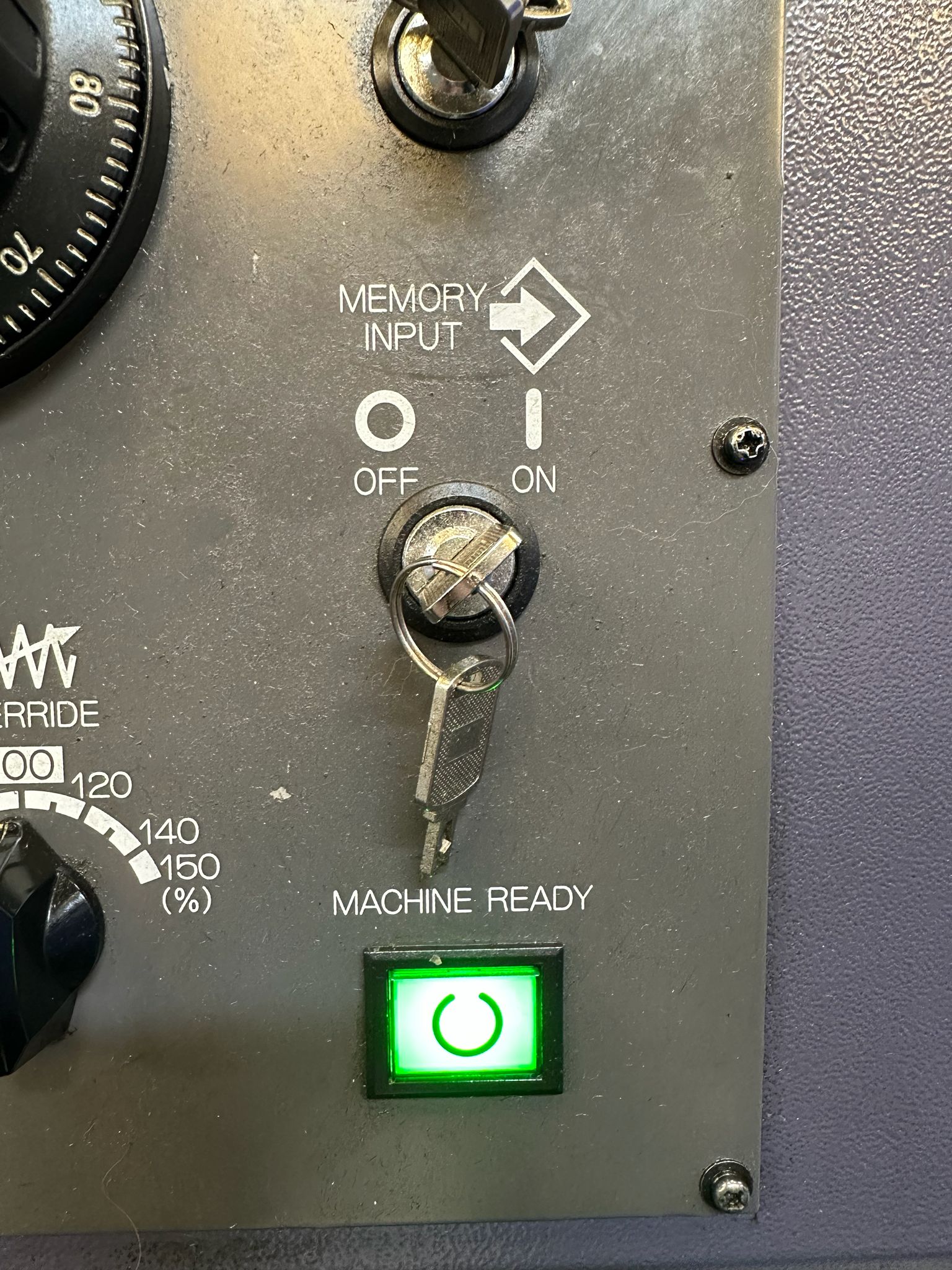
In the off position below you will not be allowed to edit
Copy programs Fanuc 0i-TF
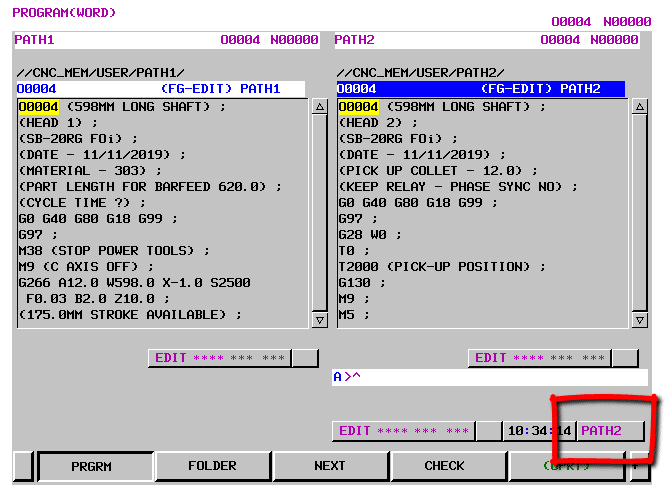
Because this machine is a sliding head machine running two simultaneous channels you have to sect a path.
First of all turn off the path buttons.
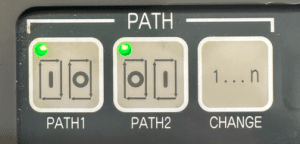
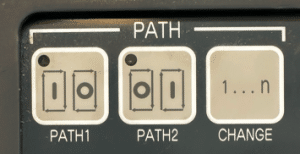
Just press them. The path (channel) you are on will highlight in blue on the screen. It will also show in the right hand corner.
Copy programs Fanuc 0i-TF
Press this button to switch from one path to the other.
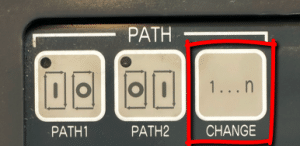
Don’t forget that this machine has two independent sets of programs so each path will have its own programs.
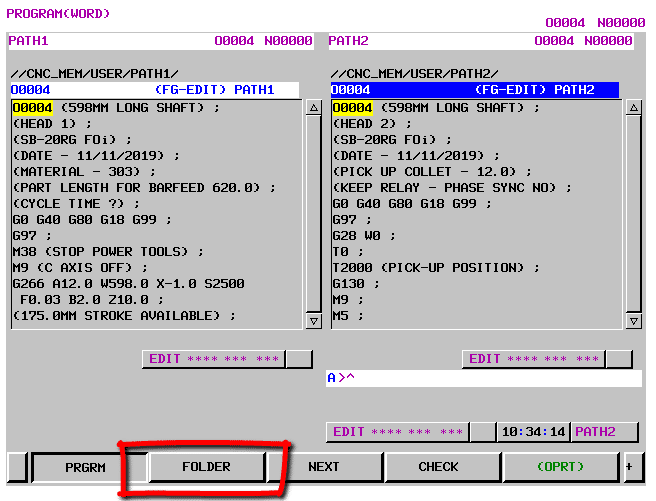
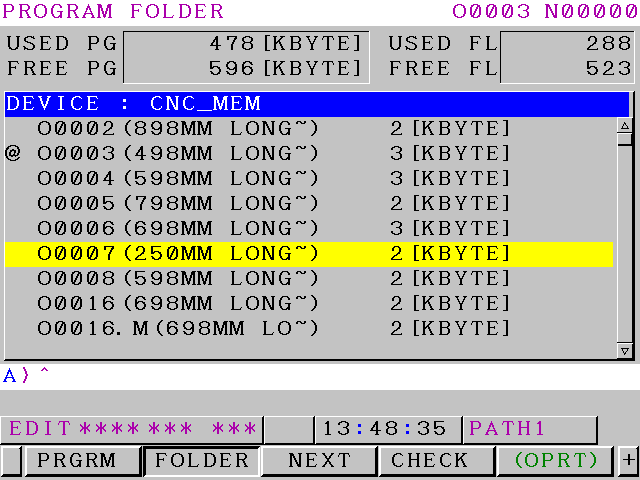
Now press FOLDER to display the programs.
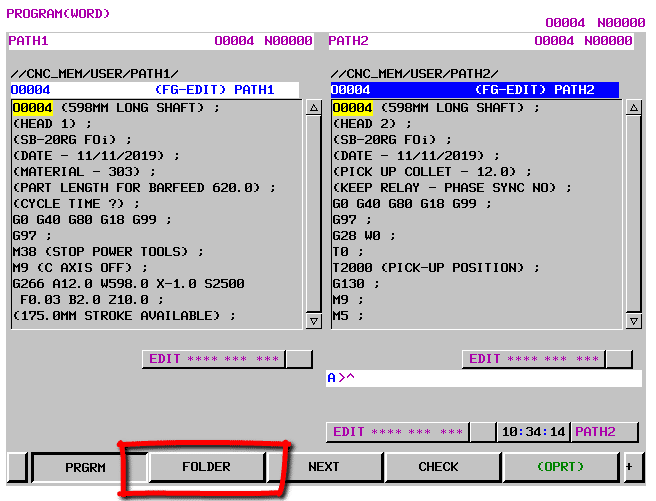
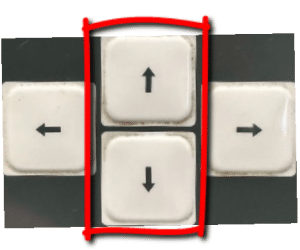
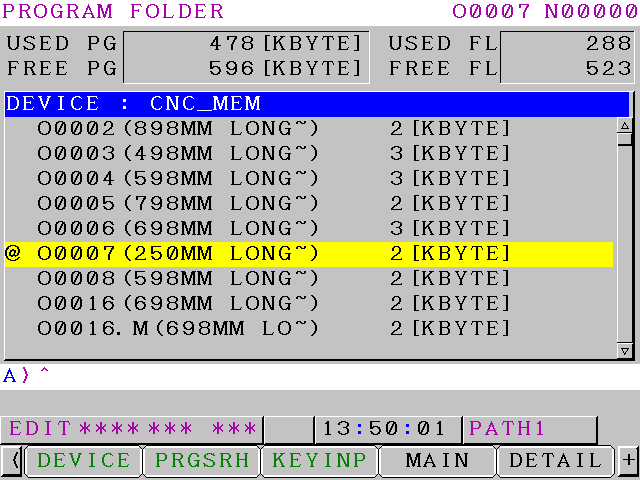
Cursor up and down to find the program you want to copy. Press OPRT for more options.
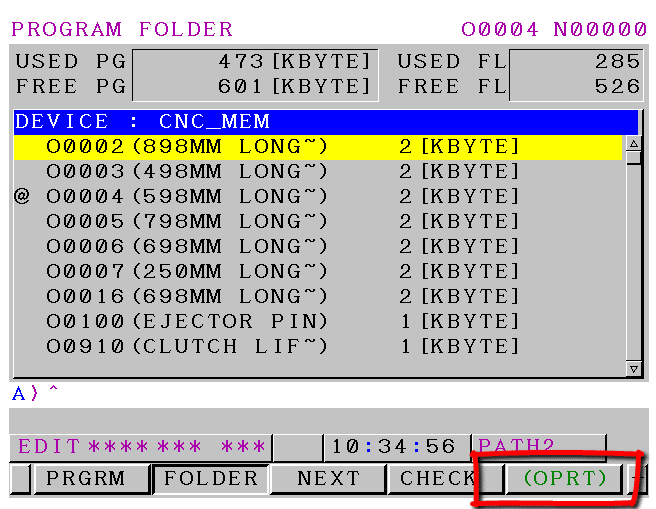
Copy programs Fanuc 0i-TF
You can now press the green SELECT button to give you the selection choices.
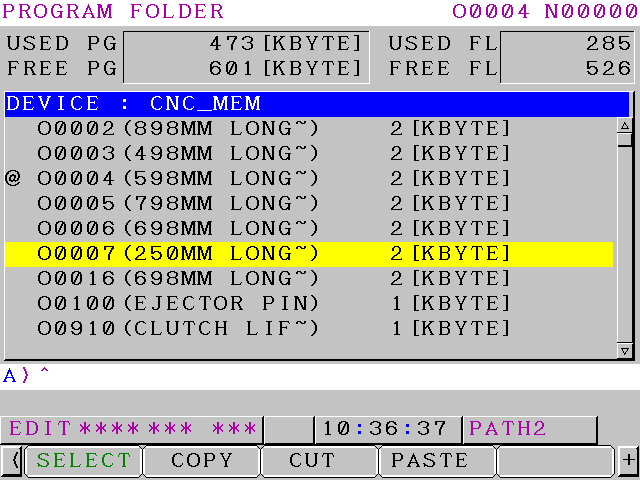
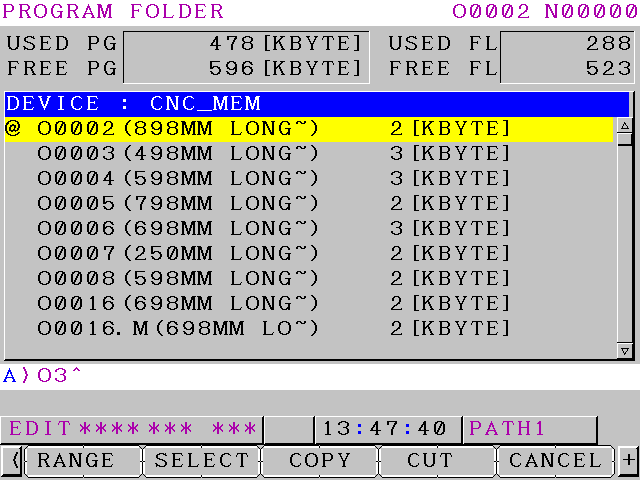
If you move up or down you will see that your program is highlighted in blue. You can use the RANGE button if you want to copy more than one program for example to a USB stick.
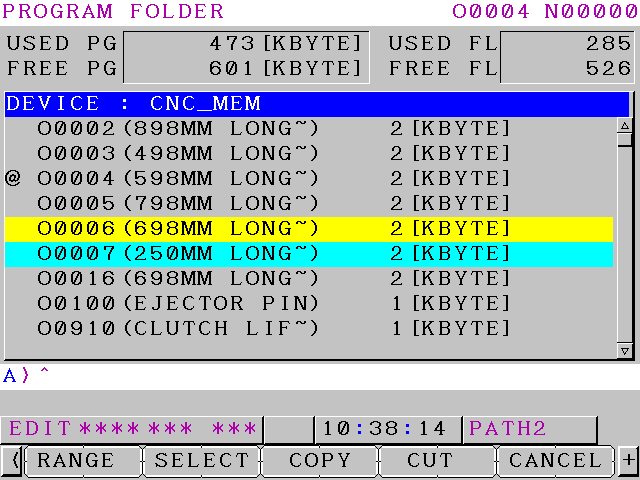
You now need to press COPY and this will put your program onto the clipboard.
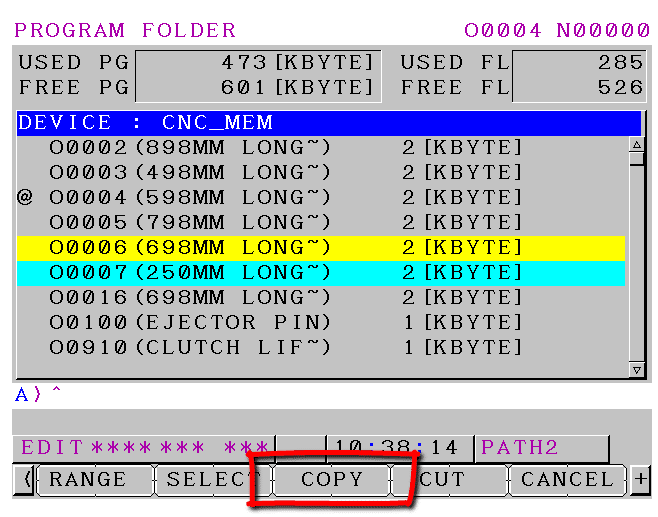
Copy programs Fanuc 0i-TF
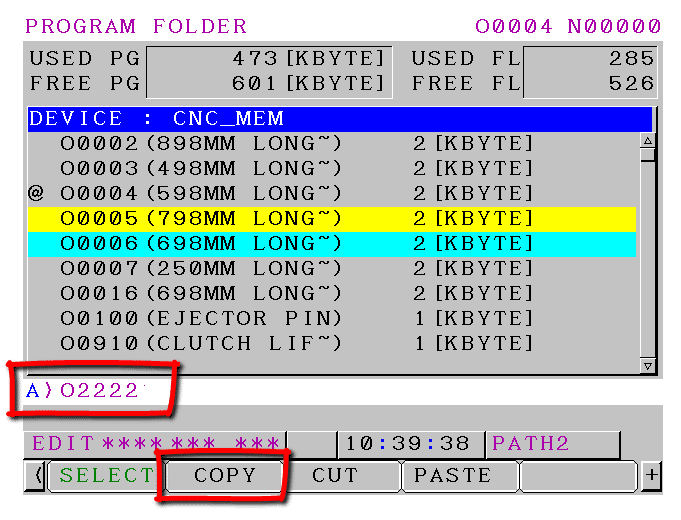
You can now type in the number of the program you need to copy it to. In this example its program O2222
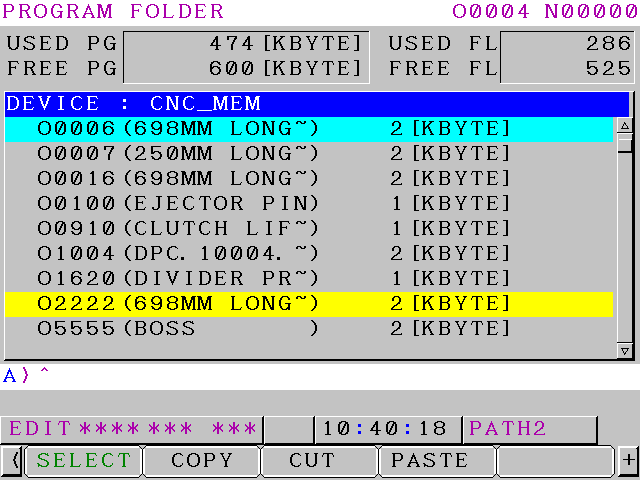
If you move your cursor down you will see your new copied program.
Quick Checklist:
How to Copy/Duplicate a CNC Program on Fanuc 0i-TF (Star SB-20R Sliding Head Lathe)
– **Preparation**
– Ensure USB is inserted and recognised (if needed for backup).
– Switch machine to **EDIT** mode.
– Never do this during machining (AUTO or MDI active).
– **Select the Correct Path (Channel)**
– Press **PROG** to show programs.
– Turn off any active path highlights (press path buttons if lit).
– Check top-right corner or screen highlight for current path (blue = active).
– Toggle path button to switch between Path 1 and Path 2.
– Confirm correct path—programs are separate per path!
– **Access Program List**
– Press **FOLDER** soft key to view program directory.
– **Select Program to Copy**
– Cursor to desired program (e.g., O1234).
– Press **OPRT** (Operation) soft key.
– Press green **[SELECT]** soft key—program highlights in blue.
– (Optional: Use **RANGE** for multiple programs.)
– **Copy to Clipboard**
– Press **COPY** soft key.
– **Create Duplicate**
– Cursor down to empty area or new line in directory.
– Type new program number (e.g., **O2222**).
– Press **PASTE** (or equivalent paste/execute soft key—may be under extended menu).
– Refresh/scroll—new program appears.
– **Verify & Finish**
– Cursor to new program number → Press **INPUT** or **PROG** to open and check contents.
– Test/simulate if needed before running.
– Repeat for other path if required.
**Pro Tips**
– If alarm occurs (e.g., invalid number), re-type new O-number carefully.
– For USB copy: After COPY, use device change to USB → PASTE there (reverse for import).
– Always back up originals—dual-path machines like Star SB-20R keep programs isolated per channel.